All posts in " command-line-interface "

Strimzi Kafka CLI Version Update (Strimzi 0.26.1 – 0.28.0)

By Aykut Bulgu / March 26, 2022

Hi everyone. I recently updated the Strimzi Kafka CLI to the following Strimzi versions:

  • Strimzi 0.26.1 (for AMQ Streams 2.0.1) – 0.1.0a60
  • Strimzi 0.28.0 (latest) – 0.1.0a61

Note that 0.1.0a61 is the latest version and Strimzi CLI is still in alpha state.

If you are using AMQ Streams 2.0.1, then install Strimzi CLI as follows:

pip install strimzi-kafka-cli==0.1.0a60

If you are using Strimzi 0.28.0 (currently the latest);

By using pip:

pip install strimzi-kafka-cli

By using homebrew:

brew tap systemcraftsman/strimzi-kafka-cli && brew install strimzi-kafka-cli

Or you can upgrade to the latest version, which is currently 0.1.0a61;

By using pip:

pip install strimzi-kafka-cli --upgrade

By using homebrew:

brew upgrade strimzi-kafka-cli

Any updates on Strimzi Kafka CLI will be done on the latest version so the version 0.1.0a60 that is for Strimzi 0.26.1 will not be affected by these changes. There is no LTS support for now for any AMQ Streams version because the CLI is in the alpha state yet.

If you want to use a recent version of the CLI for AMQ Streams 2.0.1 (Strimzi 0.26.1), set the following environment variable to use Strimzi 0.26.1. The current latest version is compatible with Strimzi 0.26.1 as soon as you set the following environment variable.

export STRIMZI_KAFKA_CLI_STRIMZI_VERSION=0.26.1

Stay tuned for future releases. See the current workflow here and contribute if you are interested!

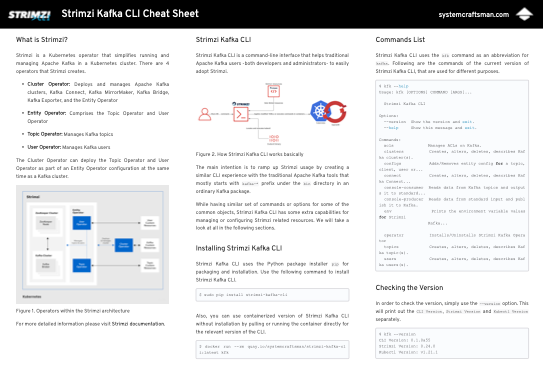
New to Strimzi CLI? Check out this cheat sheet:

Continue reading >
Share

Installing Strimzi CLI with Homebrew

By Aykut Bulgu / October 5, 2021

It has been a while since a friend of mine asked if Strimzi CLI can be installed with Homebrew.

I had to answer by saying “No” that time. But now my friend, we have the Homebrew installer:)

I had been thinking that using the Python package installer is enough because any OS can have Python and pip and so the CLI. After some time, I changed my mind since these package managers are just tools that people might be a bit fanatic of.

So why not start to support other package managers? Asking this question to myself, I decided to start with Homebrew because macOS (and Mac itself) is pretty popular among developers.

To install Strimzi CLI with Homebrew, first, you need to add the `tap` of the package:

brew tap systemcraftsman/strimzi-kafka-cli

Then you can run the `brew install` command for Strimzi CLI:

brew install strimzi-kafka-cli

The installer will check whether you have Python 3 on your machine or not and install it if it does not exist.

Here is a short video that I demonstrate how to install Strimzi CLI with Homebrew.

More curious about Strimzi CLI? Check out the Strimzi Kafka CLI Cheat Sheet to explore Strimzi Kafka CLI capabilities at a glance!

Continue reading >
Share

A Cheat Sheet for Strimzi Kafka CLI

TL;DR: You can download the Strimzi CLI Cheat Sheet from this link if you are curious about Strimzi CLI capabilities and want a kind of quick reference guide for it.

It is a little bit more than one year since I first announced Strimzi Kafka CLI; a command-line interface for Strimzi Kafka Operator.

It was a 4-month-old project back then and I was too excited about the project to share it before it is Beta.

Well now it is a nearly 1.5 years old project that is still in Alpha since there is still a lot to harden for the Beta roadmap but in the meanwhile added many features like creating the operator from the command-line, creating the Kafka cluster with just one command, and managing a Kafka Connect cluster and its connectors with a similar way to the traditional one.

Through this time, I published a variety of videos in the System Craftsman Youtube channel about Strimzi CLI features and how it simplifies Strimzi usage imperatively. Most importantly, shared its advantages over the declarative model by explaining its story in a presentation that I did in an internal event of Red Hat. (Planning to do it publicly as well by submitting the same talk for CFPs)

With a lot of interest in the videos and the posts that I have been sharing from here, I thought that a document that gathers all the current features of the CLI in a summarized way would be great. So I decided to create a cheat sheet for Strimzi Kafka CLI.

After a few months of work (yes, unfortunately, it took a bit long since I have a full-time job🙂), I was able to finish the cheat sheet and find a proper way to distribute it safely.

The cheat sheet has shell command examples for different features of Strimzi CLI. So if you take a quick look at inside, you will see it has 7-8 pages that have more or less the following concepts:

  • A short definition of what Strimzi Kafka Operator is
  • How Strimzi Kafka CLI works
  • How to install it
  • Managing Strimzi Kafka Operator via CLI
  • Managing Kafka clusters via CLI
  • Managing Kafka topics
  • Producing and consuming messages
  • Managing users
  • Managing ACLs
  • Managing cluster, topic and user configurations
  • Kafka Connect and connectors

You can download the Strimzi CLI Cheat Sheet from this link if you are curious about Strimzi CLI capabilities and want a kind of quick reference guide for it.

Here is a short video that I do a quick walk-through for Strimzi Kafka CLI Cheat Sheet:

Continue reading >
Share

Creating a Kafka Connect Cluster on Strimzi by using Strimzi CLI

Kafka Connect

In this example, we will create a Kafka Connect cluster, and a few connectors that consumes particular twitter topics and writes them to an elasticsearch index to be searched easily.

We are not going to deal with any custom resources of Strimzi. Instead we will use traditional .property files that are used for Kafka Connect instances and connectors, with the help of Strimzi Kafka CLI.

Prerequisites

  • A Kubernetes/OpenShift cluster that has Strimzi Kafka Operator installed.
  • A namespace called kafka and a Kafka cluster called my-cluster
  • An elasticsearch instance up and running in the same namespace. (You can use the elasticsearch.yaml file in the repository if you have the ElasticSearch Operator running.)
  • A public image registry that has a repository called demo-connect-cluster.
  • Most importantly, a Twitter Developer Account that enables you to use Twitter API for development purposes. In this example we are going to use it with one of our Kafka Connect connectors.
  • This part of the repository. Clone this repository to be able to use the scripts provided for this example.

As a recommendation create the namespace first:

$ kubectl create namespace kafka

Or you can use the new-project command if you are using OpenShift.

$ oc new-project kafka

Then install the Strimzi Operator if its not installed. You can use Strimzi CLI for this:

$ kfk operator --install -n kafka

Clone the repo if you haven't done before and cd into the example's directory.

$ git clone https://github.com/systemcraftsman/strimzi-kafka-cli.git
$ cd strimzi-kafka-cli/examples/5_connect

Create Kafka and Elasticsearch cluster by running the setup_example.sh script in the example's directory:

$ chmod +x ./scripts/setup_example.sh
$ ./scripts/setup_example.sh

This will create a Kafka cluster with 2 brokers, and an Elasticsearch cluster that's accessible through a Route.

Keep in mind that this script doesn't create the Elasticsearch operator which Elasticsearch resource that is created in this script needs. So first you will need to install the operator for Elasticsearch before running the helper script.


NOTE

If you are using Kubernetes you can create an Ingress and expose the Elasticsearch instance.

Exposing the Elasticsearch instance is not mandatory; you can access the Elasticsearch instance cluster internally.


Lastly create an empty repository in any image registry of your choice. For this example we are going to use Quay.io as our repository will be quay.io/systemcraftsman/demo-connect-cluster.

Creating a Kafka Connect Cluster with a Twitter Source Connector

For this example, to show how it is easy to create a Kafka Connect cluster with a traditional properties file, we will use an example of a well-known Kafka instructor, Stephane Maarek, who demonstrates a very basic Twitter Source Connector in one of his courses.

So let's clone the repository https://github.com/simplesteph/kafka-beginners-course.git and change directory into the kafka-connect folder in the repository.

In the repository we have this twitter.properties file which has the following config in it:

name=TwitterSourceDemo
tasks.max=1
connector.class=com.github.jcustenborder.kafka.connect.twitter.TwitterSourceConnector

# Set these required values
process.deletes=false
filter.keywords=bitcoin
kafka.status.topic=twitter_status_connect
kafka.delete.topic=twitter_deletes_connect
# put your own credentials here - don't share with anyone
twitter.oauth.consumerKey=
twitter.oauth.consumerSecret=
twitter.oauth.accessToken=
twitter.oauth.accessTokenSecret=

This connector get the tweets statuses or deletions and saves them into the twitter_status_connect or twitter_deletes_connect depending on the action. The filter.keywords defines the keywords to be filtered for the returned tweets. In this case it is set as bitcoin, so this will consume every tweet that has bitcoin and put it in the relevant topics.

Now let's make a few changes on this file regarding the content and restrictions that Strimzi has for topic names.

Copy the twitter.properties file and save it as twitter_connector.properties which you will be editing.

In the new file change the twitter_status_connect to twitter-status-connect which Strimzi will complain about since it is not a good name for a topic. Normally Apache Kafka returns a warning about this but allows this underscore(_) convention. Since Strimzi uses custom resources for managing Kafka resources, it is not a good practice to use underscores in the topic names, or in any other custom resource of Strimzi.

Also change the twitter_deletes_connect to twitter-deletes-connect and the connector name to twitter-source-demo for a common convention.

Enter your Twitter OAuth keys which you can get from your Twitter Developer Account. For the creation of a Twitter Developer Account, Stephane explains this perfectly in his Kafka For Beginners course on Udemy. So I recommend you to take a look at both the course and the twitter setup that is explained.

Finally, change the bitcoin filter to kafka for our demo (Or you can change it to anything that you want to see the tweets of).

The final connector configuration file should look like this:

name=twitter-source-demo
tasks.max=1
connector.class=com.github.jcustenborder.kafka.connect.twitter.TwitterSourceConnector

# Set these required values
process.deletes=false
filter.keywords=kafka
kafka.status.topic=twitter-status-connect
kafka.delete.topic=twitter-deletes-connect
# put your own credentials here - don't share with anyone
twitter.oauth.consumerKey=_YOUR_CONSUMER_KEY_
twitter.oauth.consumerSecret=_YOUR_CONSUMER_SECRET_
twitter.oauth.accessToken=_YOUR_ACCESS_TOKEN_
twitter.oauth.accessTokenSecret=_YOUR_ACCESS_TOKEN_SECRET_

Notice how little we changed (actually just the names) in order to use it in the Strimzi Kafka Connect cluster.

Because we are going to need the twitter-status-connect and twitter-deletes-connect topics, let's create them upfront and continue our configuration. You must have remembered our kfk topics --create commands topics creation with Strimzi Kafka CLI:

$ kfk topics --create --topic twitter-status-connect --partitions 3 --replication-factor 1 -c my-cluster -n kafka
$ kfk topics --create --topic twitter-deletes-connect --partitions 3 --replication-factor 1 -c my-cluster -n kafka

Now let's continue with our Connect cluster's creation.

In the same repository we have this connect-standalone.properties file which has the following config in it:

...output omitted...
bootstrap.servers=localhost:9092

...output omitted...
key.converter=org.apache.kafka.connect.json.JsonConverter
value.converter=org.apache.kafka.connect.json.JsonConverter

...output omitted...
key.converter.schemas.enable=true
value.converter.schemas.enable=true

offset.storage.file.filename=/tmp/connect.offsets
# Flush much faster than normal, which is useful for testing/debugging
offset.flush.interval.ms=10000

...output omitted...
plugin.path=connectors

Kafka Connect normally has this plugin.path key which has the all connector binaries to be used for any connector created for that Connect cluster. In our case, for Strimzi, it will be a bit different because we are going to create our connect cluster in a Kubernetes/OpenShift environment, so we should either create an image locally, or make Strimzi create the connect image for us. We will use the second option, which is fairly a new feature of Strimzi.

Only thing we have to do, instead of defining a path, we will define a set of url that has the different connector resources. So let's copy the file that Stephane created for us and save it as connect.properties since Kafka Connect works in the distributed mode in Strimzi (there is no standalone mode in short).

In the connect.properties file change the plugin.path with plugin.url and set the following source url to it:

plugin.url=https://github.com/jcustenborder/kafka-connect-twitter/releases/download/0.2.26/kafka-connect-twitter-0.2.26.tar.gz

By comparing to the original repository, you can see in the connectors folder there are a bunch of jar files that Twitter Source Connector uses. The url that you set above has the same resources archived. Strimzi extracts them while building the Connect image in the Kubernetes/OpenShift cluster.

Speaking of the image, we have to set an image, actually an image repository path, that Strimzi can push the built image into. This can be either an internal registry of yours, or a public one like Docker Hub or Quay. In this example we will use Quay and we should set the image URL like the following:

image=quay.io/systemcraftsman/demo-connect-cluster:latest

Here you can set the repository URL of your choice instead of quay.io/systemcraftsman/demo-connect-cluster:latest. As a prerequisite, you have to create this repository and make the credentials ready for the image push for Strimzi.

Apart from the plugin.path, we can do a few changes like changing the offset storage to a topic instead of a file and disabling the key/value converter schemas because we will just barely need to see the data itself; we don't need the JSON schemas.

Lastly change the bootstrap.servers value to my-cluster-kafka-bootstrap:9092, as my-cluster-kafka-bootstrap is the my-cluster Kafka cluster's Kubernetes internal host name that is provided by a Kubernetes Service.

So the final connect.properties file should look like this:

...output omitted...

bootstrap.servers=my-cluster-kafka-bootstrap:9092

# The converters specify the format of data in Kafka and how to translate it into Connect data. Every Connect user will
# need to configure these based on the format they want their data in when loaded from or stored into Kafka
key.converter=org.apache.kafka.connect.json.JsonConverter
value.converter=org.apache.kafka.connect.json.JsonConverter
# Converter-specific settings can be passed in by prefixing the Converter's setting with the converter we want to apply
# it to
key.converter.schemas.enable=false
value.converter.schemas.enable=false

offset.storage.topic=connect-cluster-offsets
config.storage.topic=connect-cluster-configs
status.storage.topic=connect-cluster-status
config.storage.replication.factor=1
offset.storage.replication.factor=1
status.storage.replication.factor=1

...output omitted...

image=quay.io/systemcraftsman/demo-connect-cluster:latest
plugin.url=https://github.com/jcustenborder/kafka-connect-twitter/releases/download/0.2.26/kafka-connect-twitter-0.2.26.tar.gz

Again notice how the changes are small to make it compatible for a Strimzi Kafka Connect cluster. Now lets run the Kafka Connect cluster in a way that we used to do with the traditional CLI of Kafka.

In order to start a standalone Kafka Connect cluster traditionally some must be familiar with a command like the following:

$ ./bin/connect-standalone.sh connect.properties connector.properties

The command syntax for Strimzi Kafka CLI is the same. This means you can create a Connect cluster along with one or more connectors by providing their config properties. The only difference is, Strimzi runs the Connect cluster in the distributed mode.

Run the following command to create to create a connect cluster called my-connect-cluster and a connector called twitter-source-demo. Don't forget to replace your image registry user with _YOUR_IMAGE_REGISTRY_USER_.

$ kfk connect clusters --create --cluster my-connect-cluster --replicas 1 -n kafka connect.properties twitter_connector.properties -u _YOUR_IMAGE_REGISTRY_USER_ -y

IMPORTANT

You can also create the cluster with a more controlled way; by not passing the -y flag. Without the -y flag, Strimzi Kafka CLI shows you the resource YAML of the Kafka Connect cluster in an editor, and you can modify or just save the resource before the creation. In this example we skip this part with -y flag.


You should be prompted for the registry password. Enter the password and observe the CLI response as follows:

secret/my-connect-cluster-push-secret created
kafkaconnect.kafka.strimzi.io/my-connect-cluster created
kafkaconnector.kafka.strimzi.io/twitter-source-demo created

IMPORTANT

Be careful while entering that because there is no mechanism that checks this password in Strimzi Kafka CLI, so if the password is wrong, simply the Connect image will be built sucessfully, but Strimzi won't be able to push it to the registry you specified before.

In case of any problem just delete the Connect cluster with the following command and create it again:

$ kfk connect clusters --delete --cluster my-connect-cluster -n kafka -y

Or you can delete/create the push secret that is created if you are experienced enough.


Now you can check the pods and wait till the Connect cluster pod runs without a problem.

$ watch kubectl get pods -n kafka
...output omitted...
my-connect-cluster-connect-8444df69c9-x7xf6   1/1     Running     0          3m43s
my-connect-cluster-connect-build-1-build      0/1     Completed   0          6m47s
...output omitted...

If everything is ok with the connect cluster, now you should see some messages in one of the topics we created before running the Connect cluster. Let's consume messages from twitter-status-connect topic to see if our Twitter Source Connector works.

$ kfk console-consumer --topic twitter-status-connect -c my-cluster -n kafka
...output omitted...
{"CreatedAt":1624542267000,"Id":1408058441428439047,"Text":"@Ch1pmaster @KAFKA_Dev Of het is gewoon het zoveelste boelsjit verhaal van Bauke...
...output omitted...

Observe that in the console tweets appear one by one while they are created in the twitter-status-connect topic and consumed by the consumer.

As you can see we took a couple of traditional config files from one of the most loved Kafka instructor's samples and with just a few changes on the configuration, we could create our Kafka Connect cluster along with a Twitter Source connector easily.

Now let's take a step forward and try another thing. What about putting these tweets in an elasticsearch index and make them searchable?

Altering the Kafka Connect Cluster

In order to get the tweets from the twitter-status-connect topic and index them in Elasticsearch we need to use a connector that does this for us.

Camel Elasticsearch REST Kafka Sink Connector is the connector that will do the magic for us.

First we need to add the relevant plugin resources of Camel Elasticsearch REST Sink Connector in our current connect.properties file that configures our Kafka Connect cluster.

Add the URL of the connector like the following in the connect.properties file:

...output omitted...
plugin.url=https://github.com/jcustenborder/kafka-connect-twitter/releases/download/0.2.26/kafka-connect-twitter-0.2.26.tar.gz,https://repo.maven.apache.org/maven2/org/apache/camel/kafkaconnector/camel-elasticsearch-rest-kafka-connector/0.10.0/camel-elasticsearch-rest-kafka-connector-0.10.0-package.tar.gz
...output omitted...

Now run the kfk connect clusters command this time with --alter flag.

$ kfk connect clusters --alter --cluster my-connect-cluster -n kafka connect.properties
kafkaconnect.kafka.strimzi.io/my-connect-cluster replaced

Observe the connector is being build again by watching the pods.

$ watch kubectl get pods -n kafka

Wait until the build finishes, and the connector pod is up and running again.

...output omitted...
my-connect-cluster-connect-7b575b6cf9-rdmbt   1/1     Running     0          111s
...output omitted...
my-connect-cluster-connect-build-2-build      0/1     Completed   0          2m37s

Because we have a running Connect cluster ready for a Camel Elasticsearch REST Sink Connector, we can create our connector now, this time using the kfk connect connectors command.

Creating a Camel Elasticsearch REST Sink Connector

Create a file called camel_es_connector.properties and paste the following in it.

name=camel-elasticsearch-sink-demo
tasks.max=1
connector.class=org.apache.camel.kafkaconnector.elasticsearchrest.CamelElasticsearchrestSinkConnector

value.converter=org.apache.kafka.connect.storage.StringConverter

topics=twitter-status-connect
camel.sink.endpoint.hostAddresses=elasticsearch-es-http:9200
camel.sink.endpoint.indexName=tweets
camel.sink.endpoint.operation=Index
camel.sink.path.clusterName=elasticsearch
errors.tolerance=all
errors.log.enable=true
errors.log.include.messages=true

Observe that our connector's name is camel-elasticsearch-sink-demo and we use the CamelElasticsearchrestSinkConnector class to read the tweets from twitter-status-connect topic.

Properties starting with camel.sink. defines the connector specific properties. With these properties the connector will create an index called tweets in the Elasticsearch cluster which is accesible from elasticsearch-es-http:9200 host and port.

For more details for this connector, please visit the connector's configuration page link that we provided above.

Creating a connector is very simple. If you defined a topic or another object of Strimzi via Strimzi Kafka CLI before, you will notice the syntax is pretty much the same.

Run the following command to create the connector for Camel Elasticsearch REST Sink:

$ kfk connect connectors --create -c my-connect-cluster -n kafka camel_es_connector.properties
kafkaconnector.kafka.strimzi.io/camel-elasticsearch-sink-demo created

You can list the created connectors so far:

$ kfk connect connectors --list -c my-connect-cluster -n kafka
NAME                            CLUSTER              CONNECTOR CLASS                                                                         MAX TASKS   READY
twitter-source-demo             my-connect-cluster   com.github.jcustenborder.kafka.connect.twitter.TwitterSourceConnector                   1           1
camel-elasticsearch-sink-demo   my-connect-cluster   org.apache.camel.kafkaconnector.elasticsearchrest.CamelElasticsearchrestSinkConnector   1           1

After the resource created run the following curl command in the watch mode to observe how the indexed values increases per tweet consumption. Change the _ELASTIC_EXTERNAL_URL_ with your Route or Ingress URL of the Elasticsearch cluster you created as a prerequisite.

$ watch "curl -s http://_ELASTIC_EXTERNAL_URL_/tweets/_search | jq -r '.hits.total.value'"

In another terminal window you can run the console consumer again to see both the Twitter Source connector and the Camel Elasticsearch Sink connector in action:

tweets_flowing

In a browser or with curl, call the following URL for searching Apache word in the tweet texts.

$ curl -s http://_ELASTIC_EXTERNAL_URL_/tweets/_search?q=Text:Apache
{"took":3,"timed_out":false,"_shards":{"total":1,"successful":1,"skipped":0,"failed":0},"hits":{"total":{"value":3,"relation":"eq"},"max_score":5.769906,"hits":[{"_index":"tweets","_type":"_doc","_id":"bm6aPnoBRxta4q47oss0","_score":5.769906,"_source":{"CreatedAt":1624542084000,"Id":1408057673577345026,"Text":"RT @KCUserGroups: June 29: Kansas City Apache Kafka® Meetup by Confluent - Testing with AsyncAPI for Apache Kafka: Brokering the Complexity…","Source":"<a href=\"http://twitter.com/download/android\" rel=\"nofollow\">Twitter for Android</a>","Truncated":false,"InReplyToStatusId":-1,"InReplyToUserId":-1,"InReplyToScreenName":null,"GeoLocation":null,"Place":null,"Favorited":false,"Retweeted":false,"FavoriteCount":0,"User":{"Id":87489271,"Name":"Fran Méndez","ScreenName":"fmvilas","Location":"Badajoz, España","Description":"Founder of @AsyncAPISpec. Director of Engineering at @getpostman.\n\nAtheist, feminist, proud husband of @e_morcillo, and father of Ada & 2 cats \uD83D\uDC31\uD83D\uDC08 he/him","ContributorsEnabled":false,"ProfileImageURL":"http://pbs.twimg.com/profile_images/1373387614238179328/cB1gp6Lh_normal.jpg","BiggerProfileImageURL":"http://pbs.twimg.com/profile_images/1373387614238179328/cB1gp6Lh_bigger.jpg","MiniProfileImageURL":"http://pbs.twimg.com/profile_images/1373387614238179328/cB1gp6Lh_mini.jpg","OriginalProfileImageURL":"http://pbs.twimg.com/profile_images/1373387614238179328/cB1gp6Lh.jpg","ProfileImageURLHttps":"https://pbs.twimg.com/profile_images/1373387614238179328/cB1gp6Lh_normal.jpg","BiggerProfileImageURLHttps":"https://pbs.twimg.com/profile_images/1373387614238179328/cB1gp6Lh_bigger.jpg","MiniProfileImageURLHttps":"https://pbs.twimg.com/profile_images/1373387614238179328/cB1gp6Lh_mini.jpg","OriginalProfileImageURLHttps":"https://pbs.twimg.com/profile_images/1373387614238179328/cB1gp6Lh.jpg","DefaultProfileImage":false,"URL":"http://www.fmvilas.com","Protected":false,"FollowersCount":1983,"ProfileBackgroundColor":"000000","ProfileTextColor":"000000","ProfileLinkColor":"1B95E0","ProfileSidebarFillColor":"000000","ProfileSidebarBorderColor":"000000","ProfileUseBackgroundImage":false,"DefaultProfile":false,"ShowAllInlineMedia":false,"FriendsCount":3197,
...output omitted...

Cool! We hit some Apache Kafka tweets with our Apache search in Twitter tweets related to kafka. How about yours? If you don't hit anything you can do the search with any word of your choice.

Since we are almost done with our example let's delete the resources one by one to observe how Strimzi Kafka CLI works with the deletion of the Kafka Connect resources.

Deleting Connectors and the Kafka Connect Cluster

First let's delete our connectors one by one:

$ kfk connect connectors --delete --connector twitter-source-demo -c my-connect-cluster -n kafka
kafkaconnector.kafka.strimzi.io "twitter-source-demo" deleted
$ kfk connect connectors --delete --connector camel-elasticsearch-sink-demo -c my-connect-cluster -n kafka
kafkaconnector.kafka.strimzi.io "camel-elasticsearch-sink-demo" deleted

Observe no more tweets are produced in the twitter-status-connect topic and no more data is indexed in Elasticsearch anymore.

Now we can also delete the my-connect-cluster Kafka Connect cluster. Notice that it is pretty much the same with the Kafka cluster deletion syntax of Strimzi CLI.

$ kfk connect clusters --delete --cluster my-connect-cluster -n kafka -y

This command will both delete the KafkaConnect resource and the push secret that is created for the Connect image.

kafkaconnect.kafka.strimzi.io "my-connect-cluster" deleted
secret "my-connect-cluster-push-secret" deleted

Check the Connect cluster pod is terminated by the Strimzi operator:

$ kubectl get pods -n kafka
NAME                                          READY   STATUS    RESTARTS   AGE
elastic-operator-84774b4d49-v2lbr             1/1     Running   0          4h9m
elasticsearch-es-default-0                    1/1     Running   0          4h8m
my-cluster-entity-operator-5c84b64ddf-22t9p   3/3     Running   0          4h8m
my-cluster-kafka-0                            1/1     Running   0          4h8m
my-cluster-kafka-1                            1/1     Running   0          4h8m
my-cluster-zookeeper-0                        1/1     Running   0          4h8m

Congratulations!

In this example we are able to create a Kafka Connect cluster along with a Twitter Source connector with Strimzi Kafka CLI, to consume the tweets from Twitter and write them to one of our topics that we defined in the configuration. We also altered the Kafka Connect Cluster and added new plugin resources for Camel Elasticsearch REST Sink connector, to write our tweets from the relevant topic to an Elasticsearch index with a single --alter command of Strimzi Kafka CLI. This made our consumed tweets searchable, so that we could search for the word Apache in our tweets Elasticsearch index. After finishing the example, we cleared up our resources by deleting them easily with the CLI.

Access the repo of this post from here: https://github.com/systemcraftsman/strimzi-kafka-cli/tree/master/examples/5_connect

If you are interested in more, check out the video that I create a Kafka Connect cluster and the relevant connectors in the article, using Strimzi Kafka CLI:

Continue reading >
Share

A Strimzi Kafka Quickstart for Quarkus with Strimzi CLI

Quarkus Strimzi Demo (by using Strimzi Kafka CLI)

This project illustrates how you can interact with Apache Kafka on Kubernetes (Strimzi) using MicroProfile Reactive Messaging.

Kafka cluster (on OpenShift)

First you need a Kafka cluster on your OpenShift.

Create a namespace first:

 oc new-project kafka-quickstart

Then you will need Strimzi Kafka CLI by running the following command (you will need Python3 and pip):

 sudo pip install strimzi-kafka-cli

See here for other details about Strimzi Kafka CLI.

After installing Strimzi Kafka CLI run the following command to install the operator on kafka-quickstart namespace:

 kfk operator --install -n kafka-quickstart

When the operator is ready to serve, run the following command in order to create a Kafka cluster:

 kfk clusters --create --cluster my-cluster -n kafka-quickstart

A vim interface will pop-up. If you like you can change the broker and zookeeper replicas to 1 but I suggest you to leave them as is if your Kubernetes cluster have enough resources. Save the cluster configuration file and respond Yes to make Strimzi CLI apply the changes.

Wait for the 3 broker and 3 zookeeper pods running in ready state in your cluster:

 oc get pods -n kafka-quickstart -w

When all pods are ready, create your prices topic to be used by the application:

 kfk topics --create --topic prices --partitions 10 --replication-factor 2 -c my-cluster -n kafka-quickstart

Check your topic is created successfully by describing it natively:

kfk topics --describe --topic prices -c my-cluster -n kafka-quickstart --native

Deploy the application

The application can be deployed to OpenShift using:

 ./mvnw clean package -DskipTests

This will take a while since the s2i build will run before the deployment. Be sure the application's pod is running in ready state in the end. Run the following command to get the URL of the Prices page:

echo http://$(oc get routes -n kafka-quickstart -o json | jq -r '.items[0].spec.host')/prices.html 

Copy the URL to your browser, and you should see a fluctuating price.

Anatomy

In addition to the prices.html page, the application is composed by 3 components:

  • PriceGenerator
  • PriceConverter
  • PriceResource

We generate (random) prices in PriceGenerator. These prices are written in prices Kafka topic that we recently created. PriceConverter reads from the prices Kafka topic and apply some magic conversion to the price. The result is sent to an in-memory stream consumed by a JAX-RS resource PriceResource. The data is sent to a browser using server-sent events.

The interaction with Kafka is managed by MicroProfile Reactive Messaging. The configuration is located in the application configuration.

Running and deploying in native

You can compile the application into a native binary using:

mvn clean install -Pnative

or deploy with:

 ./mvnw clean package -Pnative -DskipTests

This demo is based on the following resources:

Visit the following link to clone this demo:

https://github.com/systemcraftsman/quarkus-strimzi-cli-demos

Continue reading >
Share

Configuring Kafka Topics, Users and Brokers on Strimzi using Strimzi Kafka CLI

Topic, User and Broker Configuration

Strimzi Kafka CLI enables users to describe, create, delete configurations of topics, users and brokers like you did with native Apache Kafka commands.

While kfk configs command can be used to change the configuration of these three entities, one can change relevant entities' configuration by using the following as well:

  • kfk topics --config/--delete-config for adding and deleting configurations to topics.

  • kfk users --quota/--delete-quota for managing quotas as a part of the configuration of it.

  • kfk clusters --config/--delete-config for adding and deleting configurations to all brokers.

In this example we will show you to do the configuration by using kfk configs only but will mention about the options above. So let's start with topic configuration.

Topic Configuration

Considering we already have a Kafka cluster called my-cluster on our namespace called kafka, let's create a topic on it called my-topic:

kfk topics --create --topic my-topic --partitions 12 --replication-factor 3 -c my-cluster -n kafka

IMPORTANT

If you don't have any Kafka cluster that is created on your OpenShift/Kubernetes, you can use the following command:

kfk clusters --create --cluster my-cluster -n kafka

You can easily create an operator on the current OpenShift/Kubernetes before creating a Kafka cluster if you don't have one:

kfk operator --install -n kafka

First let's see what pre-defined configurations we have on our topic:

kfk configs --describe --entity-type topics --entity-name my-topic -c my-cluster -n kafka --native

Since we are running our config --describe command with --native flag, we can see all the default dynamic configurations for the topic:

Dynamic configs for topic my-topic are:
  segment.bytes=1073741824 sensitive=false synonyms={DYNAMIC_TOPIC_CONFIG:segment.bytes=1073741824, DEFAULT_CONFIG:log.segment.bytes=1073741824}
  retention.ms=7200000 sensitive=false synonyms={DYNAMIC_TOPIC_CONFIG:retention.ms=7200000}

INFO

Additionally you can describe all of the topic configurations natively on current cluster. To do this, just remove the entity-name option:

kfk configs --describe --entity-type topics -c my-cluster -n kafka --native

We can also describe the Topic custom resource itself by removing the --native flag:

kfk configs --describe --entity-type topics --entity-name my-topic -c my-cluster -n kafka
...
Spec:
  Config:
    retention.ms:   7200000
    segment.bytes:  1073741824
...

Now let's add a configuration like min.insync.replicas, which configures the sync replica count through the broker, between the leaders and followers. In order to add a configuration you must use --alter and for each config to be add --add-config following the kfk config command:

kfk configs --alter --add-config min.insync.replicas=3 --entity-type topics --entity-name my-topic -c my-cluster -n kafka

You should see a message like this:

kafkatopic.kafka.strimzi.io/my-topic configured

Alternatively you can set the topic configuration by using kfk topics with --config option:

kfk topics --alter --topic my-topic --config min.insync.replicas=3 -c my-cluster -n kafka

In order to add two configs -let's say that we wanted to add cleanup.policy=compact configuration along with min.insync.replicas- run a command like following:

kfk configs --alter --add-config 'min.insync.replicas=3,cleanup.policy=compact' --entity-type topics --entity-name my-topic -c my-cluster -n kafka

or

kfk topics --alter --topic my-topic --config min.insync.replicas=3 --config cleanup.policy=compact -c my-cluster -n kafka

After setting the configurations in order to see the changes, use the --describe flag like we did before:

kfk configs --describe --entity-type topics --entity-name my-topic -c my-cluster -n kafka --native

Output is:

Dynamic configs for topic my-topic are:
  min.insync.replicas=3 sensitive=false synonyms={DYNAMIC_TOPIC_CONFIG:min.insync.replicas=3, DEFAULT_CONFIG:min.insync.replicas=1}
  cleanup.policy=compact sensitive=false synonyms={DYNAMIC_TOPIC_CONFIG:cleanup.policy=compact, DEFAULT_CONFIG:log.cleanup.policy=delete}
  segment.bytes=1073741824 sensitive=false synonyms={DYNAMIC_TOPIC_CONFIG:segment.bytes=1073741824, DEFAULT_CONFIG:log.segment.bytes=1073741824}
  retention.ms=7200000 sensitive=false synonyms={DYNAMIC_TOPIC_CONFIG:retention.ms=7200000}

In order to see the added configuration as a Strimzi resource run the same command without --native option:

kfk configs --describe --entity-type topics --entity-name my-topic -c my-cluster -n kafka
...
  Config:
    cleanup.policy:       compact
    min.insync.replicas:  3
    retention.ms:         7200000
    segment.bytes:        1073741824
...

Like adding a configuration, deleting a configuration is very easy. You can remove all the configurations that you've just set with a single command:

kfk configs --alter --delete-config 'min.insync.replicas,cleanup.policy' --entity-type topics --entity-name my-topic -c my-cluster -n kafka

or you can use:

kfk topics --alter --topic my-topic --delete-config min.insync.replicas --delete-config cleanup.policy -c my-cluster -n kafka

When you run the describe command again you will see that the relevant configurations are removed:

kfk configs --describe --entity-type topics --entity-name my-topic -c my-cluster -n kafka --native
Dynamic configs for topic my-topic are:
  segment.bytes=1073741824 sensitive=false synonyms={DYNAMIC_TOPIC_CONFIG:segment.bytes=1073741824, DEFAULT_CONFIG:log.segment.bytes=1073741824}
  retention.ms=7200000 sensitive=false synonyms={DYNAMIC_TOPIC_CONFIG:retention.ms=7200000}

As you can see we could easily manipulate the topic configurations almost like the native shell executables of Apache Kafka. Now let's see how it is done for user configuration.

User Configuration

For the user configuration let's first create a user called my-user:

kfk users --create --user my-user --authentication-type tls -n kafka -c my-cluster

After creating the user, let's add two configurations as quota configurations like request_percentage=55 and consumer_byte_rate=2097152.

kfk configs --alter --add-config 'request_percentage=55,consumer_byte_rate=2097152' --entity-type users --entity-name my-user -c my-cluster -n kafka

Alternatively you can set the user quota configuration by using kfk users with --quota option:

kfk users --alter --user my-user --quota request_percentage=55 --quota consumer_byte_rate=2097152 -c my-cluster -n kafka

IMPORTANT

In traditional kafka-configs.sh command there are actually 5 configurations, 3 of which are quota related ones:

consumer_byte_rate
producer_byte_rate
request_percentage

and the other 2 is for authentication type:

SCRAM-SHA-256
SCRAM-SHA-512

While these two configurations are also handled by kafka-configs.sh in traditional Kafka usage, in Strimzi CLI they are configured by altering the cluster by running the kfk clusters --alter command and altering the user by using the kfk users --alter command for adding the relevant authentication type. So kfk configs command will not be used for these two configurations since it's not supported.


Now let's take a look at the configurations we just set:

kfk configs --describe --entity-type users --entity-name my-user -c my-cluster -n kafka --native
Configs for user-principal 'CN=my-user' are consumer_byte_rate=2097152.0, request_percentage=55.0

INFO

Additionally you can describe all of the user configurations natively on current cluster. To do this, just remove the entity-name option:

kfk configs --describe --entity-type users -c my-cluster -n kafka --native

You can also see the changes in the Kubernetes native description:

kfk configs --describe --entity-type users --entity-name my-user -c my-cluster -n kafka
...
Spec:
...
  Quotas:
    Consumer Byte Rate:  2097152
    Request Percentage:  55
...

Deletion of the configurations is almost the same as deleting the topic configurations:

kfk configs --alter --delete-config 'request_percentage,consumer_byte_rate' --entity-type users --entity-name my-user -c my-cluster -n kafka

or

kfk users --alter --user my-user --delete-quota request_percentage=55 --delete-quota consumer_byte_rate=2097152 -c my-cluster -n kafka

You can see that empty response returning since there is no configuration anymore after the deletion:

kfk configs --describe --entity-type users --entity-name my-user -c my-cluster -n kafka --native

So we could easily update/create/delete the user configurations for Strimzi, almost like the native shell executables of Apache Kafka. Now let's take our final step to see how it is done for broker configuration.

Broker Configuration

Adding configurations either as dynamic ones or static ones are as easy as it is for the topics and users. For both configuration types, Strimzi takes care about it itself by rolling update the brokers for the static configurations and reflecting directly the dynamic configurations.

Here is a way to add a static configuration that will be reflected after the rolling update of the brokers:

kfk configs --alter --add-config log.retention.hours=168 --entity-type brokers --entity-name my-cluster -c my-cluster -n kafka

or alternatively using the kfk clusters command:

kfk clusters --alter --cluster my-cluster --config log.retention.hours=168 -n kafka

IMPORTANT

Unlike the native kafka-configs.sh command, for the entity-name, the Kafka cluster name should be set rather than the broker ids.


kfk configs --describe --entity-type brokers --entity-name my-cluster -c my-cluster -n kafka
...
  Kafka:
    Config:
      log.message.format.version:                2.6
      log.retention.hours:                       168
      offsets.topic.replication.factor:          3
      transaction.state.log.min.isr:             2
      transaction.state.log.replication.factor:  3
...

You can describe the cluster config Kafka natively like the following:

kfk configs --describe --entity-type brokers -c my-cluster -n kafka --native
Dynamic configs for broker 0 are:
Dynamic configs for broker 1 are:
Dynamic configs for broker 2 are:
Default configs for brokers in the cluster are:

All user provided configs for brokers in the cluster are:
log.message.format.version=2.6
log.retention.hours=168
offsets.topic.replication.factor=3
transaction.state.log.min.isr=2
transaction.state.log.replication.factor=3

IMPORTANT

Note that using describe with native flag doesn't require any entity-name option since it fetches the cluster-wide broker configuration. For a specific broker configuration one can set entity-name as the broker id which will only show the first broker's configuration which will be totally the same with the cluster-wide one.


Now let's add a dynamic configuration in order to see it while describing with native flag. We will change log.cleaner.threads configuration which is responsible for controlling the background threads that do log compaction and is 1 one by default.

kfk configs --alter --add-config log.cleaner.threads=2 --entity-type brokers --entity-name my-cluster -c my-cluster -n kafka

or

kfk clusters --alter --cluster my-cluster --config log.cleaner.threads=2 -n kafka

While describing it via Strimzi custom resources will return you the list again:

kfk configs --describe --entity-type brokers --entity-name my-cluster -c my-cluster -n kafka
...
  Kafka:
    Config:
      log.cleaner.threads:                       2
      log.message.format.version:                2.6
      log.retention.hours:                       168
      offsets.topic.replication.factor:          3
      transaction.state.log.min.isr:             2
      transaction.state.log.replication.factor:  3
...

Describing it with native flag will give more details about configurations' being dynamic or not:

kfk configs --describe --entity-type brokers -c my-cluster -n kafka --native
Dynamic configs for broker 0 are:
  log.cleaner.threads=2 sensitive=false synonyms={DYNAMIC_BROKER_CONFIG:log.cleaner.threads=2, DEFAULT_CONFIG:log.cleaner.threads=1}
Dynamic configs for broker 1 are:
  log.cleaner.threads=2 sensitive=false synonyms={DYNAMIC_BROKER_CONFIG:log.cleaner.threads=2, DEFAULT_CONFIG:log.cleaner.threads=1}
Dynamic configs for broker 2 are:
  log.cleaner.threads=2 sensitive=false synonyms={DYNAMIC_BROKER_CONFIG:log.cleaner.threads=2, DEFAULT_CONFIG:log.cleaner.threads=1}
Default configs for brokers in the cluster are:

All user provided configs for brokers in the cluster are:
log.cleaner.threads=2
log.message.format.version=2.6
log.retention.hours=168
offsets.topic.replication.factor=3
transaction.state.log.min.isr=2
transaction.state.log.replication.factor=3

Deleting the configurations are exactly the same with the topics and users:

kfk configs --alter --delete-config 'log.retention.hours,log.cleaner.threads' --entity-type brokers --entity-name my-cluster -c my-cluster -n kafka

or use the following command:

kfk clusters --alter --cluster my-cluster --delete-config log.retention.hours --delete-config log.cleaner.threads -n kafka

You can see only initial configurations after the deletion:

kfk configs --describe --entity-type brokers -c my-cluster -n kafka --native
Dynamic configs for broker 0 are:
Dynamic configs for broker 1 are:
Dynamic configs for broker 2 are:
Default configs for brokers in the cluster are:

All user provided configs for brokers in the cluster are:
log.message.format.version=2.6
offsets.topic.replication.factor=3
transaction.state.log.min.isr=2
transaction.state.log.replication.factor=3

So that's all!

We are able to create, update, delete the configurations of topics, users and Kafka cluster itself and describe the changed configurations both Kubernetes and Kafka natively using Strimzi Kafka CLI.

If you are interested more, you can have a look at the short video that I demonstrate the Apache Kafka configuration on Strimzi using Strimzi Kafka CLI:

Continue reading >
Share

Bootstrap Kafka on Kubernetes (Strimzi) with Just 5 Commands

1 – Install Strimzi Kafka CLI

sudo pip install strimzi-kafka-cli

2 – Create project namespace on Openshift/Kubernetes

oc new-project kafka

3 – Install Strimzi Kafka Operator

kfk operator --install -n kafka

4 – Create Kafka Cluster

kfk clusters --create --cluster my-cluster -n kafka

5 – Create a Kafka topic

kfk topics --create --topic my-topic --partitions 12 --replication-factor 3 -n kafka -c my-cluster

Let’s try it out!

kfk console-producer --topic my-topic -n kafka -c my-cluster
kfk console-consumer --topic my-topic -n kafka -c my-cluster

Special thanks to Timecop1983 for the great music!

Continue reading >
Share

Simple ACL Authorization on Strimzi using Strimzi Kafka CLI

Simple ACL Authorization

In the previous example we implemented TLS authentication on Strimzi Kafka cluster with Strimzi Kafka CLI. In this example, we will be continuing with enabling the ACL authorization, so that we will be able to restrict access to our topics and only allow the users or groups we want to.

Let's first see our cluster list.

kfk clusters --list
NAMESPACE    NAME              DESIRED KAFKA REPLICAS   DESIRED ZK REPLICAS
kafka        my-cluster        3                        3

IMPORTANT

You should have a cluster called my-cluster on the namespace kafka we created before. If you don't have the cluster and haven't yet done the authentication part please go back to the previous example and do it first since for authorization you will need authentication to be set up before.

Also please copy the truststore.jks and the user.p12 files or recreate them as explained in the previous example and put it along the example folder which we ignore in git.


Considering you have the cluster my-cluster on namespace kafka, let's list our topics to see the topic we created before:

kfk topics --list -n kafka -c my-cluster
NAME                                                          PARTITIONS   REPLICATION FACTOR
consumer-offsets---84e7a678d08f4bd226872e5cdd4eb527fadc1c6a   50           3
my-topic                                                      12           3

Lastly let's list our user that we created previously, which we will be setting the authorization for.

kfk users --list -n kafka -c my-cluster
NAME      AUTHENTICATION   AUTHORIZATION
my-user   tls

As you can see we have the my-user user that we created and authenticated in the previous example.

Now let's configure our cluster to enable for ACL authorization. We have to alter our cluster for this:

kfk clusters --alter --cluster my-cluster -n kafka

and put the simple authorization definitions under kafka like the following:

authorization:
  type: simple

After saving the cluster configuration wait for the brokers to be rolling updated by checking their status:

watch kubectl get pods -n kafka

Now it's time to run the producer and consumer to check if authorization is enabled:

kfk console-producer --topic my-topic -n kafka -c my-cluster --producer.config client.properties
ERROR Error when sending message to topic my-topic with key: null, value: 4 bytes with error: (org.apache.kafka.clients.producer.internals.ErrorLoggingCallback)
org.apache.kafka.common.errors.TopicAuthorizationException: Not authorized to access topics: [my-topic]
kfk console-consumer --topic my-topic -n kafka -c my-cluster --consumer.config client.properties
ERROR Error processing message, terminating consumer process:  (kafka.tools.ConsoleConsumer$)
org.apache.kafka.common.errors.TopicAuthorizationException: Not authorized to access topics: [my-topic]
Processed a total of 0 messages

As you might also observe, both the producer and consumer returned TopicAuthorizationException by saying Not authorized to access topics: [my-topic]. So let's define authorization access to this topic for the user my-user.

In order to enable user's authorization, we have to both define the user's authorization type as simple for it to use SimpleAclAuthorizer of Apache Kafka, and the ACL definitions for the relevant topic -in this case it is my-topic. To do this, we need to alter the user with the following command options:

kfk users --alter --user my-user --authorization-type simple --add-acl --resource-type topic --resource-name my-topic -n kafka -c my-cluster

The --add-acl option requires arguments like:


--operation TEXT                Operation that is being allowed or denied.
                                  (default: All)

--host TEXT                     Host which User will have access. (default:
                              *)

--type [allow|deny]             Operation type for ACL. (default: allow)
--resource-type TEXT            This argument is mutually inclusive with
                              ['add_acl', 'delete_acl']

--resource-name TEXT            This argument is mutually inclusive with
                              ['add_acl', 'delete_acl']

In this example we only used --resource-type and --resource-name since those are the required fields and others have some defaults that we could use.

So in this case we used the defaults of type:allow, host:* and operation:All. The equal command should look like this:

kfk users --alter --user my-user --authorization-type simple --add-acl --resource-type topic --resource-name my-topic --type allow --host * --operation All -n kafka -c my-cluster

In order to see the ACL that is defined for allowing all operations of my-topic for the user my-user, let's describe it, in this case as YAML format:

kfk users --describe --user my-user -n kafka -c my-cluster -o yaml
apiVersion: kafka.strimzi.io/v1beta1
kind: KafkaUser
metadata:
...
spec:
  authentication:
    type: tls
  authorization:
    type: simple
    acls:
    - host: '*'
      operation: All
      resource:
        name: my-topic
        patternType: literal
        type: topic
      type: allow
status:
...

As you can see the user has the authorization defined as simple and ACL that allows all (read, write, describe) access for my-topic from this user.

Now with the updated configuration let's run our producer and consumer again:

kfk console-producer --topic my-topic -n kafka -c my-cluster --producer.config client.properties
>message1
>message2
>message3
>

It seems that we are able to produce messages to my-topic. Let's consume those messages then:

kfk console-consumer --topic my-topic -n kafka -c my-cluster --consumer.config client.properties
ERROR Error processing message, terminating consumer process:  (kafka.tools.ConsoleConsumer$)
org.apache.kafka.common.errors.GroupAuthorizationException: Not authorized to access group: console-consumer-96150
Processed a total of 0 messages

Whoops! It did not work like the producer. But why? Because the consumer group that is randomly generated for us (because we did not define it anywhere) doesn't have at least read permission on my-topic topic.


IMPORTANT

In Apache Kafka, if you want to consume messages you have to do it via a consumer group. You might say that "we did not specify any consumer group while using the console consumer". Well just like the traditional console consumer of Kafka, it uses a randomly created consumer group id so you have a consumer group but it is created for you (like the one above as console-consumer-96150) since we did not define one previously.


Ok then. Now let's add the ACL for a group in order to give read permission for my-topic topic. Let's call this group my-group, which we will also use it as the group id in our consumer client configuration. This time let's use kfk acls command which works like kfk users --alter --add-acl command. In order to give the best traditional experience to Strimzi CLI users, just like the traditional bin/kafka-acls.sh command, we have the kfk acls command which works mostly the same with the traditional one.

With the following command, we give the my-group group the read right for consuming the messages.

kfk acls --add --allow-principal User:my-user --group my-group --operation Read -n kafka -c my-cluster

After adding the ACL, let's check whether our user has the ACL for the group or not:

kfk users --describe --user my-user -n kafka -c my-cluster -o yaml

In the acls section of the YAML you can see the entries are added:

    - host: '*'
      operation: Read
      resource:
        name: my-group
        patternType: literal
        type: group
      type: allow

You can list the ACLs with the following command as well which lists all the ACLs Kafka natively:

kfk acls --list -n kafka -c my-cluster
Current ACLs for resource `ResourcePattern(resourceType=GROUP, name=my-group, patternType=LITERAL)`:
 	(principal=User:CN=my-user, host=*, operation=READ, permissionType=ALLOW)

Current ACLs for resource `ResourcePattern(resourceType=TOPIC, name=my-topic, patternType=LITERAL)`:
 	(principal=User:CN=my-user, host=*, operation=ALL, permissionType=ALLOW)

Or you can list topic and group ACLs seperately:

kfk acls --list --topic my-topic -n kafka -c my-cluster
Current ACLs for resource `ResourcePattern(resourceType=TOPIC, name=my-topic, patternType=LITERAL)`:
 	(principal=User:CN=my-user, host=*, operation=ALL, permissionType=ALLOW)

For the group ACLs:

kfk acls --list --group my-group -n kafka -c my-cluster
Current ACLs for resource `ResourcePattern(resourceType=GROUP, name=my-group, patternType=LITERAL)`:
 	(principal=User:CN=my-user, host=*, operation=READ, permissionType=ALLOW)

The only thing we have to do right now is to put the group id definition in our client.properties file:

security.protocol=SSL
ssl.truststore.location=./truststore.jks
ssl.truststore.password=123456
ssl.keystore.location=./user.p12
ssl.keystore.password=123456
group.id=my-group

Running the consumer again with the updated client configuration -this time consuming from the beginning- let's see the previously produced logs:

kfk console-consumer --topic my-topic -n kafka -c my-cluster --consumer.config client.properties --from-beginning
message1
message2
message3

Voilà!

We are able to configure the Strimzi cluster for ACL authorization, define ACLs easily with different methods and use the client configurations successfully with Strimzi Kafka CLI.

Access the repo of this post from here: https://github.com/systemcraftsman/strimzi-kafka-cli/tree/master/examples/3_simple_acl_authorization

If you are interested more, you can have a look at the short video where I explain the Simple ACL authorization example here:

Take care👋

Continue reading >
Share

TLS Authentication on Strimzi by using Strimzi Kafka CLI

TLS Authentication

In this example we will demonstrate setting up TLS authentication for Strimzi using Strimzi Kafka CLI. So let's get started!

First lets list the clusters and see our clusters list.

kfk clusters --list

IMPORTANT

If you don't have any Kafka cluster that is created on your OpenShift/Kubernetes, pls. see the Strimzi Quick Start document or simply use:

kfk clusters --create --cluster my-cluster -n kafka

Assuming we have a cluster called my-cluster already set up for us let's list the topics in the cluster

kfk topics --list -n kafka -c my-cluster

If it is a new cluster probably there is no topic living in the cluster yet. So let's create a new topic for our example.

Create a topic called my-topic with 12 partitions and replication factor 3 in my-cluster cluster

kfk topics --create --topic my-topic --partitions 12 --replication-factor 3 -n kafka -c my-cluster

Run console producer to produce messages to my-topic

kfk console-producer --topic my-topic -n kafka -c my-cluster

Run console consumer to consume messages from my-topic

kfk console-consumer --topic my-topic -n kafka -c my-cluster

After being sure to produce and consume messages without a problem, now lets enable the authentication for TLS. In Strimzi, if you want to enable authentication, there are listeners configurations that provides a couple of authentication methodologies like scram-sha-512, oauth and tls.

In order to enable the authentication we have to alter our Kafka cluster:

kfk clusters --alter --cluster my-cluster -n kafka

An editor will be opened in order to change the Strimzi Kafka cluster configuration. Since Strimzi Kafka cluster resource has many items inside, for now, we don’t have any special property flag in order to directly set the value while altering. That’s why we only open the cluster custom resource available for editing.

In the opened editor we have to add the following listeners as:

listeners:
  plain: {}
  tls:
    authentication:
      type: tls

If you want to fully secure your cluster you have to also change the plain listener for authentication, because with the upper configuration unless we use a client configuration that doesn’t use SSL security protocol it will use the plain one which doesn’t require any authentication. In order to do that, we can tell the plain listener in cluster config to use one of the authentication methodologies among scram-sha-512 or oauth. In this example we will set it as scram-sha-512 but we will show the authentication via scram-sha-512 in another example.

So the latest listener definition should be like this:

listeners:
  plain:
    authentication:
      type: scram-sha-512
  tls:
    authentication:
      type: tls

Save the file and see the successfully edited message.

After the configuration change all the broker pods will be updated one by one, thanks to our operator. You can watch the pods state since we have to wait till each of them are in ready state.

watch kubectl get pods -n kafka

Now lets run our console producer and consumer again and see what happens:

kfk console-producer --topic my-topic -n kafka -c my-cluster
kfk console-consumer --topic my-topic -n kafka -c my-cluster

You got some WARN log messages saying disconnected (org.apache.kafka.clients.NetworkClient) from both producer and consumer right?

When we check the first pod logs that we ran the producer and consumer commands we can see the failed authentication message:

kubectl logs -f my-cluster-kafka-0 -c kafka -n kafka
2020-09-22 11:18:33,122 INFO [SocketServer brokerId=0] Failed authentication with /10.130.2.58 (Unexpected Kafka request of type METADATA during SASL handshake.) (org.apache.kafka.common.network.Selector) [data-plane-kafka-network-thread-0-ListenerName(PLAIN-9092)-SASL_PLAINTEXT-3]

Since we are not yet using SSL for authentication, but the PLAIN connection method, which we set up as scram-sha-512, we can not authenticate to the Strimzi Kafka cluster.

In order to login this cluster via SSL authentication we have to;

  • Create a user that uses TLS authentication
  • Create truststore and keystore files by getting the certificates from Openshift/Kubernetes cluster
  • Create a client.properties file that is to be used by producer and consumer clients in order to be able to authenticate via TLS

Let's first create the user with the name my-user:

kfk users --create --user my-user --authentication-type tls -n kafka -c my-cluster

After creating the user let's describe it to view a few attributes:

kfk users --describe --user my-user -n kafka -c my-cluster

At the bottom of the details of the user; in the status section, you can see a secret and a username definition:

Name:         my-user
Namespace:    kafka
Labels:       strimzi.io/cluster=my-cluster
Annotations:  <none>
API Version:  kafka.strimzi.io/v1beta1
Kind:         KafkaUser
Metadata:
  Creation Timestamp:  2020-09-21T12:54:52Z
  Generation:          3
  Resource Version:    53996010
  Self Link:           /apis/kafka.strimzi.io/v1beta1/namespaces/kafka/kafkausers/my-user
  UID:                 1c1dad0c-4e7a-4e63-933c-a785e6941021
Spec:
  Authentication:
    Type:  tls
Status:
  Observed Generation:     3
  Secret:                  my-user
  Username:                CN=my-user
Events:                    <none>

This means that a secret named my-user is created for this user and with the username CN=my-user as a common name definition.

In the secrets there are private and public keys that should be imported in the truststore and the keystore files that will be created shortly.

kubectl describe secret/my-user -n kafka
Name:         my-user
Namespace:    kafka
Labels:       app.kubernetes.io/instance=my-user
              app.kubernetes.io/managed-by=strimzi-user-operator
              app.kubernetes.io/name=strimzi-user-operator
              app.kubernetes.io/part-of=strimzi-my-user
              strimzi.io/cluster=my-cluster
              strimzi.io/kind=KafkaUser
Annotations:  <none>

Type:  Opaque

Data
====
ca.crt:         1164 bytes
user.crt:       1009 bytes
user.key:       1704 bytes
user.p12:       2364 bytes
user.password:  12 bytes

In order create the truststore and keystore files just run the get_keys.sh file in the example directory:

chmod a+x ./get_keys.sh;./get_keys.sh

This will generate two files:

  • truststore.jks for the client's truststore definition
  • user.p12 for the client's keystore definition

TLS authentications are made with bidirectional TLS handshake. In order to do this apart from a truststore that has the public key imported, a keystore file that has both the public and private keys has to be created and defined in the client configuration file.

So let's create our client configuration file.

Our client configuration should have a few definitions like:

  • Security protocol
  • Truststore location and password
  • Keystore location and password

Security protocol should be SSL and since the truststore and keystore files are located in the example directory the client config file should be something like this:

security.protocol=SSL
ssl.truststore.location=./truststore.jks
ssl.truststore.password=123456
ssl.keystore.location=./user.p12
ssl.keystore.password=123456

Since the get_keys.sh script sets the store passwords as 123456 we use it in the config file.

Save it as client.properties (or just use the one that is already created in this directory with the name client.properties)

Now it's time to test it. Let's call the console producer and consumer again, but this time with the client configuration:


IMPORTANT

Be careful to run producer and consumer commands from example's directory. Otherwise you have to change the truststore and keystore paths in the client.properties file.


kfk console-producer --topic my-topic -n kafka -c my-cluster --producer.config client.properties

The console producer seems to be working just fine since we can produce messages.

>message1
>message2
>message3
>

Let's run the console consumer to consume the just produced messages:

kfk console-consumer --topic my-topic -n kafka -c my-cluster --consumer.config client.properties
message1
message2
message3

Worked like a charm!

We are able to configure the Strimzi cluster and use the client configurations for TLS authentication easily with Strimzi Kafka CLI.

Access the repo of this post from here: https://github.com/systemcraftsman/strimzi-kafka-cli/tree/master/examples/2_tls_authentication

If you are interested more, you can have a look at the short video that I explain the TLS authentication example here:

Take care👋

Continue reading >
Share

Strimzi Kafka CLI: Managing Strimzi in a Kafka Native Way

Apache Kafka today, is a popular distributed streaming technology providing pub/sub mechanism, storing, and processing streams in a distributed way.

As Kubernetes becomes more and more popular day by day, it is inevitable for a technology like Apache Kafka to run on Kubernetes platform natively. Using some capabilities of Kubernetes like Operator Framework or Statefulsets, a group of people from Red Hat, started an open-source community project called Strimzi which is one of the most popular and reliable Kubernetes operators as a CNCF sandbox project.

It has been almost a year since I gave a speech about Strimzi with the topic “Strimzi: Distributed Streaming with Apache Kafka in Kubernetes” at Istanbul JUG community. Since then a lot has been changed both in the Apache Kafka and the Strimzi world. Zookeeper has now TLS support, and Strimzi is improved with many features like SCRAM-SHA authentication, MirrorMaker2, and many more. Strimzi is more powerful now and this -as the upstream project- is what makes Red Hat AMQ Streams stronger.

Besides many features and improvements on Strimzi aka. (Strimzi Kafka Operator), today I want to introduce you to a tool that I’ve been working on for a while, aiming of making traditional Apache Kafka administrators’ or developers’ life easier while using Kubernetes-Cloud Native Kafka: Strimzi. But before that, let me tell you my short story about meeting with Kafka and Strimzi and experiences afterward. Don’t worry, we will come to a point:)

Meeting Apache Kafka

It was a few years ago I was working as a developer at sahibinden.com a classified ad and e-commerce company. At Sahibinden, we welcomed very high numbers of concurrent visitors at that time including the ones who are not logged in. One of the biggest challenges was actually this because one can surf through all the site content anonymously and do any actions with the classified ads, and other components by viewing details, clicking, etc. And my Apache Kafka journey began with one of those challenges.

The job was: each classified ad visit had to be saved to a list that had to be created for each user -including the anonymous ones- as Last Visited Classified Ads. Before that project, I had no idea of any messaging technology, and its usage or their differences. Kafka had been used for a time in the company and architects had already decided what technology to use for that kind of project. So by getting the basic info and discussing the architecture with the fellow architects I started the project. I won’t go in details but the structure was roughly this: when a user visits a classified ad, put it into a Kafka topic, then consume it to save it into MongoDB database. Easy-peasy!

I made the first implementation. The code is reviewed, and released with the next release and BOOM! The guy form the architect/system team came to me and said something like “consumer lag”. What the hell was this consumer lag?!

I went with him to his desk to see what is happening and he wrote a couple of commands starting with “kafka-consumer-groups” and show me the offset difference for each partition per topic. I knew what a topic was but what was a partition? Did I use an ID for data consistency? What? The guy was talking like in a language that I’d never heard of.

Yeah, I have to admit that since all the code structure was ready and thought Kafka as a simple message broker without thinking about its distributed structure, I did not even move a finger to know more about Kafka itself. Anyways, the status was bad and since MongoDB could not handle too many upserts in a queue that comes from the Kafka consumers, the producer could produce data -because visitors kept visiting classified ads- but the consumer could not consume after some time because of the non-responding MongoDB.

For the “how did we solve this?” part which is not too much important for this article: We put the data to the cache, while producing it for Kafka, saved the data in bulks for each consume, and did upserts in bulks to MongoDB. And a few tweaks like changing the data retention time later.

Importance of a CLI

However, the reason behind I wanted to share with you this short story is not the solution. Apart from its being a system design problem that had to be solved, I just wanted you to notice -even if you are a very experienced person about Kafka itself- administrating and monitoring Apache Kafka is important and it has the very basic and easy to use tools bundled in itself. I am not talking about the detailed monitoring but mostly the administration itself because with just one command, having just Kafka binaries and its other relevant files itself you can do anything allowed in the whole Kafka cluster.

There are of course many tools that help people with the administration of Kafka, but it all starts with setting up the cluster and creating maybe a few topics with commands (actually sh files) that Apache Kafka provides or adding ACLs, changing topic configurations, etc. via Command Line Interface (CLI). CLIs always have been the simplest approach that holds the procedural benefits of the administration world. For the example I gave you, consumer lag check or the topic configuration changes like “log.retention.ms” were done via CLI at that time because it was the simplest, and most reliable approach while everything was on fire!

The AMQ Streams Journey

After my first interaction and stormy experience with Kafka, I did not do anything with it since I had my AMQ Streams on RHEL engagement for a customer in Red Hat, this time not as a developer, but as a consultant. That time -it has been about 1.5 years- Red Hat has this brand-new product called AMQ Streams which provided (and still provides) an enterprise-level Apache Kafka support both in RHEL (bare metal or VM) and its enterprise-level Kubernetes platform: OpenShift. While AMQ Streams on RHEL is the pure Apache Kafka that is hardened, extended, and versioned by Red Hat with full support, AMQ Streams on OpenShift is nothing but the Strimzi project which become a CNCF sandbox project in a short time successfully.

I don’t want to make a branch of this topic and steer to another one by talking about the preparation phase for the customer engagement which was tough but shortly I have to say that I learned all Kafka stuff starting with creating a topic, continuing with administration, security, and monitoring lastly in just one week! It was fun and challenging. The first phase of my customer engagement took about one week or two. It was an important customer who wanted Apache Kafka capabilities supported by a strong vendor like Red Hat because the project was a very important and vital government project.

We finished the project successfully, a couple of problems occurred when I was in London for training, but thanks to the time difference between London and Istanbul I was lucky to have a couple of extra times to discuss and solve the issue with the help of my colleagues from the support team and our Kafka and Strimzi hero Jakub Scholz from the Kafka/Strimzi engineering team.

At the end of the engagement -including the preparation phase- I -for the second time- realized Apache Kafka is a middleware that has a strong binary set as CLI that you can use both for setting up the cluster and topics, and most importantly for day-two operations.

Strimzi in Action

While playing with AMQ Streams and Kafka -because I am not only a middleware consultant but also a so-called “AppDev” consultant whose playground is OpenShift- Strimzi got my attention and started to play with it, and fall in love with it and the idea behind it: running Apache Kafka on a Kubernetes platform natively!

It used the Operator Framework which was pretty new for the Red Hat Middleware world back then (because I remember doing stuff with i.e. Infinispan/Data Grid with OpenShift templates even if there is Operator Framework. Gosh, what a struggle that was..!). The operator(s) for Strimzi managed the Kubernetes custom-resources for Kafka cluster itself, users, topics, mirroring, Kafka Connect, etc. which were bare YAML definitions. It was true magic! I had to learn about this, and I had to talk about this; show this to people. So I got my invitation from my fellows from Istanbul JUG, and did a talk about “Strimzi: Distributed Streaming with Apache Kafka in Kubernetes“. It took a little bit long but it was all fun, because most of the audience stayed till the end, and did some mind-bending conversations about messaging and Kafka.

I had this demo part at the end and while doing the demo, I realized as a traditional Apache Kafka user -which that time I could call myself so because had some real-time hands-on experience so far- changing the YAML file for a specific custom-resource for a specific configuration (for example a topic configuration) and calling oc or kubectl apply -f with that YAML file felt like it’s not accessing to Kafka or it’s not Kafka, but its something else, something different.

DevOps Transformation

Because I had been doing stuff around OpenShift AppDev and CI/CD, creating resources or custom-resources for OpenShift applications or components was not a new thing for me. But from a Kafka admin’s perspective it may be pretty hard in the first place because you both want her/him to focus on both the middleware and the platform.

As a consultant and supervisor for customers, I mostly propose the customers I work with to break down the silos by starting with the person(s) first which means: don’t say “this is not part of my business, I can not do OpenShift, Kubernetes, etc. while writing Java, Python, etc. code or dealing with middleware”. Well since infrastructure, middleware and application are closer now -because of the Cloud/Kubernetes Native Era- people who create or manage them should be more closer, which is a reflection of DevOps culture and change and this should start from personal sentience and responsibility. So in short, a Kafka administrator should learn about Openshift or Kubernetes if her/his company started to use Strimzi. She/he should learn about “kubectl” or “oc”, should learn about how a Kubernetes platform works or the Operator Framework.

Or even further, she/he should learn about GitOps (we will visit this topic later again for Strimzi:) ), writing and dealing with YAMLs, or a source control system like git. Isn’t this too much? Or is there any company that could do this DevOps transformation like a finger snap of Thanos?

DevOps transformation is tough because it is (and must be) a cultural transformation and has to start with peopleor even person-, then process, and lastly technology which most of the companies prefer to start with.

I remember a couple of customers who already implemented most of the DevOps practices but has still huge silos that are hard to break because of the organizational structure -because of the cultural structure. I remember the begging eyes of the Kafka admins or developers while we were doing a meeting about AMQ Streams on Openshift (Strimzi) asking like “isn’t there any other way to do this like traditional Kafka?” in the meetings.

Using the classic Kafka shell binaries for accessing the Strimzi Kafka cluster, of course, partially possible. But as I’ve said “partially”, the best practice to manage Strimzi is to use its custom resources and the operator framework, because this is the way to manage it in a Kubernetes Native way which is the main intention. This is not a classic “best-practice” case, because some parts of Strimzi (for example ACLs), doesn’t support two-way binding intentionally by design and architecture. So accessing to Strimzi Kafka cluster with a Kubernetes native way is vital.

Well, besides its being a part of the “transformation” to DevOps even if it is in reverse order (technology-> process-> people), I felt like these folks need a kind of “ferry” that they can use while building a “bridge” between the traditional middleware coast to Cloud Native and DevOps coast, which needs time to build because -as I’ve said again and again- it is a cultural change in the core.

Idea of a CLI for Strimzi

It was actually about 6 months ago. While I was preparing this workshop, CI/CD with Tekton in a Multi-cluster OpenShift Environment, I was surprised to see that Tekton could be both managed via custom resource definition YAMLs (kubectl/oc apply -f), or one could just use the Tekton CLI (tkn) to create, manipulate any object of Tekton itself; both would be handled by the Tekton’s operator.

So the idea evolved in my mind: why not use the same strategy for Strimzi too, and create an interface -actually, a command-line interface- which has the intention of helping traditional Kafka users (administrators, developers, system engineers) by providing a user experience that Apache Kafka has in terms of command executables that we talked about before.

A ferry ready to use, before building the bridge (or for those who don’t have any intention to build one).

For keeping everything Kubernetes/OpenShift Native and providing Strimzi/AMQ Streams users the closest and most familiar experience for accessing and managing Kafka, I started an open-source project that provides a command-line interface which creates/manipulates Strimzi custom-resources and applies them by using -very mostly- familiar parameters of traditional Kafka commands.

And I named the project Strimzi Kafka CLI.

The Metamorphosis: Strimzi Kafka CLI

With Strimzi Kafka CLI, you can create, alter, delete topics, users, manage ACLs, create, and change the configuration of the Kafka cluster, topics, users. Most importantly, you can most of these -with a few differences and additions- just like you do with Kafka shell files. Let’s see an example:

For example to create a Kafka topic with name “messages” let’s say with 24 partitions and 3 replication factors you would normally write this command:

bin/kafka-topics.sh --create --topic messages --partitions 24 --replication-factor 3 --zookeeper [zk_ip_here]:2181

It’s pretty much the same with the Strimzi Kafka CLI:

kfk topics --create --topic messages --partitions 24 --replication-factor 3 -c [strimzi_kafka_cluster_name] -n [kubernetes_namespace_for_cluster]

Please notice that the “kafka-topics.sh” command is transformed to a similar command for Strimzi as “kfk” with the “topics” option which creates the “kfk topics” command together.

Inspired by the CLI of the Tekton project, I wanted to use a three-letter main command both for which will not be hard to remember -like Tekton’s tkn– and will evoke the usage of “kafka-*.sh”.

Basically for the current version, which is 0.1.0-alpha25, the command options are like the following (We get it by running the “kfk –help” command):

kfk --help
Usage: kfk [OPTIONS] COMMAND [ARGS]...

  Strimzi Kafka CLI

Options:
  --help  Show this message and exit.

Commands:
  acls              This tool helps to manage ACLs on Kafka.
  clusters          The kafka cluster(s) to be created, altered or...
  configs           Add/Remove entity config for a topic, client, user or...
  console-consumer  The console consumer is a tool that reads data from...
  console-producer  The console producer is a tool that reads data from...
  topics            The kafka topic(s) to be created, altered or described.
  users             The kafka user(s) to be created, altered or described.
  version           Prints the version of Strimzi Kafka CLI

While having similar kinds of commands like acls, configs, console-consumer, console-producer, topics, Strimzi Kafka CLI has some additional commands like clusters, users for managing Strimzi custom resources directly, because of the concern of running the commands towards the Strimzi operator itself. I believe this will also improve the users’ adaptation of using Kafka that lives natively in Kubernetes/OpenShift context while writing the same kind of commands and almost similar options like Kafka binaries provide and learning a few objects’ management that belongs to Strimzi.

For example while one can both create an ACL for a current user with the following command which is more familiar for native Kafka users…:

kfk acls --add --allow-principal User:my-user --topic my-topic --operation describe -n kafka -c my-cluster

…the other may prefer to directly alter the user for changing its ACLs:

kfk users --alter --user my-user --add-acl --resource-type topic --resource-name my-topic --operation describe -c my-cluster -n kafka

Both commands will add the ACL to user “my-user” for the topic “my-topic” in the same way: by changing the User custom resource of Strimzi.

Strimzi Kafka CLI uses YAML examples from the original package of Strimzi, so each Strimzi Kafka CLI version uses a relevant version -usually, the latest one which is currently 0.19.0- of the Strimzi custom resource files.

Apart from this, as a dependency, Strimzi Kafka CLI uses the latest version of the kubectl binary that is downloaded regarding the operating system at the first usage. Strimzi Kafka CLI uses kubectl for accessing Kubernetes/OpenShift cluster(s) and for applying the relevant resources of Strimzi Kafka Operator.

To see the version of these external dependencies or the current version of Strimzi Kafka CLI which is being used following command should be used:

kfk version
CLI Version: 0.1.0a25
Strimzi Version: 0.19.0
Kubectl Version: v1.18.0

Strimzi Kafka CLI is currently in Alpha version since it is not feature-complete yet (but will probably be Beta in a short period of time; fingers crossed:) ).

For each version a PyPi release (since this is a Python project:) ) is created automatically -via Github actions- where anybody can install Strimzi Kafka CLI easily with pip command:

 pip install strimzi-kafka-cli

Each release creation also triggers a container image build which is tagged with the same version of the application for possible usages of using it in as a Tekton step, or any other container-native usage. Containerized versions of Strimzi Kafka CLI is located in quay.io and can be pulled with any container CLI:

docker pull quay.io/systemcraftsman/strimzi-kafka-cli:latest

or

podman pull quay.io/systemcraftsman/strimzi-kafka-cli:latest

So it is possible to get Strimzi Kafka CLI via PyPi as a binary package for direct usage or an image version of it in order to run it on in a container.

There are lots of things to tell here but I think the best way to explain something is not by telling it but by showing about it. Therefore I created this introductory video about Strimzi Kafka CLI which will be the start of a potential video series:

I hope Strimzi Kafka CLI will be useful for those who need a CLI approach to help them while being in their DevOps transformation journey and for those who want to try out a different approach.

And from an open-source developer’s perspective -and of course, as a proud Red Hatter-, I hope Strimzi community can benefit from this project at the end.

Either be a user of Strimzi Kafka CLI, or just a source-code viewer, please feel free to contribute to the project and improve it together.

So since this is about the end of the article, let’s finish it here with a memorable quote by Franz Kafka – the well-known author, whose name is given to Apache Kafka-, from one of his most famous book “The Metamorphosis”:

“As Gregor Samsa awoke one morning from uneasy dreams he found himself transformed in his bed into a gigantic insect.”

― Franz Kafka, The Metamorphosis

For me, it was first Apache Kafka. Then Kafka on Kubernetes with Strimzi. And the creation of a CLI for it. What a process of metamorphosis🙂

Take care👋

Continue reading >
Share