All posts in "Integration"

How to Secure Your Apache Kafka Instance with SASL-SSL Authentication and Encryption

By Aykut Bulgu / May 17, 2024

Apache Kafka is an open-source distributed event streaming platform composed of servers and clients that communicate through the TCP protocol. LinkedIn initially created Kafka as a high-performance messaging system and open sourced it late 2010s. After many years of improvements, nowadays Apache Kafka is referred to be a distributed commit log system, or a distributed streaming platform.

Apache Kafka is a very important project in the cloud-native era, because the current distributed architecture of the services (or microservices) might require an event-based system that handles data in an event-driven way and Kafka plays an important role in this.

You can create an event-driven architecture with Kafka where all microservices communicate with events through Kafka, aggregate your logs in Kafka and leverage its durability, send your website tracking data, use it for data integration by using Kafka Connect, and more importantly you can create real-time stream processing pipelines with it.

These use-cases are very common and popular among companies nowadays, because from small startups to big enterprises, they need to keep up with the new technology era of cloud, cloud-native and real-time systems for providing better products or services to their customers. Data is one of the most important concepts for these companies and because of this, they leverage Apache Kafka capabilities by using it for many use-cases.

However, when you work with data, you must think about its security because you might be working with some financial data you might want to isolate or simply user information that you should keep private. This is both important for the sake of the company and the users or service consumers of the company. So since it is all about data, and its being secure, you should secure the parts of your system that touch the data, including your Apache Kafka.

Apache Kafka provides many ways to make its system more secure. It provides SSL encryption that you can both configure between your Apache Kafka brokers and between the server and the clients. There are also some authentication and authorization (auth/auth) capabilities that Kafka provides. Following is the compact list of auth/auth components that Apache Kafka 3.3.1 provides currently.

At the time of this writing, Kafka 3.3.1 was the latest release.

  • Authentication
    • Secure Sockets Layer (SSL)
    • Simple Authentication and Security Layer (SASL) or SASL-SSL
      • Kerberos
      • PLAIN
      • SCRAM-SHA-256/SCRAM-SHA-512
      • OAUTHBEARER
  • Authorization
    • Access Control Lists

As you can see, Kafka has a rich list of authentication options. In this article, you will learn how to setup a SSL connection to encrypt the client-server communication and setup a SASL-SSL authentication with the SCRAM-SHA-512 mechanism.

What is SSL Encryption?

SSL is a protocol that enables encrypted communication between network components. This SSL encryption prevents data to be sniffed by intercepting the network and reading the sensitive data via a Man-in-the-middle (MIM) attack or similar. Before having SSL (and Transport Layer Security (TLS)) in all the web pages on internet, internet providers used SSL for their web pages that contains sensitive data transfer such as payment pages, carts, etc.

TLS is a successor of the SSL protocol and it uses digital documents called certificates, which the communicating components use for encrypted connection validation. A certificate includes a key pair, a public key and a private key and they are used for different purposes. The public key allows a session (i.e initiating a web browser) to be communicated through TLS and HTTPS protocols. The private key, on the other hand, should be kept secure on the server side (i.e the server that the web browser is being served), and it is generally used to sign the requested documents (i.e web pages). A successful SSL communication between the client and the server is called an “SSL handshake”.

The following image shows how SSL works simply.

How SSL works

In the following tutorial, you will create a self-signed public and private key with the help of the instructions. For more information on the certificates, private and public keys, certificate authorities and many more, visit this web page as a starting point.

What is Simple Authentication and Security Layer (SASL)?

SASL is a data security framework for authentication. It acts like an adaptor inerface between authentication mechanisms and application protocols such as TLS/SSL. This makes applications or middlewares (such as Apache Kafka), easily adopt SASL authentication with different protocols.

SASL supports many mechanisms such as PLAIN, CRAM-MD5, DIGEST-MD5, SCRAM, and Kerberos via GSSAPI, OAUTHBEARER and OAUTH10A.

Apache Kafka (currently the 3.3.1 version), supports Kerberos, PLAIN, SCRAM-SHA-256/SCRAM-SHA-512, and OAUTHBEARER for SASL authentication.

The PLAIN mechanism is fairly easier to setup and it only requires a simple username and a password to setup. The SCRAM mechanism, as well, requires a username and a password setup but provides a password with challenge through its encryption logic. Thus, SCRAM provides a better security than PLAIN mechanism. The GSSAPI/Kerberos on the other hand, provides the best security along with OAUTHBEARER, however these mechanisms are relatively harder to implement.

Each of these protocols require different server and client configurations with different efforts on Apache Kafka.

Other than these mechanisms, you can enable SASL along with SSL in Kafka to gain extra security. This is called SASL-SSL protocol in a Kafka system.

In the following tutorial, you will enable SSL first, then you will enable SASL on it using the SCRAM-SHA-512 mechanism.

Prerequisites

You’ll need the following prerequisites for this tutorial:

  • A Linux environment with wget and openssl installed.
  • Java SDK 11 (be sure that the keytool command is installed)
  • The kafka-sasl-ssl-demo repository. Clone this repository to use the ready-to-use Kafka start/stop shell scripts and Kafka configurations. You will use the cloned repository as your main workspace directory throughout this tutorial.

CreditRiskCom Inc.’s Need for Kafka Security

CreditRiskCom Inc. is a credit risk analyzing company, which works with the banks and government systems. They are integrating with a government system that sends the credit risk requests to their Kafka topic to be consumed by their applications. Their applications creates the requested report and serves it to the government system usage.

Because the credit risk request data is sensitive and Apache Kafka plays a big role in the system, they want to secure it. They hire you as a Kafka consultant to help them with setting up a secure Kafka cluster with SSL and SASL.

The following diagram shows the required secure architecture for Kafka.

Secure Kafka architecture

Running the Apache Kafka Cluster

Navigate to your cloned repository’s main directory kafka-sasl-ssl-demo.

In this directory, download the Apache Kafka 3.3.1 version by using the following command.

wget https://downloads.apache.org/kafka/3.3.1/kafka_2.13-3.3.1.tgz

Extract the tgz file and rename it to kafka by using the following command.

tar -xzf kafka_2.13-3.3.1.tgz && mv kafka_2.13-3.3.1 kafka

Run the start script that is located in bin directory under kafka-sasl-ssl-demo. Note that the following script also makes the start-cluster.sh file executable.

chmod +x ./bin/start-cluster.sh && ./bin/start-cluster.sh

Preceding command runs the Zookeeper and Apacke Kafka instances that you’ve downloaded. The script uses the configurations that are located under resources/config.

Create a Kafka topic called credit-risk-request:

./kafka/bin/kafka-topics.sh \
--bootstrap-server localhost:9092 \
--create \
--topic credit-risk-request \
--replication-factor 1 --partitions 1

The output should be as follows.

Created topic credit-risk-request.

This output verifies that the Kafka cluster is working without any issues.

On a new terminal window, start the Kafka console producer and send a few sample records.

./kafka/bin/kafka-console-producer.sh \
--broker-list localhost:9093 \
--topic credit-risk-request \
--property parse.key=true \
--property key.separator=":"

On the opened input screen, enter the records one by one in the following format, which indicates the ID of the credit risk record, name and surname of the person, and risk level. Notice that you use a key parser as : to set the ID as the key.

Before sending the records, leave the producer window open and open another terminal window. Run the console consumer by using the following command.

./kafka/bin/kafka-console-consumer.sh \
--bootstrap-server localhost:9093 \
--topic credit-risk-request \
--property print.key=true \
--property key.separator=":"

Switch back to your terminal where your console producer works and enter these values:

34586:Kaiser,Soze,HIGH
87612:Walter,White,HIGH
34871:Takeshi,Kovacs,MEDIUM

The output of the console consumer on the other terminal window should be as follows.

34586:Kaiser,Soze,HIGH
87612:Walter,White,HIGH
34871:Takeshi,Kovacs,MEDIUM

Stop the console consumer and producer by pressing CTRL+C on your keyboard and keep the each terminal window open for further usage in this tutorial.

Setting Up the SSL Encryption

Regarding CreditRiskCom Inc’s request, you must secure the Kafka cluster access with SSL. To secure the Kafka cluster, you must set up the SSL encryption on the Kafka server first, then you must configure the clients.

Configuring the Kafka Server to use SSL Encryption

Navigate to the resources/config directory under kafka-sasl-ssl-demo and run the following command to create the certificate authority (CA) and its private key.

openssl req -new -newkey rsa:4096 -days 365 -x509 -subj "/CN=Kafka-Security-CA" -keyout ca-key -out ca-cert -nodes

Run the following command to set the server password to an environment variable. You will use this variable throughout this article.

export SRVPASS=serverpass

Run the keytool command to generate a JKS keystore called kafka.server.keystore.jks. For more information about keytool visit this documentation webpage.

keytool -genkey -keystore kafka.server.keystore.jks -validity 365 -storepass $SRVPASS -keypass $SRVPASS  -dname "CN=localhost" -storetype pkcs12

To sign the certificate, you should create a certificate request file to be signed by the CA.

keytool -keystore kafka.server.keystore.jks -certreq -file cert-sign-request -storepass $SRVPASS -keypass $SRVPASS

Sign the certificate request file. A file called cert-signed should be created.

openssl x509 -req -CA ca-cert -CAkey ca-key -in cert-sign-request -out cert-signed -days 365 -CAcreateserial -passin pass:$SRVPASS

Trust the CA by creating a truststore file and importing the ca-cert into it.

keytool -keystore kafka.server.truststore.jks -alias CARoot -import -file ca-cert -storepass $SRVPASS -keypass $SRVPASS -noprompt

Import the CA and the signed server certificate into the keystore.

keytool -keystore kafka.server.keystore.jks -alias CARoot -import -file ca-cert -storepass $SRVPASS -keypass $SRVPASS -noprompt &&
keytool -keystore kafka.server.keystore.jks -import -file cert-signed -storepass $SRVPASS -keypass $SRVPASS -noprompt

You can use the created keystore and truststore in your Kafka server’s configuration. Open the server.properties file with an editor of your choice and add the following configuration.

ssl.keystore.location=./resources/config/kafka.server.keystore.jks
ssl.keystore.password=serverpass
ssl.key.password=serverpass
ssl.truststore.location=./resources/config/kafka.server.truststore.jks
ssl.truststore.password=serverpass

Notice that you’ve used the same password you used for creating the store files.

Setting the preceding configuration is not enough for enabling the server to use SSL. You must define the SSL port in listeners and advertised listeners. The updated properties should be as follows:

...configuration omitted...
listeners=PLAINTEXT://localhost:9092,SSL://localhost:9093
advertised.listeners=PLAINTEXT://localhost:9092,SSL://localhost:9093
...configuration omitted...

Configuring the Client to use SSL Encryption

Run the following command to set the client password to an environment variable. You will use this variable to create a truststore for the client.

export CLIPASS=clientpass

Run the following command to create a truststore for the client by importing the CA certificate.

keytool -keystore kafka.client.truststore.jks -alias CARoot -import -file ca-cert  -storepass $CLIPASS -keypass $CLIPASS -noprompt

Create a file called client.properties in the resources/config directory with the following content.

security.protocol=SSL
ssl.truststore.location=./solutions/resources/config/kafka.client.truststore.jks
ssl.truststore.password=clientpass
ssl.endpoint.identification.algorithm=

You should set the ssl.endpoint.identification.algorithm as empty to prevent the SSL mechanism to skip the host name validation.

Verifying the SSL Encryption

To verify the SSL Encryption configuration, you must restart the Kafka server. Run the following command to restart the server.

./bin/stop-cluster.sh && ./bin/start-cluster.sh

Run the console consumer on your consumer terminal window you’ve used before.

./kafka/bin/kafka-console-consumer.sh \
--bootstrap-server localhost:9093 \
--topic credit-risk-request \
--property print.key=true \
--property key.separator=":"

You should see some errors because the consumer cannot access the server without the SSL configuration.

Add the --consumer.config flag with the value ./resources/config/client.properties, which points to the client properties you’ve set.

./kafka/bin/kafka-console-consumer.sh \
--bootstrap-server localhost:9093 \
--topic credit-risk-request \
--property print.key=true \
--property key.separator=":" \
--consumer.config ./resources/config/client.properties

You should see no errors and messages consumed but because you haven’t sent new messages to the credit-risk-request topic. Run the console producer on the producer terminal window. Use the same ./resources/config/client.properties configuration file.

./kafka/bin/kafka-console-producer.sh \
--broker-list localhost:9093 \
--topic credit-risk-request \
--property parse.key=true \
--property key.separator=":" \
--producer.config ./resources/config/client.properties

Enter the following sample credit risk record values one by one on the producer input screen:

99612:Katniss,Everdeen,LOW
37786:Gregory,House,MEDIUM

You should see the same records consumed on the consumer terminal window.

Stop the console consumer and producer by pressing CTRL+C on your keyboard and keep the each terminal window open for further usage in this tutorial.

Setting Up the SASL-SSL Authentication

Setting up the SSL is the first step of setting up a SASL_SSL authentication. To enable SASL_SSL, you must add more configuration on the server and the clients.

Configuring the Kafka Server to use SASL-SSL Authentication

Create a file called jaas.conf in the kafka/config directory with the following content.

KafkaServer {
    org.apache.kafka.common.security.scram.ScramLoginModule required
        username="kafkadmin"
        password="adminpassword";

};

In the server.properties file add the following configuration to enable SCRAM-SHA-512 authentication mechanism.

sasl.enabled.mechanisms=SCRAM-SHA-512
security.protocol=SASL_SSL
security.inter.broker.protocol=PLAINTEXT

Notice that you keep the security.inter.broker.protocol configuration value as PLAINTEXT, because the inter broker communication security is out of scope of this tutorial.

Update the listeners and advertised listeners to use the SASL_SSL.

...configuration omitted...
listeners=PLAINTEXT://localhost:9092,SASL_SSL://localhost:9093
advertised.listeners=PLAINTEXT://localhost:9092,SASL_SSL://localhost:9093
...configuration omitted...

Run the following command to set the KAFKA_OPTS environment variable to use the jaas.conf file you’ve created. Don’t forget to change the _YOUR_FULL_PATH_TO_THE_DEMO_FOLDER_ with your full path to the kafka-sasl-ssl-demo directory.

export KAFKA_OPTS=-Djava.security.auth.login.config=/_YOUR_FULL_PATH_TO_THE_DEMO_FOLDER_/kafka/config/jaas.conf

Configuring the Client to use SASL-SSL Authentication

Open the client.properties file, change the security protocol to SASL_SSL and add the following configuration.

...configuration omitted...
sasl.mechanism=SCRAM-SHA-512
sasl.jaas.config=org.apache.kafka.common.security.scram.ScramLoginModule required \
  username="kafkadmin" \
  password="adminpassword";
...configuration omitted...

Verifying the SASL-SSL Authentication

To verify the SSL Encryption configuration, you must restart the Kafka server. Run the following command to restart the server.

./bin/stop-cluster.sh && ./bin/start-cluster.sh

Run the console consumer on your consumer terminal window you’ve used before.

./kafka/bin/kafka-console-consumer.sh \
--bootstrap-server localhost:9093 \
--topic credit-risk-request \
--property print.key=true \
--property key.separator=":" \
--consumer.config ./resources/config/client.properties

Run the console producer on the producer terminal window.

./kafka/bin/kafka-console-producer.sh \
--broker-list localhost:9093 \
--topic credit-risk-request \
--property parse.key=true \
--property key.separator=":" \
--producer.config ./resources/config/client.properties

Enter the following sample credit risk record values one by one on the producer input screen:

30766:Leia,SkyWalker,LOW

You should see the same records consumed on the consumer terminal window. Optionally, you can change the username or password in the client.properties file to test the SASL_SSL mechanism with wrong credentials.

Conclusion

Congratulations! You’ve successfully implemented SASL-SSL authentication using SCRAM-SHA512 mechanism on an Apache Kafka cluster.

In this article you’ve learned what SSL, TLS and SASL are and how to setup an SSL connection to encrypt the client-server communication on Apache Kafka. You’ve learned to configure a SASL-SSL authentication with the SCRAM-SHA-512 mechanism on an Apache Kafka cluster.

You can find the resources of the solutions for this tutorial in this directory of the same repository.
Continue reading >
Share

Testing Cloud Native Kafka Applications with Testcontainers

Testing in application development is very important. As a developer, you cannot write code without writing tests. You can but you should not.

You can skip writing tests and use debugging to see what you application does each time you write a new code. However, this is both wrong in terms of software engineering and might make your development process less reliable and slower.

There are many discussions around on web about these topics especially on when to debug your applications or when to write tests, but there is one simple constant that you must write tests.

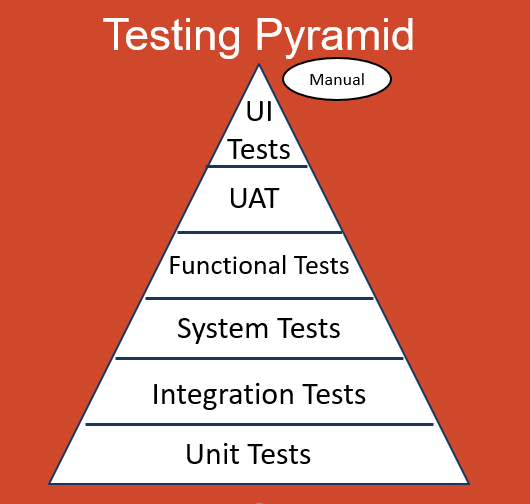
Software development tests consists of many testing strategies that covers different aspects of a software system. These testing strategies are generally represented as a pyramid, which is called testing pyramid that shows the testing types in relation to time, integration, and cost.

The testing pyramid

In an efficient software development environment, you should start writing tests with small unit tests that covers the code you are writing and makes you validate your code. These kind of tests generally are focused on the low level algorithms and functionality without being related to any integration point such as another service or a middleware such as Apache Kafka (aka. Kafka).

Developers might want to write tests that covers the integration points more but they might avoid using real systems to integrate for testing because of the time and maintenance costs. So they generally mock the integration points and focus on the logic. This ends up with many integration kind of tests written, which are actually unit tests.

Mocking is good in many ways such as you can run your tests in a faster way. However, there are drawbacks. You don’t test the real integration, so there might be unpredictable issues with a message sending to the system. Taking our previous Apache Kafka example, you might want to test your code against a real Kafka instance, or you might be developing a Kafka admin application that interacts with the Kafka configurations. If you mock Apache Kafka, you are not able to apply these tests.

At this point, Testcontainers comes as a saviour.

What is Testcontainers?

Testcontainers is a testing library, which helps developers to use Docker or Podman containers in their integration or UI/Acceptance tests.

Testcontainers makes testing easier for developers for use cases such as:

  • A data access layer that integrates with a database
  • A middleware or an application service that integrates with your application
  • UI or user acceptance tests along with libraries such as Selenium

Testcontainers supports many languages such as Java, .Net, Go, Python, Node.js, Rust, and Haskell.

In this tutorial, you will experience Testcontainers for Java along with the Kafka Containers module. You will:

  • Learn how to configure Testcontainers for Apache Kafka in a pure Java and a Spring Boot application.
  • Learn how to develop tests against Apache Kafka by using Testcontainers in a pure Java and a Spring Boot application.

Click >>this link<< to read the related tutorial from the AtomicJar Blog.

Continue reading >
Share

Integrating Apache Kafka with InfluxDB

We are in the cloud-native era. Applications or services count is increasing day by day as the application structures transform into microservices or serverless. The data that is generated by these applications or services keep growing and processing these data in a real-time manner becomes more important.

This processing can either be a real-time aggregation or a calculation whose output is a measurement or a metric. When it comes to metrics or measurements, they have to be monitored because in the cloud-native era, you have to be fail-fast. This means the sooner you get the right measurements or metric outputs, the sooner you can react and solve the issues or do the relevant changes in the system. This aligns with the idea that is stated in the book Accelerate: The Science of Lean Software and DevOps, which is initially created as a state of DevOps report, saying “Changes both rapidly and reliably is correlated to organizational success.

A change in a system, can be captured to be observed in many ways. The most popular one, especially in a cloud-native environment, is to use events. You might already heard about the even-driven systems, which became the de facto standard for creating loosely-coupled distributed systems. You can gather your application metrics, measurements or logs in an event-driven way (Event Sourcing, CDC, etc. ) and send them to an messaging backbone to be consumed by another resource like a database or an observability tool.

In this case, durability and performance is important and the traditional message brokers don’t have these by their nature.

Apache Kafka, on the contrary, is a durable, high-performance messaging system, which is also considered as a distributed stream processing platform. Kafka can be used for many use-cases such as messaging, data integration, log aggregation -and most importantly for this article- metrics.

When it comes to metrics, having only a message backbone or a broker is not enough. You have the real-time system but systems like Apache Kafka, even if they are durable enough to keep your data forever, are not designed to run queries for metrics or monitoring. However, systems such as InfluxDB, can do both for you.

InfluxDB is a database, but a time-series database. Leaving the detailed definition for a time-series database for later in this tutorial, a time-series database keeps the data in a time-stamped way, which is very suitable for metrics or events storage.

InfluxDB provides storage and time series data retrieval for the monitoring, application metrics, Internet of Things (IoT) sensor data and real-time analytics. It can be integrated with Apache Kafka to send or receive metric or event data for both processing and monitoring. You will read about these in more detail in the following parts of this tutorial.

In this tutorial, you will:

  • Run InfluxDB in a containerized way by using Docker.
  • Configure a bucket in InfluxDB.
  • Run an Apache Kafka cluster in Docker containers by using Strimzi container images.
  • Install Telegraf, which is a server agent for collecting and reporting metrics from many sources such as Kafka.
  • Configure Telegraf to integrate with InfluxDB by using its output plugin.
  • Configure Telegraf to integrate with Apache Kafka by using its input plugin.
  • Run Telegraf by using the configuration created.

Click >>this link<< to read the related tutorial from the InfluxDB Blog.

Continue reading >
Share

Change Data Capture with CockroachDB and Strimzi

Dealing with data is hard in the Cloud-native era, as the cloud itself has many dynamics, and microservices have their unique data-relevant problems. As many patterns emerge after dealing with similar problems over and over, technologists invented many data integration patterns to solve those data-related problems.

Change Data Capture (CDC) is one of those data integration patterns, maybe one of the most popular ones nowadays. It enables capturing row-level changes into a configurable sink for downstream processing such as reporting, caching, full-text indexing, or most importantly helping with avoiding dual writes.

Many technologies implement CDC as either a part of their product’s solution or the main functionality of an open-source project like Debezium.

CockroachDB is one of those technologies that implement CDC as a part of their product features.

CockroachDB is a distributed database that supports standard SQL. It is designed to survive software and hardware failures, from server restarts to data center outages.

While CockroachDB is designed to be excellent, it needs to coexist with other systems like full-text search engines, analytics engines or data pipeline systems. Because of that, it has Changefeeds, which enable data sinks like AWS S3, webhooks and most importantly Apache Kafka or Strimzi: a Kafka on Kubernetes solution.

Strimzi is a CNCF sandbox project, which provides an easy way to run and manage an Apache Kafka cluster on Kubernetes or OpenShift. Strimzi is a Kubernetes Operator, and it provides an easy and flexible configuration of a Kafka cluster, empowered by the capabilities of Kubernetes/OpenShift.

In this tutorial, you will:

  • Run a Kafka cluster on OpenShift/Kubernetes.
  • Create a topic within Strimzi by using its the Strimzi CLI.
  • Create a CockroachDB cluster on OpenShift and use its SQL client.
  • Create a table on CockroachDB and configure it for using CDC.
  • Create, update, delete records in the CockroachDB table.
  • Consume the change events from the relevant Strimzi topic by using the Strimzi CLI.

Prerequisites

You’ll need the following for this tutorial:

  • oc CLI.
  • Strimzi CLI.
  • A 30-days trial license for CockroachDB, which is required to use CockroachDB’s CDC feature.
  • You must have Strimzi 0.26.1 or AMQ Streams 2.1.0 operator installed on your OpenShift/Kubernetes cluster.
  • You must have CockroachDB 2.3.0 operator installed on your OpenShift/Kubernetes cluster.

CockroachBank’s Request

Suppose that you are a consultant who works with a customer, CockroachBank LLC.

They use CockroachDB on OpenShift and their daily bank account transactions are kept in CockroachDB. Currently, they have a mechanism for indexing the bank account transaction changes in Elasticsearch but they noticed that it creates data inconsistencies between the actual data and the indexed log data that is in Elasticsearch.

They want you to create a core mechanism that avoids any data inconsistency issue between systems. They require you to create a basic implementation of a CDC by using CockroachDB’s Changefeed mechanism and because they use CockroachDB on OpenShift, they would like you to use Strimzi.

You must only implement the CDC part, so do not need to implement the Elasticsearch part. To simulate the CockroachBank system, you must install the AMQ Streams and CockroachDB operators on your OpenShift cluster and create their instances.

The following image is the architectural diagram of the system they require you to implement:

Required Architecture

Creating a Strimzi Cluster

To create a Strimzi cluster, you need a namespace/project created on your OpenShift/Kubernetes cluster. You can use the oc CLI to create a namespace/project.

oc new-project cockroachbank

Run the kfk command of Strimzi CLI to create a Kafka cluster with one broker. A small cluster with one broker is enough for a demo.

export STRIMZI_KAFKA_CLI_STRIMZI_VERSION=0.26.1 && \
kfk clusters --create \
--cluster my-cluster \
--replicas 1 \
--zk-replicas 1 \
-n cockroachbank -y

NOTE

You can download the Strimzi CLI Cheat Sheet from here for more information about the CLI commands.


Verify that you have all the Strimzi pods up and running in Ready state.

oc get pods -n cockroachbank

The output should be as follows:

NAME                                          READY   STATUS    ...
...output omitted...
my-cluster-entity-operator-64b8dcf7f6-cmjz8   3/3     Running   ...
my-cluster-kafka-0                            1/1     Running   ...
my-cluster-zookeeper-0                        1/1     Running   ...
...output omitted...

Running CockroachDB on OpenShift

To install CockroachDB on your OpenShift cluster, download the CockroachDB cluster custom resource, which the CockroachDB operator creates the cluster for you by using the resource definition you provide in the YAML.

The YAML content should be as follows:

kind: CrdbCluster
apiVersion: crdb.cockroachlabs.com/v1alpha1
metadata:
  name: crdb-tls-example
  namespace: cockroachbank
spec:
  cockroachDBVersion: v21.1.10
  dataStore:
    pvc:
      spec:
        accessModes:
          - ReadWriteOnce
        resources:
          requests:
            storage: 10Gi
        volumeMode: Filesystem
  nodes: 3
  tlsEnabled: false

Run the following command to apply the resource YAML on OpenShift.

oc create -f crdb-cluster.yaml -n cockroachbank

Verify that you have all the CockroachDB pods up and running in Ready state.

oc get pods -n cockroachbank

The output should be as follows:

NAME                                          READY   STATUS    ...
...output omitted...
crdb-tls-example-0                            1/1     Running   ...
crdb-tls-example-1                            1/1     Running   ...
crdb-tls-example-2                            1/1     Running   ...
...output omitted...

In another terminal run the following command to access CockroachDB SQL client interface:

oc rsh -n cockroachbank crdb-tls-example-0 cockroach sql --insecure

On the SQL client interface, run the following commands to enable the trial for enterprise usage. You must do this because CDC is a part of the Enterprise Changefeeds and you need an enterprise license. Refer to the Prerequisites part of this tutorial if you did not get a trial license yet.

SET CLUSTER SETTING cluster.organization = '_YOUR_ORGANIZATION_';
SET CLUSTER SETTING enterprise.license = '_YOUR_LICENSE_';

Creating and Configuring a CockroachDB Table

On the SQL query client terminal window, run the following command to create a database called bank on CockroachDB.

root@:26257/defaultdb> CREATE DATABASE bank;

Select the bank database to use for the rest of the actions in the query window.

root@:26257/defaultdb> USE bank;

Create a table called account with the id and balance fields.

root@:26257/bank> CREATE TABLE account (id INT PRIMARY KEY, balance INT);

Create a Changefeed for the table account. Set the Strimzi Kafka cluster broker address for the Changefeed, to specify the broker to send the captured change data:

root@:26257/bank> CREATE CHANGEFEED FOR TABLE account INTO 'kafka://my-cluster-kafka-bootstrap:9092' WITH UPDATED;

Notice that the Kafka bootstrap address is my-cluster-kafka-bootstrap:9092. This is the service URL that Strimzi provides for the Kafka cluster my-cluster you have created.


NOTE

For more information on creating a Changefeed on CockroachDB refer to this documentation page.


Leave the terminal window open for further instructions.

Creating a Strimzi Topic and Consuming Data

In another terminal window run the following command to create a topic called account:

kfk topics --create --topic account \
--partitions 1 --replication-factor 1 \
-c my-cluster -n cockroachbank

The output must be as follows:

kafkatopic.kafka.strimzi.io/account created

IMPORTANT

A topic with 1 partition and 1 replication factor is enough for this demonstration. If you have a Strimzi Kafka cluster with more than 1 broker, then you can configure your topic differently.


Notice that it is the same name as the CockroachDB table account. CockroachDB CDC produces change data into a topic with the same name as the table by default.

In the same terminal window run the following command to start consuming from the account topic:

kfk console-consumer --topic account \
-c my-cluster -n cockroachbank

Leave the terminal window open to see the consumed messages for the further steps.

Capturing the Change Event Data

In the SQL client terminal window, run the following command to insert a sample account data into the account table.

root@:26257/bank> INSERT INTO account (id, balance) VALUES (1, 1000), (2, 250), (3, 700);

This should create the following accounts in the CockroachDB account table:

id balance
1 1000
2 250
3 700

After inserting the data, verify that the Strimzi CLI consumer prints out the consumed data:

{"after": {"balance": 1000, "id": 1}, "updated": "1655075852039229718.0000000000"}
{"after": {"balance": 250, "id": 2}, "updated": "1655075852039229718.0000000000"}
{"after": {"balance": 700, "id": 3}, "updated": "1655075852039229718.0000000000"}

To observe some more event changes on the topic data, run the following queries on the SQL client to change the balance between accounts.

root@:26257/bank> UPDATE account SET balance=700 WHERE id=1;
root@:26257/bank> UPDATE account SET balance=600 WHERE id=2;
root@:26257/bank> UPDATE account SET balance=650 WHERE id=3;

Verify that the new changes, which CDC of CockroachDB captures, are printed out by the Strimzi CLI consumer. In the consumer’s terminal window, you should see a result as follows:

...output omitted...
{"after": {"balance": 700, "id": 1}, "updated": "1655075898837400914.0000000000"}
{"after": {"balance": 600, "id": 2}, "updated": "1655075904775509980.0000000000"}
{"after": {"balance": 650, "id": 3}, "updated": "1655075910511670876.0000000000"}

Notice the balance changes that represent a transaction history in the consumer output.

As the last step, delete the bank account to see how CockroachDB CDC captures them. Run the following SQL query in the query console of CockroachDB:

root@:26257/bank> DELETE FROM account where id <> 0;

The Strimzi CLI consumer should print the following captured events:

...output omitted...
{"after": null, "updated": "1655075949177132715.0000000000"}

Notice that the after field becomes null when the change data is a delete event.

Congratulations! You’ve successfully captured the bank account transaction changes, and streamed them as change events via Strimzi.

Conclusion

In this tutorial, you have learned how to run a Kafka cluster on OpenShift by using Strimzi, and how to create a topic by using the Strimzi CLI. Also, you have learned to install CockroachDB on OpenShift, create a table by using its SQL query interface, and configure it for using CDC. You’ve created change events on a CockroachDB table and consumed those events from the Strimzi Kafka topic by using the Strimzi CLI.

You can find the resources for this tutorial in this repository.

Continue reading >
Share

Strimzi Kafka CLI Version Update (Strimzi 0.26.1 – 0.28.0)

By Aykut Bulgu / March 26, 2022

Hi everyone. I recently updated the Strimzi Kafka CLI to the following Strimzi versions:

  • Strimzi 0.26.1 (for AMQ Streams 2.0.1) – 0.1.0a60
  • Strimzi 0.28.0 (latest) – 0.1.0a61

Note that 0.1.0a61 is the latest version and Strimzi CLI is still in alpha state.

If you are using AMQ Streams 2.0.1, then install Strimzi CLI as follows:

pip install strimzi-kafka-cli==0.1.0a60

If you are using Strimzi 0.28.0 (currently the latest);

By using pip:

pip install strimzi-kafka-cli

By using homebrew:

brew tap systemcraftsman/strimzi-kafka-cli && brew install strimzi-kafka-cli

Or you can upgrade to the latest version, which is currently 0.1.0a61;

By using pip:

pip install strimzi-kafka-cli --upgrade

By using homebrew:

brew upgrade strimzi-kafka-cli

Any updates on Strimzi Kafka CLI will be done on the latest version so the version 0.1.0a60 that is for Strimzi 0.26.1 will not be affected by these changes. There is no LTS support for now for any AMQ Streams version because the CLI is in the alpha state yet.

If you want to use a recent version of the CLI for AMQ Streams 2.0.1 (Strimzi 0.26.1), set the following environment variable to use Strimzi 0.26.1. The current latest version is compatible with Strimzi 0.26.1 as soon as you set the following environment variable.

export STRIMZI_KAFKA_CLI_STRIMZI_VERSION=0.26.1

Stay tuned for future releases. See the current workflow here and contribute if you are interested!

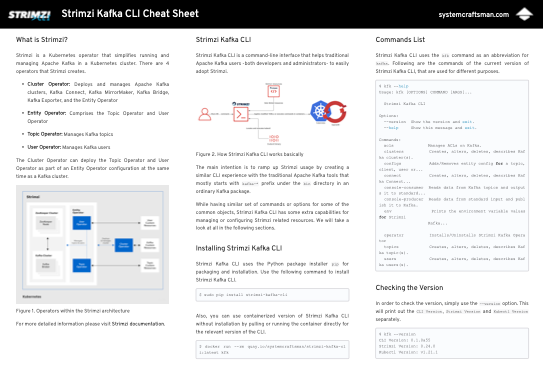
New to Strimzi CLI? Check out this cheat sheet:

Continue reading >
Share

Installing Strimzi CLI with Homebrew

By Aykut Bulgu / October 5, 2021

It has been a while since a friend of mine asked if Strimzi CLI can be installed with Homebrew.

I had to answer by saying “No” that time. But now my friend, we have the Homebrew installer:)

I had been thinking that using the Python package installer is enough because any OS can have Python and pip and so the CLI. After some time, I changed my mind since these package managers are just tools that people might be a bit fanatic of.

So why not start to support other package managers? Asking this question to myself, I decided to start with Homebrew because macOS (and Mac itself) is pretty popular among developers.

To install Strimzi CLI with Homebrew, first, you need to add the `tap` of the package:

brew tap systemcraftsman/strimzi-kafka-cli

Then you can run the `brew install` command for Strimzi CLI:

brew install strimzi-kafka-cli

The installer will check whether you have Python 3 on your machine or not and install it if it does not exist.

Here is a short video that I demonstrate how to install Strimzi CLI with Homebrew.

More curious about Strimzi CLI? Check out the Strimzi Kafka CLI Cheat Sheet to explore Strimzi Kafka CLI capabilities at a glance!

Continue reading >
Share

A Cheat Sheet for Strimzi Kafka CLI

TL;DR: You can download the Strimzi CLI Cheat Sheet from this link if you are curious about Strimzi CLI capabilities and want a kind of quick reference guide for it.

It is a little bit more than one year since I first announced Strimzi Kafka CLI; a command-line interface for Strimzi Kafka Operator.

It was a 4-month-old project back then and I was too excited about the project to share it before it is Beta.

Well now it is a nearly 1.5 years old project that is still in Alpha since there is still a lot to harden for the Beta roadmap but in the meanwhile added many features like creating the operator from the command-line, creating the Kafka cluster with just one command, and managing a Kafka Connect cluster and its connectors with a similar way to the traditional one.

Through this time, I published a variety of videos in the System Craftsman Youtube channel about Strimzi CLI features and how it simplifies Strimzi usage imperatively. Most importantly, shared its advantages over the declarative model by explaining its story in a presentation that I did in an internal event of Red Hat. (Planning to do it publicly as well by submitting the same talk for CFPs)

With a lot of interest in the videos and the posts that I have been sharing from here, I thought that a document that gathers all the current features of the CLI in a summarized way would be great. So I decided to create a cheat sheet for Strimzi Kafka CLI.

After a few months of work (yes, unfortunately, it took a bit long since I have a full-time job🙂), I was able to finish the cheat sheet and find a proper way to distribute it safely.

The cheat sheet has shell command examples for different features of Strimzi CLI. So if you take a quick look at inside, you will see it has 7-8 pages that have more or less the following concepts:

  • A short definition of what Strimzi Kafka Operator is
  • How Strimzi Kafka CLI works
  • How to install it
  • Managing Strimzi Kafka Operator via CLI
  • Managing Kafka clusters via CLI
  • Managing Kafka topics
  • Producing and consuming messages
  • Managing users
  • Managing ACLs
  • Managing cluster, topic and user configurations
  • Kafka Connect and connectors

You can download the Strimzi CLI Cheat Sheet from this link if you are curious about Strimzi CLI capabilities and want a kind of quick reference guide for it.

Here is a short video that I do a quick walk-through for Strimzi Kafka CLI Cheat Sheet:

Continue reading >
Share

Creating a Kafka Connect Cluster on Strimzi by using Strimzi CLI

Kafka Connect

In this example, we will create a Kafka Connect cluster, and a few connectors that consumes particular twitter topics and writes them to an elasticsearch index to be searched easily.

We are not going to deal with any custom resources of Strimzi. Instead we will use traditional .property files that are used for Kafka Connect instances and connectors, with the help of Strimzi Kafka CLI.

Prerequisites

  • A Kubernetes/OpenShift cluster that has Strimzi Kafka Operator installed.
  • A namespace called kafka and a Kafka cluster called my-cluster
  • An elasticsearch instance up and running in the same namespace. (You can use the elasticsearch.yaml file in the repository if you have the ElasticSearch Operator running.)
  • A public image registry that has a repository called demo-connect-cluster.
  • Most importantly, a Twitter Developer Account that enables you to use Twitter API for development purposes. In this example we are going to use it with one of our Kafka Connect connectors.
  • This part of the repository. Clone this repository to be able to use the scripts provided for this example.

As a recommendation create the namespace first:

$ kubectl create namespace kafka

Or you can use the new-project command if you are using OpenShift.

$ oc new-project kafka

Then install the Strimzi Operator if its not installed. You can use Strimzi CLI for this:

$ kfk operator --install -n kafka

Clone the repo if you haven't done before and cd into the example's directory.

$ git clone https://github.com/systemcraftsman/strimzi-kafka-cli.git
$ cd strimzi-kafka-cli/examples/5_connect

Create Kafka and Elasticsearch cluster by running the setup_example.sh script in the example's directory:

$ chmod +x ./scripts/setup_example.sh
$ ./scripts/setup_example.sh

This will create a Kafka cluster with 2 brokers, and an Elasticsearch cluster that's accessible through a Route.

Keep in mind that this script doesn't create the Elasticsearch operator which Elasticsearch resource that is created in this script needs. So first you will need to install the operator for Elasticsearch before running the helper script.


NOTE

If you are using Kubernetes you can create an Ingress and expose the Elasticsearch instance.

Exposing the Elasticsearch instance is not mandatory; you can access the Elasticsearch instance cluster internally.


Lastly create an empty repository in any image registry of your choice. For this example we are going to use Quay.io as our repository will be quay.io/systemcraftsman/demo-connect-cluster.

Creating a Kafka Connect Cluster with a Twitter Source Connector

For this example, to show how it is easy to create a Kafka Connect cluster with a traditional properties file, we will use an example of a well-known Kafka instructor, Stephane Maarek, who demonstrates a very basic Twitter Source Connector in one of his courses.

So let's clone the repository https://github.com/simplesteph/kafka-beginners-course.git and change directory into the kafka-connect folder in the repository.

In the repository we have this twitter.properties file which has the following config in it:

name=TwitterSourceDemo
tasks.max=1
connector.class=com.github.jcustenborder.kafka.connect.twitter.TwitterSourceConnector

# Set these required values
process.deletes=false
filter.keywords=bitcoin
kafka.status.topic=twitter_status_connect
kafka.delete.topic=twitter_deletes_connect
# put your own credentials here - don't share with anyone
twitter.oauth.consumerKey=
twitter.oauth.consumerSecret=
twitter.oauth.accessToken=
twitter.oauth.accessTokenSecret=

This connector get the tweets statuses or deletions and saves them into the twitter_status_connect or twitter_deletes_connect depending on the action. The filter.keywords defines the keywords to be filtered for the returned tweets. In this case it is set as bitcoin, so this will consume every tweet that has bitcoin and put it in the relevant topics.

Now let's make a few changes on this file regarding the content and restrictions that Strimzi has for topic names.

Copy the twitter.properties file and save it as twitter_connector.properties which you will be editing.

In the new file change the twitter_status_connect to twitter-status-connect which Strimzi will complain about since it is not a good name for a topic. Normally Apache Kafka returns a warning about this but allows this underscore(_) convention. Since Strimzi uses custom resources for managing Kafka resources, it is not a good practice to use underscores in the topic names, or in any other custom resource of Strimzi.

Also change the twitter_deletes_connect to twitter-deletes-connect and the connector name to twitter-source-demo for a common convention.

Enter your Twitter OAuth keys which you can get from your Twitter Developer Account. For the creation of a Twitter Developer Account, Stephane explains this perfectly in his Kafka For Beginners course on Udemy. So I recommend you to take a look at both the course and the twitter setup that is explained.

Finally, change the bitcoin filter to kafka for our demo (Or you can change it to anything that you want to see the tweets of).

The final connector configuration file should look like this:

name=twitter-source-demo
tasks.max=1
connector.class=com.github.jcustenborder.kafka.connect.twitter.TwitterSourceConnector

# Set these required values
process.deletes=false
filter.keywords=kafka
kafka.status.topic=twitter-status-connect
kafka.delete.topic=twitter-deletes-connect
# put your own credentials here - don't share with anyone
twitter.oauth.consumerKey=_YOUR_CONSUMER_KEY_
twitter.oauth.consumerSecret=_YOUR_CONSUMER_SECRET_
twitter.oauth.accessToken=_YOUR_ACCESS_TOKEN_
twitter.oauth.accessTokenSecret=_YOUR_ACCESS_TOKEN_SECRET_

Notice how little we changed (actually just the names) in order to use it in the Strimzi Kafka Connect cluster.

Because we are going to need the twitter-status-connect and twitter-deletes-connect topics, let's create them upfront and continue our configuration. You must have remembered our kfk topics --create commands topics creation with Strimzi Kafka CLI:

$ kfk topics --create --topic twitter-status-connect --partitions 3 --replication-factor 1 -c my-cluster -n kafka
$ kfk topics --create --topic twitter-deletes-connect --partitions 3 --replication-factor 1 -c my-cluster -n kafka

Now let's continue with our Connect cluster's creation.

In the same repository we have this connect-standalone.properties file which has the following config in it:

...output omitted...
bootstrap.servers=localhost:9092

...output omitted...
key.converter=org.apache.kafka.connect.json.JsonConverter
value.converter=org.apache.kafka.connect.json.JsonConverter

...output omitted...
key.converter.schemas.enable=true
value.converter.schemas.enable=true

offset.storage.file.filename=/tmp/connect.offsets
# Flush much faster than normal, which is useful for testing/debugging
offset.flush.interval.ms=10000

...output omitted...
plugin.path=connectors

Kafka Connect normally has this plugin.path key which has the all connector binaries to be used for any connector created for that Connect cluster. In our case, for Strimzi, it will be a bit different because we are going to create our connect cluster in a Kubernetes/OpenShift environment, so we should either create an image locally, or make Strimzi create the connect image for us. We will use the second option, which is fairly a new feature of Strimzi.

Only thing we have to do, instead of defining a path, we will define a set of url that has the different connector resources. So let's copy the file that Stephane created for us and save it as connect.properties since Kafka Connect works in the distributed mode in Strimzi (there is no standalone mode in short).

In the connect.properties file change the plugin.path with plugin.url and set the following source url to it:

plugin.url=https://github.com/jcustenborder/kafka-connect-twitter/releases/download/0.2.26/kafka-connect-twitter-0.2.26.tar.gz

By comparing to the original repository, you can see in the connectors folder there are a bunch of jar files that Twitter Source Connector uses. The url that you set above has the same resources archived. Strimzi extracts them while building the Connect image in the Kubernetes/OpenShift cluster.

Speaking of the image, we have to set an image, actually an image repository path, that Strimzi can push the built image into. This can be either an internal registry of yours, or a public one like Docker Hub or Quay. In this example we will use Quay and we should set the image URL like the following:

image=quay.io/systemcraftsman/demo-connect-cluster:latest

Here you can set the repository URL of your choice instead of quay.io/systemcraftsman/demo-connect-cluster:latest. As a prerequisite, you have to create this repository and make the credentials ready for the image push for Strimzi.

Apart from the plugin.path, we can do a few changes like changing the offset storage to a topic instead of a file and disabling the key/value converter schemas because we will just barely need to see the data itself; we don't need the JSON schemas.

Lastly change the bootstrap.servers value to my-cluster-kafka-bootstrap:9092, as my-cluster-kafka-bootstrap is the my-cluster Kafka cluster's Kubernetes internal host name that is provided by a Kubernetes Service.

So the final connect.properties file should look like this:

...output omitted...

bootstrap.servers=my-cluster-kafka-bootstrap:9092

# The converters specify the format of data in Kafka and how to translate it into Connect data. Every Connect user will
# need to configure these based on the format they want their data in when loaded from or stored into Kafka
key.converter=org.apache.kafka.connect.json.JsonConverter
value.converter=org.apache.kafka.connect.json.JsonConverter
# Converter-specific settings can be passed in by prefixing the Converter's setting with the converter we want to apply
# it to
key.converter.schemas.enable=false
value.converter.schemas.enable=false

offset.storage.topic=connect-cluster-offsets
config.storage.topic=connect-cluster-configs
status.storage.topic=connect-cluster-status
config.storage.replication.factor=1
offset.storage.replication.factor=1
status.storage.replication.factor=1

...output omitted...

image=quay.io/systemcraftsman/demo-connect-cluster:latest
plugin.url=https://github.com/jcustenborder/kafka-connect-twitter/releases/download/0.2.26/kafka-connect-twitter-0.2.26.tar.gz

Again notice how the changes are small to make it compatible for a Strimzi Kafka Connect cluster. Now lets run the Kafka Connect cluster in a way that we used to do with the traditional CLI of Kafka.

In order to start a standalone Kafka Connect cluster traditionally some must be familiar with a command like the following:

$ ./bin/connect-standalone.sh connect.properties connector.properties

The command syntax for Strimzi Kafka CLI is the same. This means you can create a Connect cluster along with one or more connectors by providing their config properties. The only difference is, Strimzi runs the Connect cluster in the distributed mode.

Run the following command to create to create a connect cluster called my-connect-cluster and a connector called twitter-source-demo. Don't forget to replace your image registry user with _YOUR_IMAGE_REGISTRY_USER_.

$ kfk connect clusters --create --cluster my-connect-cluster --replicas 1 -n kafka connect.properties twitter_connector.properties -u _YOUR_IMAGE_REGISTRY_USER_ -y

IMPORTANT

You can also create the cluster with a more controlled way; by not passing the -y flag. Without the -y flag, Strimzi Kafka CLI shows you the resource YAML of the Kafka Connect cluster in an editor, and you can modify or just save the resource before the creation. In this example we skip this part with -y flag.


You should be prompted for the registry password. Enter the password and observe the CLI response as follows:

secret/my-connect-cluster-push-secret created
kafkaconnect.kafka.strimzi.io/my-connect-cluster created
kafkaconnector.kafka.strimzi.io/twitter-source-demo created

IMPORTANT

Be careful while entering that because there is no mechanism that checks this password in Strimzi Kafka CLI, so if the password is wrong, simply the Connect image will be built sucessfully, but Strimzi won't be able to push it to the registry you specified before.

In case of any problem just delete the Connect cluster with the following command and create it again:

$ kfk connect clusters --delete --cluster my-connect-cluster -n kafka -y

Or you can delete/create the push secret that is created if you are experienced enough.


Now you can check the pods and wait till the Connect cluster pod runs without a problem.

$ watch kubectl get pods -n kafka
...output omitted...
my-connect-cluster-connect-8444df69c9-x7xf6   1/1     Running     0          3m43s
my-connect-cluster-connect-build-1-build      0/1     Completed   0          6m47s
...output omitted...

If everything is ok with the connect cluster, now you should see some messages in one of the topics we created before running the Connect cluster. Let's consume messages from twitter-status-connect topic to see if our Twitter Source Connector works.

$ kfk console-consumer --topic twitter-status-connect -c my-cluster -n kafka
...output omitted...
{"CreatedAt":1624542267000,"Id":1408058441428439047,"Text":"@Ch1pmaster @KAFKA_Dev Of het is gewoon het zoveelste boelsjit verhaal van Bauke...
...output omitted...

Observe that in the console tweets appear one by one while they are created in the twitter-status-connect topic and consumed by the consumer.

As you can see we took a couple of traditional config files from one of the most loved Kafka instructor's samples and with just a few changes on the configuration, we could create our Kafka Connect cluster along with a Twitter Source connector easily.

Now let's take a step forward and try another thing. What about putting these tweets in an elasticsearch index and make them searchable?

Altering the Kafka Connect Cluster

In order to get the tweets from the twitter-status-connect topic and index them in Elasticsearch we need to use a connector that does this for us.

Camel Elasticsearch REST Kafka Sink Connector is the connector that will do the magic for us.

First we need to add the relevant plugin resources of Camel Elasticsearch REST Sink Connector in our current connect.properties file that configures our Kafka Connect cluster.

Add the URL of the connector like the following in the connect.properties file:

...output omitted...
plugin.url=https://github.com/jcustenborder/kafka-connect-twitter/releases/download/0.2.26/kafka-connect-twitter-0.2.26.tar.gz,https://repo.maven.apache.org/maven2/org/apache/camel/kafkaconnector/camel-elasticsearch-rest-kafka-connector/0.10.0/camel-elasticsearch-rest-kafka-connector-0.10.0-package.tar.gz
...output omitted...

Now run the kfk connect clusters command this time with --alter flag.

$ kfk connect clusters --alter --cluster my-connect-cluster -n kafka connect.properties
kafkaconnect.kafka.strimzi.io/my-connect-cluster replaced

Observe the connector is being build again by watching the pods.

$ watch kubectl get pods -n kafka

Wait until the build finishes, and the connector pod is up and running again.

...output omitted...
my-connect-cluster-connect-7b575b6cf9-rdmbt   1/1     Running     0          111s
...output omitted...
my-connect-cluster-connect-build-2-build      0/1     Completed   0          2m37s

Because we have a running Connect cluster ready for a Camel Elasticsearch REST Sink Connector, we can create our connector now, this time using the kfk connect connectors command.

Creating a Camel Elasticsearch REST Sink Connector

Create a file called camel_es_connector.properties and paste the following in it.

name=camel-elasticsearch-sink-demo
tasks.max=1
connector.class=org.apache.camel.kafkaconnector.elasticsearchrest.CamelElasticsearchrestSinkConnector

value.converter=org.apache.kafka.connect.storage.StringConverter

topics=twitter-status-connect
camel.sink.endpoint.hostAddresses=elasticsearch-es-http:9200
camel.sink.endpoint.indexName=tweets
camel.sink.endpoint.operation=Index
camel.sink.path.clusterName=elasticsearch
errors.tolerance=all
errors.log.enable=true
errors.log.include.messages=true

Observe that our connector's name is camel-elasticsearch-sink-demo and we use the CamelElasticsearchrestSinkConnector class to read the tweets from twitter-status-connect topic.

Properties starting with camel.sink. defines the connector specific properties. With these properties the connector will create an index called tweets in the Elasticsearch cluster which is accesible from elasticsearch-es-http:9200 host and port.

For more details for this connector, please visit the connector's configuration page link that we provided above.

Creating a connector is very simple. If you defined a topic or another object of Strimzi via Strimzi Kafka CLI before, you will notice the syntax is pretty much the same.

Run the following command to create the connector for Camel Elasticsearch REST Sink:

$ kfk connect connectors --create -c my-connect-cluster -n kafka camel_es_connector.properties
kafkaconnector.kafka.strimzi.io/camel-elasticsearch-sink-demo created

You can list the created connectors so far:

$ kfk connect connectors --list -c my-connect-cluster -n kafka
NAME                            CLUSTER              CONNECTOR CLASS                                                                         MAX TASKS   READY
twitter-source-demo             my-connect-cluster   com.github.jcustenborder.kafka.connect.twitter.TwitterSourceConnector                   1           1
camel-elasticsearch-sink-demo   my-connect-cluster   org.apache.camel.kafkaconnector.elasticsearchrest.CamelElasticsearchrestSinkConnector   1           1

After the resource created run the following curl command in the watch mode to observe how the indexed values increases per tweet consumption. Change the _ELASTIC_EXTERNAL_URL_ with your Route or Ingress URL of the Elasticsearch cluster you created as a prerequisite.

$ watch "curl -s http://_ELASTIC_EXTERNAL_URL_/tweets/_search | jq -r '.hits.total.value'"

In another terminal window you can run the console consumer again to see both the Twitter Source connector and the Camel Elasticsearch Sink connector in action:

tweets_flowing

In a browser or with curl, call the following URL for searching Apache word in the tweet texts.

$ curl -s http://_ELASTIC_EXTERNAL_URL_/tweets/_search?q=Text:Apache
{"took":3,"timed_out":false,"_shards":{"total":1,"successful":1,"skipped":0,"failed":0},"hits":{"total":{"value":3,"relation":"eq"},"max_score":5.769906,"hits":[{"_index":"tweets","_type":"_doc","_id":"bm6aPnoBRxta4q47oss0","_score":5.769906,"_source":{"CreatedAt":1624542084000,"Id":1408057673577345026,"Text":"RT @KCUserGroups: June 29: Kansas City Apache Kafka® Meetup by Confluent - Testing with AsyncAPI for Apache Kafka: Brokering the Complexity…","Source":"<a href=\"http://twitter.com/download/android\" rel=\"nofollow\">Twitter for Android</a>","Truncated":false,"InReplyToStatusId":-1,"InReplyToUserId":-1,"InReplyToScreenName":null,"GeoLocation":null,"Place":null,"Favorited":false,"Retweeted":false,"FavoriteCount":0,"User":{"Id":87489271,"Name":"Fran Méndez","ScreenName":"fmvilas","Location":"Badajoz, España","Description":"Founder of @AsyncAPISpec. Director of Engineering at @getpostman.\n\nAtheist, feminist, proud husband of @e_morcillo, and father of Ada & 2 cats \uD83D\uDC31\uD83D\uDC08 he/him","ContributorsEnabled":false,"ProfileImageURL":"http://pbs.twimg.com/profile_images/1373387614238179328/cB1gp6Lh_normal.jpg","BiggerProfileImageURL":"http://pbs.twimg.com/profile_images/1373387614238179328/cB1gp6Lh_bigger.jpg","MiniProfileImageURL":"http://pbs.twimg.com/profile_images/1373387614238179328/cB1gp6Lh_mini.jpg","OriginalProfileImageURL":"http://pbs.twimg.com/profile_images/1373387614238179328/cB1gp6Lh.jpg","ProfileImageURLHttps":"https://pbs.twimg.com/profile_images/1373387614238179328/cB1gp6Lh_normal.jpg","BiggerProfileImageURLHttps":"https://pbs.twimg.com/profile_images/1373387614238179328/cB1gp6Lh_bigger.jpg","MiniProfileImageURLHttps":"https://pbs.twimg.com/profile_images/1373387614238179328/cB1gp6Lh_mini.jpg","OriginalProfileImageURLHttps":"https://pbs.twimg.com/profile_images/1373387614238179328/cB1gp6Lh.jpg","DefaultProfileImage":false,"URL":"http://www.fmvilas.com","Protected":false,"FollowersCount":1983,"ProfileBackgroundColor":"000000","ProfileTextColor":"000000","ProfileLinkColor":"1B95E0","ProfileSidebarFillColor":"000000","ProfileSidebarBorderColor":"000000","ProfileUseBackgroundImage":false,"DefaultProfile":false,"ShowAllInlineMedia":false,"FriendsCount":3197,
...output omitted...

Cool! We hit some Apache Kafka tweets with our Apache search in Twitter tweets related to kafka. How about yours? If you don't hit anything you can do the search with any word of your choice.

Since we are almost done with our example let's delete the resources one by one to observe how Strimzi Kafka CLI works with the deletion of the Kafka Connect resources.

Deleting Connectors and the Kafka Connect Cluster

First let's delete our connectors one by one:

$ kfk connect connectors --delete --connector twitter-source-demo -c my-connect-cluster -n kafka
kafkaconnector.kafka.strimzi.io "twitter-source-demo" deleted
$ kfk connect connectors --delete --connector camel-elasticsearch-sink-demo -c my-connect-cluster -n kafka
kafkaconnector.kafka.strimzi.io "camel-elasticsearch-sink-demo" deleted

Observe no more tweets are produced in the twitter-status-connect topic and no more data is indexed in Elasticsearch anymore.

Now we can also delete the my-connect-cluster Kafka Connect cluster. Notice that it is pretty much the same with the Kafka cluster deletion syntax of Strimzi CLI.

$ kfk connect clusters --delete --cluster my-connect-cluster -n kafka -y

This command will both delete the KafkaConnect resource and the push secret that is created for the Connect image.

kafkaconnect.kafka.strimzi.io "my-connect-cluster" deleted
secret "my-connect-cluster-push-secret" deleted

Check the Connect cluster pod is terminated by the Strimzi operator:

$ kubectl get pods -n kafka
NAME                                          READY   STATUS    RESTARTS   AGE
elastic-operator-84774b4d49-v2lbr             1/1     Running   0          4h9m
elasticsearch-es-default-0                    1/1     Running   0          4h8m
my-cluster-entity-operator-5c84b64ddf-22t9p   3/3     Running   0          4h8m
my-cluster-kafka-0                            1/1     Running   0          4h8m
my-cluster-kafka-1                            1/1     Running   0          4h8m
my-cluster-zookeeper-0                        1/1     Running   0          4h8m

Congratulations!

In this example we are able to create a Kafka Connect cluster along with a Twitter Source connector with Strimzi Kafka CLI, to consume the tweets from Twitter and write them to one of our topics that we defined in the configuration. We also altered the Kafka Connect Cluster and added new plugin resources for Camel Elasticsearch REST Sink connector, to write our tweets from the relevant topic to an Elasticsearch index with a single --alter command of Strimzi Kafka CLI. This made our consumed tweets searchable, so that we could search for the word Apache in our tweets Elasticsearch index. After finishing the example, we cleared up our resources by deleting them easily with the CLI.

Access the repo of this post from here: https://github.com/systemcraftsman/strimzi-kafka-cli/tree/master/examples/5_connect

If you are interested in more, check out the video that I create a Kafka Connect cluster and the relevant connectors in the article, using Strimzi Kafka CLI:

Continue reading >
Share

A Strimzi Kafka Quickstart for Quarkus with Strimzi CLI

Quarkus Strimzi Demo (by using Strimzi Kafka CLI)

This project illustrates how you can interact with Apache Kafka on Kubernetes (Strimzi) using MicroProfile Reactive Messaging.

Kafka cluster (on OpenShift)

First you need a Kafka cluster on your OpenShift.

Create a namespace first:

 oc new-project kafka-quickstart

Then you will need Strimzi Kafka CLI by running the following command (you will need Python3 and pip):

 sudo pip install strimzi-kafka-cli

See here for other details about Strimzi Kafka CLI.

After installing Strimzi Kafka CLI run the following command to install the operator on kafka-quickstart namespace:

 kfk operator --install -n kafka-quickstart

When the operator is ready to serve, run the following command in order to create a Kafka cluster:

 kfk clusters --create --cluster my-cluster -n kafka-quickstart

A vim interface will pop-up. If you like you can change the broker and zookeeper replicas to 1 but I suggest you to leave them as is if your Kubernetes cluster have enough resources. Save the cluster configuration file and respond Yes to make Strimzi CLI apply the changes.

Wait for the 3 broker and 3 zookeeper pods running in ready state in your cluster:

 oc get pods -n kafka-quickstart -w

When all pods are ready, create your prices topic to be used by the application:

 kfk topics --create --topic prices --partitions 10 --replication-factor 2 -c my-cluster -n kafka-quickstart

Check your topic is created successfully by describing it natively:

kfk topics --describe --topic prices -c my-cluster -n kafka-quickstart --native

Deploy the application

The application can be deployed to OpenShift using:

 ./mvnw clean package -DskipTests

This will take a while since the s2i build will run before the deployment. Be sure the application's pod is running in ready state in the end. Run the following command to get the URL of the Prices page:

echo http://$(oc get routes -n kafka-quickstart -o json | jq -r '.items[0].spec.host')/prices.html 

Copy the URL to your browser, and you should see a fluctuating price.

Anatomy

In addition to the prices.html page, the application is composed by 3 components:

  • PriceGenerator
  • PriceConverter
  • PriceResource

We generate (random) prices in PriceGenerator. These prices are written in prices Kafka topic that we recently created. PriceConverter reads from the prices Kafka topic and apply some magic conversion to the price. The result is sent to an in-memory stream consumed by a JAX-RS resource PriceResource. The data is sent to a browser using server-sent events.

The interaction with Kafka is managed by MicroProfile Reactive Messaging. The configuration is located in the application configuration.

Running and deploying in native

You can compile the application into a native binary using:

mvn clean install -Pnative

or deploy with:

 ./mvnw clean package -Pnative -DskipTests

This demo is based on the following resources:

Visit the following link to clone this demo:

https://github.com/systemcraftsman/quarkus-strimzi-cli-demos

Continue reading >
Share
Page 1 of 2