A few days ago, I had a chance to speak about “Change Data Capture with Debezium and Apache Kafka” at an Istanbul Java User Group event. After the presentation, I did a small demo that I think was very beneficial for the audience so I thought that it would be best to improve it and kind of “storify” it in order to have both fun and spread it to a wider audience. So here is the demo, and here are the resources that you might need. Enjoy:)
Prerequisites
Install the required tools
sudo pip install strimzi-kafka-cli
Login to a Kubernetes or OpenShift cluster and create a new namespace/project.
Let’s say we create a namespace called debezium-demo by running the following command on OpenShift:
oc new-project debezium-demo
Install demo application ‘The NeverEnding Blog’
Clone the repository:
git clone https://github.com/mabulgu/the-neverending-blog.git>
Checkout the debezium-demo branch:
git checkout debezium-demo
Go into the application directory:
cd the-neverending-blog
Install the helm template:
helm template the-neverending-blog chart | oc apply -f - -n debezium-demo
Start the s2i build for the application:
oc start-build neverending-blog --from-dir=. -n debezium-demo
…and OpenShift will take care of the rest and you should have a blog application called ‘The NeverEnding Blog’ in the end:

Install Elasticsearch
Apply Elasticsearch resources to OpenShift:
oc apply -f resources/elasticsearch.yaml -n debezium-demo
Expose the route for Elasticsearch:
oc expose svc elasticsearch-es-http -n debezium-demo
By clicking on the route of the application in the browser you should see a page like this:

And for the overall applications before the demo you should be having something like this (OpenShift Developer Perspective is used here):
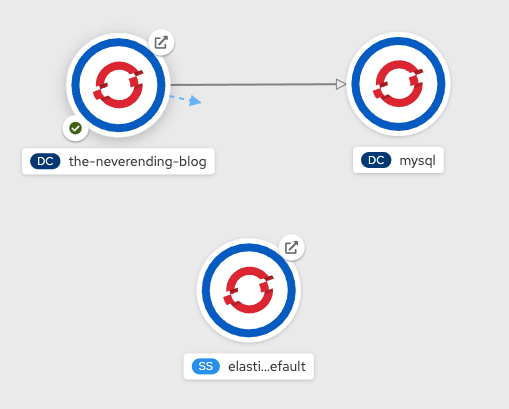
So you should have a Django application which uses a MySQL database and an Elasticsearch that has no data connection to the application -yet:)
ASAP!
So you are working at a company called NeverEnding Inc. as a Software Person and you are responsible for the company’s blog application which runs on Django and use MYSQL as a database.
One day your boss comes and tells you this:

So getting the command from your boss, you think that this is a good use case for using Change Data Capture (CDC) pattern.
Since the boss wants it ASAP, and you don’t want to make dual writes which may cause consistency problems, you have to find a way to apply this request easily and you think it will be best to implement it via Debezium on your OpenShift Office Space cluster along with Strimzi: Kafka on Kubernetes.
Oh, you can wear a Hawaiian shirt and jeans while you are doing all these even if it’s not Friday:)
Deploying a Kafka cluster with Strimzi Kafka CLI
In order to install Strimzi cluster on OpenShift you decide to use Strimzi Kafka CLI which you can also install the cluster operator of it.
First install the Strimzi operator:
kfk operator --install -n debezium-demo
IMPORTANT
If you have already an operator installed, please check the version. If the Strimzi version you’ve been using is older than 0.20.0, you have to set the right version as an environment variable, so that you will be able to use the right version of cluster custom resource.
export STRIMZI_KAFKA_CLI_STRIMZI_VERSION=0.19.0
Let’s create a Kafka cluster called demo on our OpenShift namespace debezium-demo.
kfk clusters --create --cluster demo -n debezium-demo
In the opened editor you may choose 3 broker, 3 zookeeper configuration which is the default. So after saving the configuration file of the Kafka cluster in the developer preview of OpenShift you should see the resources that are created for the Kafka cluster:

Deploying a Kafka Connect Cluster for Debezium
Now it’s time to create a Kafka Connect cluster via using Strimzi custom resources. Since Strimzi Kafka CLI is not capable of creating connect objects yet at the time of writing this article we will create it by using the sample resources in the demo project.
Create a custom resource like the following:
apiVersion: kafka.strimzi.io/v1beta1
kind: KafkaConnect
metadata:
  annotations:
    strimzi.io/use-connector-resources: 'true'
  name: debezium
spec:
  bootstrapServers: 'demo-kafka-bootstrap:9092'
  config:
    config.storage.replication.factor: '1'
    config.storage.topic: debezium-cluster-configs
    group.id: debezium-cluster
    offset.storage.replication.factor: '1'
    offset.storage.topic: debezium-cluster-offsets
    status.storage.replication.factor: '1'
    status.storage.topic: debezium-cluster-status
  image: 'quay.io/hguerreroo/rhi-cdc-connect:2020-Q3'
  jvmOptions:
    gcLoggingEnabled: false
  replicas: 1
  resources:
    limits:
      memory: 2Gi
    requests:
      memory: 2Gi
And apply it to OpenShift debezium-demo namespace (or just apply the one you have in this demo repository)
oc apply -f resources/kafka-connect-debezium.yaml -n debezium-demo
This will create a Kafka Connect cluster with the name debezium on your namespace:

Deploy a Debezium connector for MySQL
So you have the Kafka Connect cluster to be able to use with Debezium. Now it’s time for the real magic; the Debezium connector for MySQL.
Create the custom resource like the following, by noticing the parts of configuration starts with database.
Since you have to capture the changes in the neverendingblog database which has the posts database your configuration should be something like this:
apiVersion: kafka.strimzi.io/v1alpha1
kind: KafkaConnector
metadata:
  labels:
    strimzi.io/cluster: debezium
  name: debezium-mysql-connector
spec:
  class: io.debezium.connector.mysql.MySqlConnector
  config:
    database.server.name: db
    database.hostname: mysql
    database.user: debezium
    database.password: dbz
    database.server.id: '184054'
    database.port: '3306'
    database.dbname: neverendingblog
    database.history.kafka.topic: db.history
    database.history.kafka.bootstrap.servers: 'demo-kafka-bootstrap:9092'
  tasksMax: 1
Apply this YAML by saving it or just run the following command in this repository:
oc apply -f resources/kafka-connector-mysql-debezium.yaml -n debezium-demo
So you should now have some action in your Kafka cluster by now and the big picture should look like this:

In order to see if there is any new topic is created in your Kafka cluster run this command to list the topics in the debezium-demo namespace and demo Kafka cluster:
kfk topics --list -n debezium-demo -c demo
So you should see some topics are created for you:
NAME                                                                                PARTITIONS   REPLICATION FACTOR
consumer-offsets---84e7a678d08f4bd226872e5cdd4eb527fadc1c6a                         50           1
db                                                                                  1            1
db.history                                                                          1            1
db.neverendingblog.auth-permission---68ff3df4ec8e6a44b01288a87974b27990a559d2       1            1
db.neverendingblog.auth-user---a76d163ac9b98b60f06bfda76e966523ee9ffad              1            1
db.neverendingblog.django-admin-log---889a02bc079f08f8adf60c1b1f1cc6782dd99531      1            1
db.neverendingblog.django-content-type---79cc865eac5ac5b439174d2165a8035d52062610   1            1
db.neverendingblog.django-migrations---adc510d5c63e7b6ccbbf460dfa8c03408559591d     1            1
db.neverendingblog.django-session---38f5de04ea83f7a9add8be00a2d695a9503505c6        1            1
db.neverendingblog.posts                                                            1            1
debezium-cluster-configs                                                            1            1
debezium-cluster-offsets                                                            25           1
debezium-cluster-status                                                             5            1
Now let’s check this connector works or not. So start a consumer that listens your db.neverendingblog.posts topic which the captured data from posts topic is put.
kfk console-consumer --topic db.neverendingblog.posts -n debezium-demo -c demo
After starting the consumer let’s make some changes in the NeverEnding Blog. Open the Django admin page by getting the route URL of the blog and putting a “/admin” at the end.
INFO
You can get the route URL of your application with the following command:
oc get routes -n debezium-demo
So login to the admin page with the credentials mabulgu/123456 and click on Posts and add a new one by clicking Add Post and put these values as a test and save it:

In the consumer you must already have seen a move right? Copy that into a JSON beautifier and see what you have. You must have something like this:
{
  "schema": {
    "type": "struct",
    "fields": [
      {
        "type": "struct",
        "fields": [
          {
            "type": "int32",
            "optional": false,
            "field": "id"
          },
          {
            "type": "string",
            "optional": false,
            "field": "title"
          },
          {
            "type": "string",
            "optional": false,
            "field": "text"
          },
          {
            "type": "int64",
            "optional": false,
            "name": "io.debezium.time.MicroTimestamp",
            "version": 1,
            "field": "created_date"
          },
          {
            "type": "int64",
            "optional": true,
            "name": "io.debezium.time.MicroTimestamp",
            "version": 1,
            "field": "published_date"
          },
          {
            "type": "int32",
            "optional": false,
            "field": "author_id"
          }
        ],
        "optional": true,
        "name": "db.neverendingblog.posts.Value",
        "field": "before"
      },
      {
        "type": "struct",
        "fields": [
          {
            "type": "int32",
            "optional": false,
            "field": "id"
          },
          {
            "type": "string",
            "optional": false,
            "field": "title"
          },
          {
            "type": "string",
            "optional": false,
            "field": "text"
          },
          {
            "type": "int64",
            "optional": false,
            "name": "io.debezium.time.MicroTimestamp",
            "version": 1,
            "field": "created_date"
          },
          {
            "type": "int64",
            "optional": true,
            "name": "io.debezium.time.MicroTimestamp",
            "version": 1,
            "field": "published_date"
          },
          {
            "type": "int32",
            "optional": false,
            "field": "author_id"
          }
        ],
        "optional": true,
        "name": "db.neverendingblog.posts.Value",
        "field": "after"
      },
      {
        "type": "struct",
        "fields": [
          {
            "type": "string",
            "optional": false,
            "field": "version"
          },
          {
            "type": "string",
            "optional": false,
            "field": "connector"
          },
          {
            "type": "string",
            "optional": false,
            "field": "name"
          },
          {
            "type": "int64",
            "optional": false,
            "field": "ts_ms"
          },
          {
            "type": "string",
            "optional": true,
            "name": "io.debezium.data.Enum",
            "version": 1,
            "parameters": {
              "allowed": "true,last,false"
            },
            "default": "false",
            "field": "snapshot"
          },
          {
            "type": "string",
            "optional": false,
            "field": "db"
          },
          {
            "type": "string",
            "optional": true,
            "field": "table"
          },
          {
            "type": "int64",
            "optional": false,
            "field": "server_id"
          },
          {
            "type": "string",
            "optional": true,
            "field": "gtid"
          },
          {
            "type": "string",
            "optional": false,
            "field": "file"
          },
          {
            "type": "int64",
            "optional": false,
            "field": "pos"
          },
          {
            "type": "int32",
            "optional": false,
            "field": "row"
          },
          {
            "type": "int64",
            "optional": true,
            "field": "thread"
          },
          {
            "type": "string",
            "optional": true,
            "field": "query"
          }
        ],
        "optional": false,
        "name": "io.debezium.connector.mysql.Source",
        "field": "source"
      },
      {
        "type": "string",
        "optional": false,
        "field": "op"
      },
      {
        "type": "int64",
        "optional": true,
        "field": "ts_ms"
      },
      {
        "type": "struct",
        "fields": [
          {
            "type": "string",
            "optional": false,
            "field": "id"
          },
          {
            "type": "int64",
            "optional": false,
            "field": "total_order"
          },
          {
            "type": "int64",
            "optional": false,
            "field": "data_collection_order"
          }
        ],
        "optional": true,
        "field": "transaction"
      }
    ],
    "optional": false,
    "name": "db.neverendingblog.posts.Envelope"
  },
  "payload": {
    "before": null,
    "after": {
      "id": 3,
      "title": "Javaday Istanbul 2020",
      "text": "It was perfect as always!",
      "created_date": 1606400139000000,
      "published_date": null,
      "author_id": 1
    },
    "source": {
      "version": "1.2.4.Final-redhat-00001",
      "connector": "mysql",
      "name": "db",
      "ts_ms": 1606400180000,
      "snapshot": "false",
      "db": "neverendingblog",
      "table": "posts",
      "server_id": 223344,
      "gtid": null,
      "file": "mysql-bin.000003",
      "pos": 27078,
      "row": 0,
      "thread": 221,
      "query": null
    },
    "op": "c",
    "ts_ms": 1606400180703,
    "transaction": null
  }
}
So congratulations! You can capture changes on your neverendingblog database.
But your boss still wants you to put these changes on your search system Elasticsearch.
Before rolling the sleeves to send this change data to Elasticsearch let’s purify this data since all you need to index is the operation type and the table fields in this Debezium JSON data.
Simple Data Transformation
So in order to transform the data some key/value converters has to be set in order to do extract transformation which will create a different data model in the end.
So add these lines and apply it on your OpenShift cluster:
    key.converter: org.apache.kafka.connect.json.JsonConverter
    key.converter.schemas.enable: 'false'
    value.converter: org.apache.kafka.connect.json.JsonConverter
    value.converter.schemas.enable: 'false'
    transforms: extract
    transforms.extract.add.fields: 'op,table'
    transforms.extract.type: io.debezium.transforms.ExtractNewRecordState
Or just run this sample in the repository:
oc apply -f resources/kafka-connector-mysql-debezium_transformed.yaml -n debezium-demo
This means that we will extract the data for op and table fields and create a new JSON to be returned.
After applying the changes let’s consume the messages again if we did stop the consumer already:
kfk console-consumer --topic db.neverendingblog.posts -n debezium-demo -c demo
Go to the blog admin page again but this time let’s change one of the blog posts instead of adding one.
Edit the post titled Strimzi Kafka CLI: Managing Strimzi in a Kafka Native Way and put a “CHANGED -” at the very start of the body for example.
When you change the data, a relatively smaller JSON data must have been consumed in your console, something like this:
{
  "id": 2,
  "title": "Strimzi Kafka CLI: Managing Strimzi in a Kafka Native Way",
  "text": "CHANGED - Strimzi Kafka CLI is a CLI that helps traditional Apache Kafka users -mostly administrators- to easily adapt Strimzi, a Kubernetes operator for Apache Kafka.\r\n\r\nIntention here is to ramp up Strimzi usage by creating a similar CLI experience with traditional Apache Kafka binaries. \r\n\r\nkfk command stands for the usual kafka-* prefix of the Apache Kafka runnable files which are located in bin directory. There are options provided like topics, console-consumer, etc. which also mostly stand for the rest of the runnable file names like kafka-topic.sh.\r\n\r\nHowever, because of the nature of Strimzi and its capabilities, there are also unusual options like clusters which is used for cluster configuration or users which is used for user management and configuration.",
  "created_date": 1594644431000000,
  "published_date": 1594644489000000,
  "author_id": 1,
  "__op": "u",
  "__table": "posts"
}
So this will be the data that you will index in Elasticsearch. Now let’s go for it!
Deploying a Kafka Connect Cluster for Camel
In order to use another connector that consumes the data from Kafka and puts it onto Elasticsearch, first we need another Kafka Connect cluster, this time for a Camel connector.
apiVersion: kafka.strimzi.io/v1beta1
kind: KafkaConnect
metadata:
  annotations:
    strimzi.io/use-connector-resources: 'true'
  name: camel
spec:
  bootstrapServers: 'demo-kafka-bootstrap:9092'
  config:
    config.storage.replication.factor: '1'
    config.storage.topic: camel-cluster-configs
    group.id: camel-cluster
    offset.storage.replication.factor: '1'
    offset.storage.topic: camel-cluster-offsets
    status.storage.replication.factor: '1'
    status.storage.topic: camel-cluster-status
  image: 'quay.io/hguerreroo/camel-kafka-connect:0.5.0'
  jvmOptions:
    gcLoggingEnabled: false
  replicas: 1
  resources:
    limits:
      memory: 2Gi
    requests:
      memory: 2Gi
Saving or apply this YAML to your OpenShift namespace or just simply run this sample:
oc apply -f resources/kafka-connect-camel.yaml -n debezium-demo
This will create a Kafka Connect cluster with the name camel on your namespace:
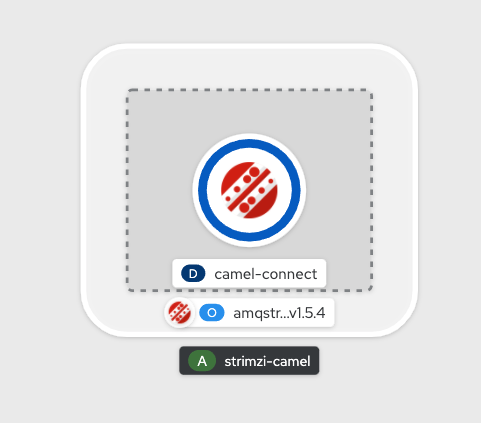
Now let’s put some connector on this connect cluster.
Deploy a Camel Sink connector for Elasticsearch
In order to send the consumed data to Elasticsearch we can use Apache Camel project’s connectors for Kafka Connect.
The following is a sample of an Elasticsearch Sink Connector of Camel, which takes Kafka as the source and Elasticsearch as the sink.
apiVersion: kafka.strimzi.io/v1alpha1
kind: KafkaConnector
metadata:
  labels:
    strimzi.io/cluster: camel
  name: elasticsearch-connector
spec:
  class: >-
    org.apache.camel.kafkaconnector.elasticsearchrest.CamelElasticsearchrestSinkConnector
  config:
    camel.sink.endpoint.hostAddresses: 'elasticsearch-es-http:9200'
    camel.sink.endpoint.indexName: posts
    camel.sink.endpoint.operation: Index
    camel.sink.path.clusterName: elasticsearch
    key.converter: org.apache.kafka.connect.storage.StringConverter
    value.converter: org.apache.kafka.connect.storage.StringConverter
    topics: db.neverendingblog.posts
  tasksMax: 1
By saving and applying this resource you tell the connect cluster that consume the db.neverendingblog.posts topic of Kafka, and put them in a posts index in Elasticsearch.
Or just run this command to create the connector:
oc apply -f resources/kafka-connector-elastic-camel.yaml -n debezium-demo
Now the big picture should look like this:
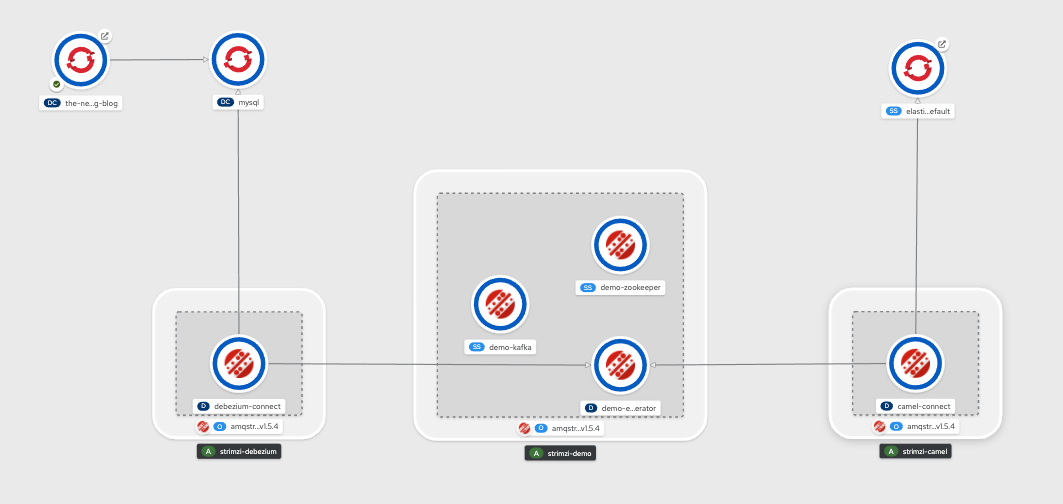
So let’s test your Elasticsearch running some curls as a search request.
Try out Elasticsearch
For Elasticsearch, just like other applications in OpenShift in order to access it externally, you should get its route with the command:
oc get routes -n debezium-demo
Let’s say that we get the route as http://elasticsearch-es-http-debezium-demo.apps.cluster-jdayist-6d29.jdayist-6d29.example.opentlc.com.
So in order to see if the index is created or if it has anything inside, just run the following command for searching everything in the index:
curl -X GET \
  http://elasticsearch-es-http-debezium-demo.apps.cluster-jdayist-6d29.jdayist-6d29.example.opentlc.com/posts/_search
You should get a response that has all the changes including the one for Javaday Istanbul. So let’s see if we can find it or not:
curl -X GET \
  'http://elasticsearch-es-http-debezium-demo.apps.cluster-jdayist-6d29.jdayist-6d29.example.opentlc.com/posts/_search?q=title:Javaday%20Istanbul%202020'
So you should see somethinhg like this in return:
{
    "took": 8,
    "timed_out": false,
    "_shards": {
        "total": 1,
        "successful": 1,
        "skipped": 0,
        "failed": 0
    },
    "hits": {
        "total": {
            "value": 1,
            "relation": "eq"
        },
        "max_score": 4.852654,
        "hits": [
            {
                "_index": "posts",
                "_type": "_doc",
                "_id": "8VI-FnYBP8VChxowl2Pr",
                "_score": 4.852654,
                "_source": {
                    "id": 3,
                    "title": "Javaday Istanbul 2020",
                    "text": "It was perfect as always!",
                    "created_date": 1606690949000000,
                    "published_date": null,
                    "author_id": 1,
                    "__op": "c",
                    "__table": "posts"
                }
            }
        ]
    }
}
Congratulations! You finished it ASAP! Now you can relax and may feel a little bit like a gansta:)

By the way, if you are interested in the event presentation and the demo video, here it is! (p.s. Event was in Turkish)