All posts in " apache-kafka "

How to Secure Your Apache Kafka Instance with SASL-SSL Authentication and Encryption

By Aykut Bulgu / May 17, 2024

Apache Kafka is an open-source distributed event streaming platform composed of servers and clients that communicate through the TCP protocol. LinkedIn initially created Kafka as a high-performance messaging system and open sourced it late 2010s. After many years of improvements, nowadays Apache Kafka is referred to be a distributed commit log system, or a distributed streaming platform.

Apache Kafka is a very important project in the cloud-native era, because the current distributed architecture of the services (or microservices) might require an event-based system that handles data in an event-driven way and Kafka plays an important role in this.

You can create an event-driven architecture with Kafka where all microservices communicate with events through Kafka, aggregate your logs in Kafka and leverage its durability, send your website tracking data, use it for data integration by using Kafka Connect, and more importantly you can create real-time stream processing pipelines with it.

These use-cases are very common and popular among companies nowadays, because from small startups to big enterprises, they need to keep up with the new technology era of cloud, cloud-native and real-time systems for providing better products or services to their customers. Data is one of the most important concepts for these companies and because of this, they leverage Apache Kafka capabilities by using it for many use-cases.

However, when you work with data, you must think about its security because you might be working with some financial data you might want to isolate or simply user information that you should keep private. This is both important for the sake of the company and the users or service consumers of the company. So since it is all about data, and its being secure, you should secure the parts of your system that touch the data, including your Apache Kafka.

Apache Kafka provides many ways to make its system more secure. It provides SSL encryption that you can both configure between your Apache Kafka brokers and between the server and the clients. There are also some authentication and authorization (auth/auth) capabilities that Kafka provides. Following is the compact list of auth/auth components that Apache Kafka 3.3.1 provides currently.

At the time of this writing, Kafka 3.3.1 was the latest release.

  • Authentication
    • Secure Sockets Layer (SSL)
    • Simple Authentication and Security Layer (SASL) or SASL-SSL
      • Kerberos
      • PLAIN
      • SCRAM-SHA-256/SCRAM-SHA-512
      • OAUTHBEARER
  • Authorization
    • Access Control Lists

As you can see, Kafka has a rich list of authentication options. In this article, you will learn how to setup a SSL connection to encrypt the client-server communication and setup a SASL-SSL authentication with the SCRAM-SHA-512 mechanism.

What is SSL Encryption?

SSL is a protocol that enables encrypted communication between network components. This SSL encryption prevents data to be sniffed by intercepting the network and reading the sensitive data via a Man-in-the-middle (MIM) attack or similar. Before having SSL (and Transport Layer Security (TLS)) in all the web pages on internet, internet providers used SSL for their web pages that contains sensitive data transfer such as payment pages, carts, etc.

TLS is a successor of the SSL protocol and it uses digital documents called certificates, which the communicating components use for encrypted connection validation. A certificate includes a key pair, a public key and a private key and they are used for different purposes. The public key allows a session (i.e initiating a web browser) to be communicated through TLS and HTTPS protocols. The private key, on the other hand, should be kept secure on the server side (i.e the server that the web browser is being served), and it is generally used to sign the requested documents (i.e web pages). A successful SSL communication between the client and the server is called an “SSL handshake”.

The following image shows how SSL works simply.

How SSL works

In the following tutorial, you will create a self-signed public and private key with the help of the instructions. For more information on the certificates, private and public keys, certificate authorities and many more, visit this web page as a starting point.

What is Simple Authentication and Security Layer (SASL)?

SASL is a data security framework for authentication. It acts like an adaptor inerface between authentication mechanisms and application protocols such as TLS/SSL. This makes applications or middlewares (such as Apache Kafka), easily adopt SASL authentication with different protocols.

SASL supports many mechanisms such as PLAIN, CRAM-MD5, DIGEST-MD5, SCRAM, and Kerberos via GSSAPI, OAUTHBEARER and OAUTH10A.

Apache Kafka (currently the 3.3.1 version), supports Kerberos, PLAIN, SCRAM-SHA-256/SCRAM-SHA-512, and OAUTHBEARER for SASL authentication.

The PLAIN mechanism is fairly easier to setup and it only requires a simple username and a password to setup. The SCRAM mechanism, as well, requires a username and a password setup but provides a password with challenge through its encryption logic. Thus, SCRAM provides a better security than PLAIN mechanism. The GSSAPI/Kerberos on the other hand, provides the best security along with OAUTHBEARER, however these mechanisms are relatively harder to implement.

Each of these protocols require different server and client configurations with different efforts on Apache Kafka.

Other than these mechanisms, you can enable SASL along with SSL in Kafka to gain extra security. This is called SASL-SSL protocol in a Kafka system.

In the following tutorial, you will enable SSL first, then you will enable SASL on it using the SCRAM-SHA-512 mechanism.

Prerequisites

You’ll need the following prerequisites for this tutorial:

  • A Linux environment with wget and openssl installed.
  • Java SDK 11 (be sure that the keytool command is installed)
  • The kafka-sasl-ssl-demo repository. Clone this repository to use the ready-to-use Kafka start/stop shell scripts and Kafka configurations. You will use the cloned repository as your main workspace directory throughout this tutorial.

CreditRiskCom Inc.’s Need for Kafka Security

CreditRiskCom Inc. is a credit risk analyzing company, which works with the banks and government systems. They are integrating with a government system that sends the credit risk requests to their Kafka topic to be consumed by their applications. Their applications creates the requested report and serves it to the government system usage.

Because the credit risk request data is sensitive and Apache Kafka plays a big role in the system, they want to secure it. They hire you as a Kafka consultant to help them with setting up a secure Kafka cluster with SSL and SASL.

The following diagram shows the required secure architecture for Kafka.

Secure Kafka architecture

Running the Apache Kafka Cluster

Navigate to your cloned repository’s main directory kafka-sasl-ssl-demo.

In this directory, download the Apache Kafka 3.3.1 version by using the following command.

wget https://downloads.apache.org/kafka/3.3.1/kafka_2.13-3.3.1.tgz

Extract the tgz file and rename it to kafka by using the following command.

tar -xzf kafka_2.13-3.3.1.tgz && mv kafka_2.13-3.3.1 kafka

Run the start script that is located in bin directory under kafka-sasl-ssl-demo. Note that the following script also makes the start-cluster.sh file executable.

chmod +x ./bin/start-cluster.sh && ./bin/start-cluster.sh

Preceding command runs the Zookeeper and Apacke Kafka instances that you’ve downloaded. The script uses the configurations that are located under resources/config.

Create a Kafka topic called credit-risk-request:

./kafka/bin/kafka-topics.sh \
--bootstrap-server localhost:9092 \
--create \
--topic credit-risk-request \
--replication-factor 1 --partitions 1

The output should be as follows.

Created topic credit-risk-request.

This output verifies that the Kafka cluster is working without any issues.

On a new terminal window, start the Kafka console producer and send a few sample records.

./kafka/bin/kafka-console-producer.sh \
--broker-list localhost:9093 \
--topic credit-risk-request \
--property parse.key=true \
--property key.separator=":"

On the opened input screen, enter the records one by one in the following format, which indicates the ID of the credit risk record, name and surname of the person, and risk level. Notice that you use a key parser as : to set the ID as the key.

Before sending the records, leave the producer window open and open another terminal window. Run the console consumer by using the following command.

./kafka/bin/kafka-console-consumer.sh \
--bootstrap-server localhost:9093 \
--topic credit-risk-request \
--property print.key=true \
--property key.separator=":"

Switch back to your terminal where your console producer works and enter these values:

34586:Kaiser,Soze,HIGH
87612:Walter,White,HIGH
34871:Takeshi,Kovacs,MEDIUM

The output of the console consumer on the other terminal window should be as follows.

34586:Kaiser,Soze,HIGH
87612:Walter,White,HIGH
34871:Takeshi,Kovacs,MEDIUM

Stop the console consumer and producer by pressing CTRL+C on your keyboard and keep the each terminal window open for further usage in this tutorial.

Setting Up the SSL Encryption

Regarding CreditRiskCom Inc’s request, you must secure the Kafka cluster access with SSL. To secure the Kafka cluster, you must set up the SSL encryption on the Kafka server first, then you must configure the clients.

Configuring the Kafka Server to use SSL Encryption

Navigate to the resources/config directory under kafka-sasl-ssl-demo and run the following command to create the certificate authority (CA) and its private key.

openssl req -new -newkey rsa:4096 -days 365 -x509 -subj "/CN=Kafka-Security-CA" -keyout ca-key -out ca-cert -nodes

Run the following command to set the server password to an environment variable. You will use this variable throughout this article.

export SRVPASS=serverpass

Run the keytool command to generate a JKS keystore called kafka.server.keystore.jks. For more information about keytool visit this documentation webpage.

keytool -genkey -keystore kafka.server.keystore.jks -validity 365 -storepass $SRVPASS -keypass $SRVPASS  -dname "CN=localhost" -storetype pkcs12

To sign the certificate, you should create a certificate request file to be signed by the CA.

keytool -keystore kafka.server.keystore.jks -certreq -file cert-sign-request -storepass $SRVPASS -keypass $SRVPASS

Sign the certificate request file. A file called cert-signed should be created.

openssl x509 -req -CA ca-cert -CAkey ca-key -in cert-sign-request -out cert-signed -days 365 -CAcreateserial -passin pass:$SRVPASS

Trust the CA by creating a truststore file and importing the ca-cert into it.

keytool -keystore kafka.server.truststore.jks -alias CARoot -import -file ca-cert -storepass $SRVPASS -keypass $SRVPASS -noprompt

Import the CA and the signed server certificate into the keystore.

keytool -keystore kafka.server.keystore.jks -alias CARoot -import -file ca-cert -storepass $SRVPASS -keypass $SRVPASS -noprompt &&
keytool -keystore kafka.server.keystore.jks -import -file cert-signed -storepass $SRVPASS -keypass $SRVPASS -noprompt

You can use the created keystore and truststore in your Kafka server’s configuration. Open the server.properties file with an editor of your choice and add the following configuration.

ssl.keystore.location=./resources/config/kafka.server.keystore.jks
ssl.keystore.password=serverpass
ssl.key.password=serverpass
ssl.truststore.location=./resources/config/kafka.server.truststore.jks
ssl.truststore.password=serverpass

Notice that you’ve used the same password you used for creating the store files.

Setting the preceding configuration is not enough for enabling the server to use SSL. You must define the SSL port in listeners and advertised listeners. The updated properties should be as follows:

...configuration omitted...
listeners=PLAINTEXT://localhost:9092,SSL://localhost:9093
advertised.listeners=PLAINTEXT://localhost:9092,SSL://localhost:9093
...configuration omitted...

Configuring the Client to use SSL Encryption

Run the following command to set the client password to an environment variable. You will use this variable to create a truststore for the client.

export CLIPASS=clientpass

Run the following command to create a truststore for the client by importing the CA certificate.

keytool -keystore kafka.client.truststore.jks -alias CARoot -import -file ca-cert  -storepass $CLIPASS -keypass $CLIPASS -noprompt

Create a file called client.properties in the resources/config directory with the following content.

security.protocol=SSL
ssl.truststore.location=./solutions/resources/config/kafka.client.truststore.jks
ssl.truststore.password=clientpass
ssl.endpoint.identification.algorithm=

You should set the ssl.endpoint.identification.algorithm as empty to prevent the SSL mechanism to skip the host name validation.

Verifying the SSL Encryption

To verify the SSL Encryption configuration, you must restart the Kafka server. Run the following command to restart the server.

./bin/stop-cluster.sh && ./bin/start-cluster.sh

Run the console consumer on your consumer terminal window you’ve used before.

./kafka/bin/kafka-console-consumer.sh \
--bootstrap-server localhost:9093 \
--topic credit-risk-request \
--property print.key=true \
--property key.separator=":"

You should see some errors because the consumer cannot access the server without the SSL configuration.

Add the --consumer.config flag with the value ./resources/config/client.properties, which points to the client properties you’ve set.

./kafka/bin/kafka-console-consumer.sh \
--bootstrap-server localhost:9093 \
--topic credit-risk-request \
--property print.key=true \
--property key.separator=":" \
--consumer.config ./resources/config/client.properties

You should see no errors and messages consumed but because you haven’t sent new messages to the credit-risk-request topic. Run the console producer on the producer terminal window. Use the same ./resources/config/client.properties configuration file.

./kafka/bin/kafka-console-producer.sh \
--broker-list localhost:9093 \
--topic credit-risk-request \
--property parse.key=true \
--property key.separator=":" \
--producer.config ./resources/config/client.properties

Enter the following sample credit risk record values one by one on the producer input screen:

99612:Katniss,Everdeen,LOW
37786:Gregory,House,MEDIUM

You should see the same records consumed on the consumer terminal window.

Stop the console consumer and producer by pressing CTRL+C on your keyboard and keep the each terminal window open for further usage in this tutorial.

Setting Up the SASL-SSL Authentication

Setting up the SSL is the first step of setting up a SASL_SSL authentication. To enable SASL_SSL, you must add more configuration on the server and the clients.

Configuring the Kafka Server to use SASL-SSL Authentication

Create a file called jaas.conf in the kafka/config directory with the following content.

KafkaServer {
    org.apache.kafka.common.security.scram.ScramLoginModule required
        username="kafkadmin"
        password="adminpassword";

};

In the server.properties file add the following configuration to enable SCRAM-SHA-512 authentication mechanism.

sasl.enabled.mechanisms=SCRAM-SHA-512
security.protocol=SASL_SSL
security.inter.broker.protocol=PLAINTEXT

Notice that you keep the security.inter.broker.protocol configuration value as PLAINTEXT, because the inter broker communication security is out of scope of this tutorial.

Update the listeners and advertised listeners to use the SASL_SSL.

...configuration omitted...
listeners=PLAINTEXT://localhost:9092,SASL_SSL://localhost:9093
advertised.listeners=PLAINTEXT://localhost:9092,SASL_SSL://localhost:9093
...configuration omitted...

Run the following command to set the KAFKA_OPTS environment variable to use the jaas.conf file you’ve created. Don’t forget to change the _YOUR_FULL_PATH_TO_THE_DEMO_FOLDER_ with your full path to the kafka-sasl-ssl-demo directory.

export KAFKA_OPTS=-Djava.security.auth.login.config=/_YOUR_FULL_PATH_TO_THE_DEMO_FOLDER_/kafka/config/jaas.conf

Configuring the Client to use SASL-SSL Authentication

Open the client.properties file, change the security protocol to SASL_SSL and add the following configuration.

...configuration omitted...
sasl.mechanism=SCRAM-SHA-512
sasl.jaas.config=org.apache.kafka.common.security.scram.ScramLoginModule required \
  username="kafkadmin" \
  password="adminpassword";
...configuration omitted...

Verifying the SASL-SSL Authentication

To verify the SSL Encryption configuration, you must restart the Kafka server. Run the following command to restart the server.

./bin/stop-cluster.sh && ./bin/start-cluster.sh

Run the console consumer on your consumer terminal window you’ve used before.

./kafka/bin/kafka-console-consumer.sh \
--bootstrap-server localhost:9093 \
--topic credit-risk-request \
--property print.key=true \
--property key.separator=":" \
--consumer.config ./resources/config/client.properties

Run the console producer on the producer terminal window.

./kafka/bin/kafka-console-producer.sh \
--broker-list localhost:9093 \
--topic credit-risk-request \
--property parse.key=true \
--property key.separator=":" \
--producer.config ./resources/config/client.properties

Enter the following sample credit risk record values one by one on the producer input screen:

30766:Leia,SkyWalker,LOW

You should see the same records consumed on the consumer terminal window. Optionally, you can change the username or password in the client.properties file to test the SASL_SSL mechanism with wrong credentials.

Conclusion

Congratulations! You’ve successfully implemented SASL-SSL authentication using SCRAM-SHA512 mechanism on an Apache Kafka cluster.

In this article you’ve learned what SSL, TLS and SASL are and how to setup an SSL connection to encrypt the client-server communication on Apache Kafka. You’ve learned to configure a SASL-SSL authentication with the SCRAM-SHA-512 mechanism on an Apache Kafka cluster.

You can find the resources of the solutions for this tutorial in this directory of the same repository.

Continue reading >
Share

Testing Cloud Native Kafka Applications with Testcontainers

Testing in application development is very important. As a developer, you cannot write code without writing tests. You can but you should not.

You can skip writing tests and use debugging to see what you application does each time you write a new code. However, this is both wrong in terms of software engineering and might make your development process less reliable and slower.

There are many discussions around on web about these topics especially on when to debug your applications or when to write tests, but there is one simple constant that you must write tests.

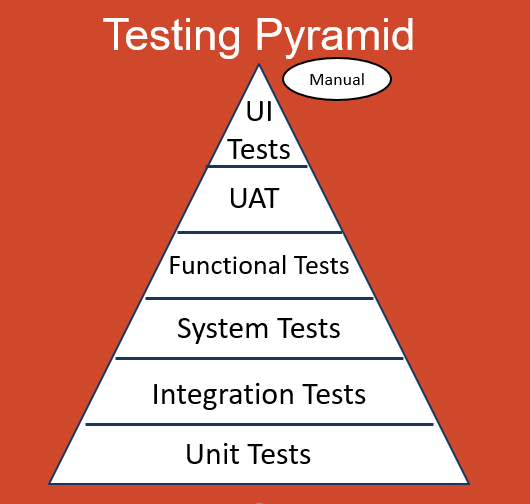
Software development tests consists of many testing strategies that covers different aspects of a software system. These testing strategies are generally represented as a pyramid, which is called testing pyramid that shows the testing types in relation to time, integration, and cost.

The testing pyramid

In an efficient software development environment, you should start writing tests with small unit tests that covers the code you are writing and makes you validate your code. These kind of tests generally are focused on the low level algorithms and functionality without being related to any integration point such as another service or a middleware such as Apache Kafka (aka. Kafka).

Developers might want to write tests that covers the integration points more but they might avoid using real systems to integrate for testing because of the time and maintenance costs. So they generally mock the integration points and focus on the logic. This ends up with many integration kind of tests written, which are actually unit tests.

Mocking is good in many ways such as you can run your tests in a faster way. However, there are drawbacks. You don’t test the real integration, so there might be unpredictable issues with a message sending to the system. Taking our previous Apache Kafka example, you might want to test your code against a real Kafka instance, or you might be developing a Kafka admin application that interacts with the Kafka configurations. If you mock Apache Kafka, you are not able to apply these tests.

At this point, Testcontainers comes as a saviour.

What is Testcontainers?

Testcontainers is a testing library, which helps developers to use Docker or Podman containers in their integration or UI/Acceptance tests.

Testcontainers makes testing easier for developers for use cases such as:

  • A data access layer that integrates with a database
  • A middleware or an application service that integrates with your application
  • UI or user acceptance tests along with libraries such as Selenium

Testcontainers supports many languages such as Java, .Net, Go, Python, Node.js, Rust, and Haskell.

In this tutorial, you will experience Testcontainers for Java along with the Kafka Containers module. You will:

  • Learn how to configure Testcontainers for Apache Kafka in a pure Java and a Spring Boot application.
  • Learn how to develop tests against Apache Kafka by using Testcontainers in a pure Java and a Spring Boot application.

Click >>this link<< to read the related tutorial from the AtomicJar Blog.

Continue reading >
Share

Integrating Apache Kafka with InfluxDB

We are in the cloud-native era. Applications or services count is increasing day by day as the application structures transform into microservices or serverless. The data that is generated by these applications or services keep growing and processing these data in a real-time manner becomes more important.

This processing can either be a real-time aggregation or a calculation whose output is a measurement or a metric. When it comes to metrics or measurements, they have to be monitored because in the cloud-native era, you have to be fail-fast. This means the sooner you get the right measurements or metric outputs, the sooner you can react and solve the issues or do the relevant changes in the system. This aligns with the idea that is stated in the book Accelerate: The Science of Lean Software and DevOps, which is initially created as a state of DevOps report, saying “Changes both rapidly and reliably is correlated to organizational success.

A change in a system, can be captured to be observed in many ways. The most popular one, especially in a cloud-native environment, is to use events. You might already heard about the even-driven systems, which became the de facto standard for creating loosely-coupled distributed systems. You can gather your application metrics, measurements or logs in an event-driven way (Event Sourcing, CDC, etc. ) and send them to an messaging backbone to be consumed by another resource like a database or an observability tool.

In this case, durability and performance is important and the traditional message brokers don’t have these by their nature.

Apache Kafka, on the contrary, is a durable, high-performance messaging system, which is also considered as a distributed stream processing platform. Kafka can be used for many use-cases such as messaging, data integration, log aggregation -and most importantly for this article- metrics.

When it comes to metrics, having only a message backbone or a broker is not enough. You have the real-time system but systems like Apache Kafka, even if they are durable enough to keep your data forever, are not designed to run queries for metrics or monitoring. However, systems such as InfluxDB, can do both for you.

InfluxDB is a database, but a time-series database. Leaving the detailed definition for a time-series database for later in this tutorial, a time-series database keeps the data in a time-stamped way, which is very suitable for metrics or events storage.

InfluxDB provides storage and time series data retrieval for the monitoring, application metrics, Internet of Things (IoT) sensor data and real-time analytics. It can be integrated with Apache Kafka to send or receive metric or event data for both processing and monitoring. You will read about these in more detail in the following parts of this tutorial.

In this tutorial, you will:

  • Run InfluxDB in a containerized way by using Docker.
  • Configure a bucket in InfluxDB.
  • Run an Apache Kafka cluster in Docker containers by using Strimzi container images.
  • Install Telegraf, which is a server agent for collecting and reporting metrics from many sources such as Kafka.
  • Configure Telegraf to integrate with InfluxDB by using its output plugin.
  • Configure Telegraf to integrate with Apache Kafka by using its input plugin.
  • Run Telegraf by using the configuration created.

Click >>this link<< to read the related tutorial from the InfluxDB Blog.

Continue reading >
Share

Back to Engineering Vol. 2: A Path to Wisdom

By Aykut Bulgu / August 21, 2023

A Path to “Wisdom”

I have been a Java developer for about 17 years already, starting with Java 1.4 and Struts 1.2 and JSP-related stuff. I had a chance to use many other frameworks such as Spring, JSF, Spring Boot, and as a web developer, I enjoyed developing Java for web programming. This was the part before I joined Red Hat.

When I was a consultant at Red Hat, I mainly used the Java stack as the Red Hat Middleware was mainly written with Java stack, and Red Hat application runtimes consist of mainly Java-related technologies such as Spring Boot, Vert.x, and Quarkus.

My Java journey didn’t end with my moving to the Red Hat training team, where I created applications mostly again with Java. I was in the AppDev team and as I said previously, Java was one of the main languages that are used in application development on the Red Hat technologies.

It was about 9 months ago that I wanted to get serious with Java development under the “engineering” title again by moving to the Red Hat AMQ Streams/Kafka team. I truly enjoy Kafka as it has been my technical niche for years. However, as the Rolling Stones say in their song (and as it is re-stated a couple of times in the House M.D. series): “you can’t always get what you want”.

In your -engineering- career, there are times when you should take a decision on what to do next; your path.

It can be a new company or a new team. It can be a new city or a country. Moreover, it can be a new language or a new framework. Maybe you are doing a total technology stack change by choosing a new path. Sometimes it is the time to learn new things and grow your career and improve yourself.

The Wisdom Move

A month ago or so, an internal opportunity happened and I decided to move to another team within Red Hat -again as an engineer.

I am moving to the Ansible Lightspeed (formerly Wisdom) team as of August 21!

Ansible has been one of the technologies that I’ve been interested in for some time, especially when I was a Middleware Consultant at Red Hat. I remember I got a lot of help from Ansible, for automating things like installing and setting up a Kafka cluster for a few customers. Now it is time for a giveback to Ansible I guess:) Therefore, I am happy to be a part of the Ansible Lightspeed/Wisdom team.

For this move, I am switching my development stack from Java to Python (and Django).

Python has been one of the languages that I am interested in for some time. I developed the Strimzi Kafka CLI with Python and I have no regret using it as Python is one of the best languages for developing a CLI. Apart from my CLI development experience with Python, I have some Django experience. I had a chance to develop a few Django services for World Health Organization for a project called “WHO Academy” when I was working with the Red Hat Open Innovation Labs team for them. While you have a main stack and you just touch other languages, it is easy, but since this is a stack change, as Master Yoda says, I might need to unlearn some things to learn new things as I am putting something new onto my 15+ years of experience.

Answers for the Mere Mortals

This move will cause many questions in the brilliant minds of the folks who already know me for sure. Let me answer some of them upfront.


Q: Why Python? Java is a more enterprise language(!) than Python, so why choose Python?

Wrong. Python has an easy start for anyone but it is also widely used in many enterprise areas. Python is widely used in machine learning and the Ansible project itself is written with Python.

Also, being a fan of a language or technology is wrong. You can love them, but you mustn’t be a fan of them. Lately, I like Python a bit more than Java, because of a few reasons, but I am not a fan of either of them.

As a Software Crafter, a software programming language doesn’t matter to me as it is just a tool. Tools can be switched, changed, or updated over time, depending on the work and circumstances.

Q: Don’t you think that this is a career suicide?

No. For the recruiters or similar professions maybe yes, but to me it is not. Because having more than one tool in your pocket is always an advantage. Learning different things can make you gain different perspectives on things so these kinds of moves are far from being a career suicide.

Q: What about Java/Jakarta EE/Quarkus? Will you be still contributing to the communities by creating content, giving speeches, and doing workshops?

Absolutely! I will continue to write about Java and Quarkus-related stuff, create videos and workshops and speak at Java/Jakarta EE conferences.

Q: What about Apache Kafka?

I like Kafka and it’s my niche technology that I’ve been specializing in. I cannot and will not stop creating content for it. Even if I am moving from the Strimzi team, I will continue to work on my Strimzi CLI project, continue to write about it, and record videos for it. There are many articles and related video content in my queue to be created and released. So stay tuned!

Q: Any plans on writing about Ansible/Ansible Lightspeed here?

Ansible will be my second niche for sure so why not! I like the technology and its control on any system so thinking this site’s name is “System Craftsman”, that would be a pity not to include Ansible-related content here. This can be thought of as the System Craftsmanship: Software Craftsmanship in the Cloud Native Era article’s theory can come into practice from now on.

Do you have some other questions? Feel free to ask me by using the comment section below, or just wish me luck with my new journey in lightspeed:)

May the Force be with you!

Continue reading >
Share

Back to Engineering: An engineer’s gainings through time

By Aykut Bulgu / November 29, 2022

EDIT: As of August 21, I am joining the Ansible Lightspeed engineering team. Stay tuned for another possible article about it!

EDIT2: Here is the new article: Back to Engineering Vol. 2: A Path to Wisdom

TL;DR: As of December 1st, I am starting a new job in Red Hat, this time as a Principal Software Engineer in the Kafka/Strimzi team. If you are curious about my Red Hat journey so far, read the rest:)

It’s been almost 5 years in Red Hat. I started my journey in Red Hat as a middleware consultant. After about 2.5 years I moved to the Red Hat Training team and have been working here as a Senior Content Architect, till now. Because it has changed recently. I am moving back to software engineering!

Before Red Hat, I was a Senior Software Engineer at Sahibinden.com, one of the highest-traffic-consuming websites in Turkey. Apart from some Business Intelligence journey or coding in .Net and PHP, most of my career consists of writing code in Java. So I called myself a “Java developer” most of the time and developed web application backends with several types of frameworks such as Struts 1.2 (yeah I am that old), JBoss Seam Framework, and Spring Framework (not Spring Boot!).

At some point, in the company I was working at, I felt that I am doing similar things in similar loops so I was in a kind of vicious cycle that I had to break. This way I wouldn’t be able to improve myself to be better in my career so I decided to learn some “new stuff” in my spare time in a scheduled way. Cloud, Kubernetes, and cloud-native were popular terms back then and I started to teach myself in very small chunks (The Kaizen Way) and tried not to break the chain.

Anyway, as a developer who was not much aware of the new cloud-native world, I learned about AWS, Kubernetes, OpenShift, and Fabric8, which was a Java library for Kubernetes.

It was early 2018, I remember reaching out to my Red Hat software engineer friend, Ali Ok, for an open position in Red Hat, asking if he can be a referral or not (Red Hat has a great job referral mechanism, which is called “Ambassador Program” and they value referrals a lot). The position was for a “Middleware/AppDev Consultant”, which requires the applicant to take care of the customer deliveries for Red Hat middleware, cloud-native apps, and most importantly: OpenShift CI/CD!

I don’t want to expand this part of the story too much but I joined a couple of interviews (including Java code interviews via Hackerrank at that time) and finally got the job and started at Red Hat as a Middleware/AppDev Consultant.

The Consultancy

I spent my ~2.5 years as a Middleware/AppDev Consultant, worked with about 20 different customers, and traveled to many countries including Senegal (West Africa), learned and taught a lot of Red Hat technologies such as Apache Camel (Fuse), Infinispan (Datagrid), Jenkins for OpenShift CI and ArgoCD for OpenShift CD, Quarkus (pretty new), and most importantly a technology that I am in love of; Apache Kafka. My Kafka journey did not start with Red Hat (as I knew a bit about Kafka from my previous job), but it became my “niche” technology in Red Hat. (For the curious ones: This presentation includes my short story with Kafka.)

Working with customers can be hard because their requests might vary, and communication and the way of working can vary depending on the people’s personalities (like everywhere) or the company culture.

As a software engineer, whose job was to just write code and almost only have to talk in the meetings, it was really hard for me initially because you could have “randomness” in that area, which makes the processes “unpredictable”.

An example of an unpredictable situation that I remember of is, once I contacted a customer to arrange a meeting and we arranged the meeting for a start of delivery (delivery here means the consultancy work/labor for the customer). There were only 3 or 4 people in the meeting request in my calendar so I was very relieved as I was not a good public speaker back then, so doing things among 3-4 people always meant it would be a small meeting in a small room. Easy start! I prepared only my hardware in relief and went to bed for the next day.

I went to the customer’s office the next morning, met the person who welcomed me to their company and we headed to the meeting room. When we came by the door of the meeting room, because of the external view I suspected that it was a big room. Well, sometimes we had small meetings in big meeting rooms, so that was something I was used to and that had to be a similar case.

He opened the door of the meeting room and there was a big long desk full of people around it (I could not count but it must be more than 40), waiting for me and my unprepared presentation as an intro for development processes with OpenShift.

Well, of course, I did not say “sorry but I didn’t prepare the presentation” or “I can’t show you anything today”, but sat down and requested about 5 minutes to be “prepared”. What do you think I did after this?

Well luckily, my dear colleague Cenk Kulacoglu, who is now the manager of the Red Hat Consultancy team in Turkey (he was a senior architect back then), had taught me to be prepared in any time. I had seen him he always had a couple of presentations in his Google Drive so that he could either present them or change them regarding the customer needs. That was what I did for that customer.

I told you about this story because being a consultant, not only makes you improve yourself technically but also improves your soft skills so that you can give more to your clients.

In consultancy, you can not only learn how to be “always being prepared” to overcome the “unpredicted situations”, but also many other skills that I think improved me in many ways:

  • Public speaking: I was shy about speaking in public probably because of a couple of traumas I had in my childhood. I had a chance to overcome this with the “unpredicted situations” many times. When you expect to see 3 people but learn that you have to present to 40, it improves you. Now I am pretty relaxed talking in front of public.
  • Presentation skills: I learned a lot from my craftership master Lemi Orhan Ergin in the past, and I think I had a chance to evolve it in my way with the style that I learned by just preparing slides. The key part is the “flow” and you learn it by doing. And if there are times that you have to do it in just 30 minutes to prepare a deck, then you learn it better:) (This is another story that I will not give any detail about.)
  • Presenting skills: A presentation is not only about slides, but you have to learn how to explain the topic to the audience, especially if they are your customers, you have to do it better because they want to learn from you and they are consulting with you. You must distill the knowledge and present it with the tools (presentation) and your public speaking abilities.
  • Persuasion/Negotiation skills: Well sometimes you have to convince the people/customer you work with. When you are a consultant, you are the one who is consulted so you might need to use your persuasion or negotiation skills from time to time.
  • Fast learning: You must learn things faster in the moving environment of consultancy because you will always be expected to know things, especially if that things belong to a wide group, such as middleware or CI/CD.
  • Flexible attitude (Politics skills): This is not about any politician or what they do but this is more about managing yourself and your clients. You must be always nice to the customers and should not be too direct. Sometimes there will be misunderstandings, or sometimes there can be really tough customers, you have to manage them all so you should not have one and only one solution for the same thing but many. This is not about a “customer is always right” thing, but about using your persuasion, negotiation, and “niceness” skills and being flexible as much as you can. This is one of the things that I learned very later on.
  • And many more that I might not remember… You can add your own in the comments section below.
WHO Built This

Just before finalizing my days as a consultant, I had a chance to work with a very special team; Red Hat Open Innovation Labs team, on a very special project; the World Health Organization (WHO) Learning Experience Platform (LXP), at a very special (and weird) time of the year; just after the pandemic happened!

It was a great experience with the WHO team, trying to implement and stabilize a real DevOps culture within their organization and creating a functioning application for their LXP project in just 8 weeks.

Enough for the words for this, for the curious mere mortals, here is how we did it:

Gaining these kinds of experiences as a “Software Engineer” or consultant makes you think differently. Being physically in a customer environment is one thing, having a kind of remote customer engagement, which is worldwide, timezone dependant, and important (because it is directly about health in a pandemic time), is another thing.

After my ~2.5 years of consultancy journey, because of having a small taste of working in a remote worldwide environment, and a bit of love for writing and creating content to teach people, I decided to move to another team, where I can access these benefits and improve myself on creating training content. I moved to the Red Hat Training (internally aka. Global Learning Services – GLS) team.

The “Content” Development

In February 2021 I joined the Red Hat training team, with the enthusiasm and excitement of having a chance to create professional content. I would write books for training and I was very excited about that.

Before being a consultant, I had been admiringly looking at the techie people who created content consistently. Some consistently wrote blog posts, others created YouTube content.

Especially the writing part took a lot of interest in me because if think if I did not become a “techie” I would be a writer; a novel writer. I remember I left similar notes to every close friend of mine in the high school diary book like “…in the future it is likely you find me in a book…”, giving the message to both their subconscious and mine. It is kind of childish but I have to admit that I liked writing because I had been writing short stories and poems at that time (poems in both English and Turkish. Edgar Allan Poe was -and still is- my favorite).

After years, in university, I lost my interest in writing and things went more with Maths and 0-1s but while trying to learn things on the web, I realized writing (actually creating content) is still a thing, which will not be rotten away. I tried to create some forums first, wrote one by myself with PHP, then used vBulettin and similar things but end up creating the site and writing a couple of posts or two then forget the website.

Later on, I understood that it is not a matter of quality, but quantity and consistency. This is another topic though, so I am leaving this for another article.

While I was working on the “Strimzi Kafka CLI”, writing blog posts about it, and creating video content, I always thought about writing better. If you are a software engineer who has this mindset that seeks a spec for everything technical, you also seek a spec for everything in the real world, like written content. I knew that my writing was not good (and still not perfect), but I probably sensed that there should be a better way to do that with a spec or something.

There are books around about creating content better such as Everybody Writes by Ann Handley and On Writing: A Memoir of the Craft by Stephen King, I bought both of them before I joined the training team and read both but it was the time I really learned about writing: writing, reviewing and get your content reviewed by your colleagues and the editors.

I learned that there is really a spec like developers have for their programming languages or frameworks. We used the Red Hat Style Guide and IBM Style Guide, which guided us a lot while we write. I think this is the actual process you really learn doing something. While I might be still chased by zombies of passive voice, I think my writing got improved a bit, good enough for helping a content creation agency with creating high-quality content for their customers. I am going to expand on this part later on in a different post about “Writing for Developers”.

Training the Experts

Working in a training team not only gives you a chance to improve your writing skills, but also you become a trainer by thinking from the trainee’s perspective.

We had a lot of discussions about how to present the content to the students, and how to write better quizzes, labs, and guided exercises, we even tried out different models of instructions so that we could get feedback about those and improve our end.

Training content is not like blog post content so you must think about its architecture (because it is actually a book), you have to have inclusive language, your style should be formal, you have to be clear with your instructions, and so on. Most importantly, because it is teamwork, you have to know how to work together and how to connect the dots of yours and other people’s because, in the end, it is a whole content that customers and Red Hat trainers use.

In the period that I’ve been involved in, I had a chance to work on many training contents including OpenShift CI/CD and OpenShift Serverless.

Here is a short list of the training courses we created during my tenure:

While I contributed writing content for these courses, I had a chance to use my connections from consultancy to reach out to people who are experts on those topics so we could get a lot of useful feedback before, during, and after the course development.

I can say that the Kafka one is my favorite one as I not only contributed to its content but also helped shape the outline of this course. It was the first course that I had a chance to start from scratch so I can admit I had a lot of fun. (Also thanks to my friends Jaime and Pablo who made this process fun for me. Long live the 3 Musketeers!)

I also had a chance to do a few Taste of Training (ToT) webinars where we demonstrated a training-relevant technology and did announcements about our present or future courses. You can find one about “Openshift Serverless” here still live on the Red Hat Webinars page, and another one about “Building event-driven systems with structure” is here on my YouTube channel:

In the training team, I had many chances to use my previous skills like presentation, people connections, fast learning, and product information, and learned new ones such as writing and training mechanics. Knowing how to write, as a developer, helped me a lot because when you write, you learn how to express your opinions better and you become more organized. Also if you start writing here and there, it is inevitable that you get some attraction which helps your self-marketing. I don’t write on popular technical content websites much but as I mentioned before, in my free time, I help a developer content creation agency where I can hone my writing or outlining skills.

It has been fun to work as a Content Architect at Red Hat but after some time I felt like I should focus on a single technology and work on it in a lower-level manner. Since I have been very much interested in Kafka and Strimzi for some time, I took a chance to move to the Red Hat Kafka engineering team, and luckily I was able to become a part of that team, which consists of very smart, talented and friendly people that I already know of!

The New Journey: Red Hat Kafka Engineering

As I mentioned at the very beginning of the article, it has been quite a time since I haven’t been doing R&D and writing low-ish-level code. I mean I wrote a lot of code for customer projects when I was a consultant, I wrote code for the guided exercises and labs for the training team, and wrote code for my open-source pet projects but writing the code for the product itself is a different thing. It is something that I haven’t been “directly” doing for 4+ years so I have to admit that I am a bit nervous and excited about it.

However, hopefully, I will have a chance to use my gainings from other teams and past experiences from them, and waking up the “software engineer” inside me with those past gainings, I believe, will create a beneficial combination for the team.

I am a lot excited that I will have a chance to do direct contributions to the Strimzi and AMQ Streams. I know that it is not like contributing from the outside because when you become a member, expectations become higher:)

I am starting my Principal Sofware Engineer role in the Kafka/Strimzi engineering team as of December 1st, so wish me luck with my new journey in Red Hat:)

Continue reading >
Share

A Cheat Sheet for Strimzi Kafka CLI

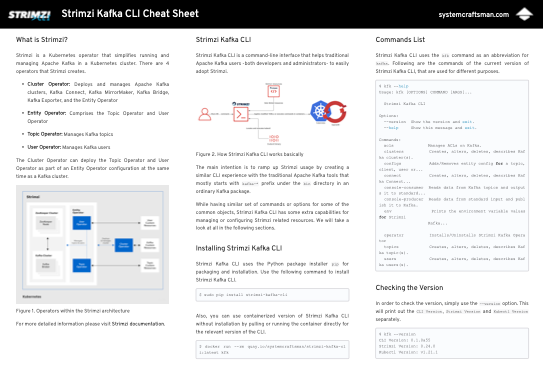
TL;DR: You can download the Strimzi CLI Cheat Sheet from this link if you are curious about Strimzi CLI capabilities and want a kind of quick reference guide for it.

It is a little bit more than one year since I first announced Strimzi Kafka CLI; a command-line interface for Strimzi Kafka Operator.

It was a 4-month-old project back then and I was too excited about the project to share it before it is Beta.

Well now it is a nearly 1.5 years old project that is still in Alpha since there is still a lot to harden for the Beta roadmap but in the meanwhile added many features like creating the operator from the command-line, creating the Kafka cluster with just one command, and managing a Kafka Connect cluster and its connectors with a similar way to the traditional one.

Through this time, I published a variety of videos in the System Craftsman Youtube channel about Strimzi CLI features and how it simplifies Strimzi usage imperatively. Most importantly, shared its advantages over the declarative model by explaining its story in a presentation that I did in an internal event of Red Hat. (Planning to do it publicly as well by submitting the same talk for CFPs)

With a lot of interest in the videos and the posts that I have been sharing from here, I thought that a document that gathers all the current features of the CLI in a summarized way would be great. So I decided to create a cheat sheet for Strimzi Kafka CLI.

After a few months of work (yes, unfortunately, it took a bit long since I have a full-time job🙂), I was able to finish the cheat sheet and find a proper way to distribute it safely.

The cheat sheet has shell command examples for different features of Strimzi CLI. So if you take a quick look at inside, you will see it has 7-8 pages that have more or less the following concepts:

  • A short definition of what Strimzi Kafka Operator is
  • How Strimzi Kafka CLI works
  • How to install it
  • Managing Strimzi Kafka Operator via CLI
  • Managing Kafka clusters via CLI
  • Managing Kafka topics
  • Producing and consuming messages
  • Managing users
  • Managing ACLs
  • Managing cluster, topic and user configurations
  • Kafka Connect and connectors

You can download the Strimzi CLI Cheat Sheet from this link if you are curious about Strimzi CLI capabilities and want a kind of quick reference guide for it.

Here is a short video that I do a quick walk-through for Strimzi Kafka CLI Cheat Sheet:

Continue reading >
Share

Creating a Kafka Connect Cluster on Strimzi by using Strimzi CLI

Kafka Connect

In this example, we will create a Kafka Connect cluster, and a few connectors that consumes particular twitter topics and writes them to an elasticsearch index to be searched easily.

We are not going to deal with any custom resources of Strimzi. Instead we will use traditional .property files that are used for Kafka Connect instances and connectors, with the help of Strimzi Kafka CLI.

Prerequisites

  • A Kubernetes/OpenShift cluster that has Strimzi Kafka Operator installed.
  • A namespace called kafka and a Kafka cluster called my-cluster
  • An elasticsearch instance up and running in the same namespace. (You can use the elasticsearch.yaml file in the repository if you have the ElasticSearch Operator running.)
  • A public image registry that has a repository called demo-connect-cluster.
  • Most importantly, a Twitter Developer Account that enables you to use Twitter API for development purposes. In this example we are going to use it with one of our Kafka Connect connectors.
  • This part of the repository. Clone this repository to be able to use the scripts provided for this example.

As a recommendation create the namespace first:

$ kubectl create namespace kafka

Or you can use the new-project command if you are using OpenShift.

$ oc new-project kafka

Then install the Strimzi Operator if its not installed. You can use Strimzi CLI for this:

$ kfk operator --install -n kafka

Clone the repo if you haven't done before and cd into the example's directory.

$ git clone https://github.com/systemcraftsman/strimzi-kafka-cli.git
$ cd strimzi-kafka-cli/examples/5_connect

Create Kafka and Elasticsearch cluster by running the setup_example.sh script in the example's directory:

$ chmod +x ./scripts/setup_example.sh
$ ./scripts/setup_example.sh

This will create a Kafka cluster with 2 brokers, and an Elasticsearch cluster that's accessible through a Route.

Keep in mind that this script doesn't create the Elasticsearch operator which Elasticsearch resource that is created in this script needs. So first you will need to install the operator for Elasticsearch before running the helper script.


NOTE

If you are using Kubernetes you can create an Ingress and expose the Elasticsearch instance.

Exposing the Elasticsearch instance is not mandatory; you can access the Elasticsearch instance cluster internally.


Lastly create an empty repository in any image registry of your choice. For this example we are going to use Quay.io as our repository will be quay.io/systemcraftsman/demo-connect-cluster.

Creating a Kafka Connect Cluster with a Twitter Source Connector

For this example, to show how it is easy to create a Kafka Connect cluster with a traditional properties file, we will use an example of a well-known Kafka instructor, Stephane Maarek, who demonstrates a very basic Twitter Source Connector in one of his courses.

So let's clone the repository https://github.com/simplesteph/kafka-beginners-course.git and change directory into the kafka-connect folder in the repository.

In the repository we have this twitter.properties file which has the following config in it:

name=TwitterSourceDemo
tasks.max=1
connector.class=com.github.jcustenborder.kafka.connect.twitter.TwitterSourceConnector

# Set these required values
process.deletes=false
filter.keywords=bitcoin
kafka.status.topic=twitter_status_connect
kafka.delete.topic=twitter_deletes_connect
# put your own credentials here - don't share with anyone
twitter.oauth.consumerKey=
twitter.oauth.consumerSecret=
twitter.oauth.accessToken=
twitter.oauth.accessTokenSecret=

This connector get the tweets statuses or deletions and saves them into the twitter_status_connect or twitter_deletes_connect depending on the action. The filter.keywords defines the keywords to be filtered for the returned tweets. In this case it is set as bitcoin, so this will consume every tweet that has bitcoin and put it in the relevant topics.

Now let's make a few changes on this file regarding the content and restrictions that Strimzi has for topic names.

Copy the twitter.properties file and save it as twitter_connector.properties which you will be editing.

In the new file change the twitter_status_connect to twitter-status-connect which Strimzi will complain about since it is not a good name for a topic. Normally Apache Kafka returns a warning about this but allows this underscore(_) convention. Since Strimzi uses custom resources for managing Kafka resources, it is not a good practice to use underscores in the topic names, or in any other custom resource of Strimzi.

Also change the twitter_deletes_connect to twitter-deletes-connect and the connector name to twitter-source-demo for a common convention.

Enter your Twitter OAuth keys which you can get from your Twitter Developer Account. For the creation of a Twitter Developer Account, Stephane explains this perfectly in his Kafka For Beginners course on Udemy. So I recommend you to take a look at both the course and the twitter setup that is explained.

Finally, change the bitcoin filter to kafka for our demo (Or you can change it to anything that you want to see the tweets of).

The final connector configuration file should look like this:

name=twitter-source-demo
tasks.max=1
connector.class=com.github.jcustenborder.kafka.connect.twitter.TwitterSourceConnector

# Set these required values
process.deletes=false
filter.keywords=kafka
kafka.status.topic=twitter-status-connect
kafka.delete.topic=twitter-deletes-connect
# put your own credentials here - don't share with anyone
twitter.oauth.consumerKey=_YOUR_CONSUMER_KEY_
twitter.oauth.consumerSecret=_YOUR_CONSUMER_SECRET_
twitter.oauth.accessToken=_YOUR_ACCESS_TOKEN_
twitter.oauth.accessTokenSecret=_YOUR_ACCESS_TOKEN_SECRET_

Notice how little we changed (actually just the names) in order to use it in the Strimzi Kafka Connect cluster.

Because we are going to need the twitter-status-connect and twitter-deletes-connect topics, let's create them upfront and continue our configuration. You must have remembered our kfk topics --create commands topics creation with Strimzi Kafka CLI:

$ kfk topics --create --topic twitter-status-connect --partitions 3 --replication-factor 1 -c my-cluster -n kafka
$ kfk topics --create --topic twitter-deletes-connect --partitions 3 --replication-factor 1 -c my-cluster -n kafka

Now let's continue with our Connect cluster's creation.

In the same repository we have this connect-standalone.properties file which has the following config in it:

...output omitted...
bootstrap.servers=localhost:9092

...output omitted...
key.converter=org.apache.kafka.connect.json.JsonConverter
value.converter=org.apache.kafka.connect.json.JsonConverter

...output omitted...
key.converter.schemas.enable=true
value.converter.schemas.enable=true

offset.storage.file.filename=/tmp/connect.offsets
# Flush much faster than normal, which is useful for testing/debugging
offset.flush.interval.ms=10000

...output omitted...
plugin.path=connectors

Kafka Connect normally has this plugin.path key which has the all connector binaries to be used for any connector created for that Connect cluster. In our case, for Strimzi, it will be a bit different because we are going to create our connect cluster in a Kubernetes/OpenShift environment, so we should either create an image locally, or make Strimzi create the connect image for us. We will use the second option, which is fairly a new feature of Strimzi.

Only thing we have to do, instead of defining a path, we will define a set of url that has the different connector resources. So let's copy the file that Stephane created for us and save it as connect.properties since Kafka Connect works in the distributed mode in Strimzi (there is no standalone mode in short).

In the connect.properties file change the plugin.path with plugin.url and set the following source url to it:

plugin.url=https://github.com/jcustenborder/kafka-connect-twitter/releases/download/0.2.26/kafka-connect-twitter-0.2.26.tar.gz

By comparing to the original repository, you can see in the connectors folder there are a bunch of jar files that Twitter Source Connector uses. The url that you set above has the same resources archived. Strimzi extracts them while building the Connect image in the Kubernetes/OpenShift cluster.

Speaking of the image, we have to set an image, actually an image repository path, that Strimzi can push the built image into. This can be either an internal registry of yours, or a public one like Docker Hub or Quay. In this example we will use Quay and we should set the image URL like the following:

image=quay.io/systemcraftsman/demo-connect-cluster:latest

Here you can set the repository URL of your choice instead of quay.io/systemcraftsman/demo-connect-cluster:latest. As a prerequisite, you have to create this repository and make the credentials ready for the image push for Strimzi.

Apart from the plugin.path, we can do a few changes like changing the offset storage to a topic instead of a file and disabling the key/value converter schemas because we will just barely need to see the data itself; we don't need the JSON schemas.

Lastly change the bootstrap.servers value to my-cluster-kafka-bootstrap:9092, as my-cluster-kafka-bootstrap is the my-cluster Kafka cluster's Kubernetes internal host name that is provided by a Kubernetes Service.

So the final connect.properties file should look like this:

...output omitted...

bootstrap.servers=my-cluster-kafka-bootstrap:9092

# The converters specify the format of data in Kafka and how to translate it into Connect data. Every Connect user will
# need to configure these based on the format they want their data in when loaded from or stored into Kafka
key.converter=org.apache.kafka.connect.json.JsonConverter
value.converter=org.apache.kafka.connect.json.JsonConverter
# Converter-specific settings can be passed in by prefixing the Converter's setting with the converter we want to apply
# it to
key.converter.schemas.enable=false
value.converter.schemas.enable=false

offset.storage.topic=connect-cluster-offsets
config.storage.topic=connect-cluster-configs
status.storage.topic=connect-cluster-status
config.storage.replication.factor=1
offset.storage.replication.factor=1
status.storage.replication.factor=1

...output omitted...

image=quay.io/systemcraftsman/demo-connect-cluster:latest
plugin.url=https://github.com/jcustenborder/kafka-connect-twitter/releases/download/0.2.26/kafka-connect-twitter-0.2.26.tar.gz

Again notice how the changes are small to make it compatible for a Strimzi Kafka Connect cluster. Now lets run the Kafka Connect cluster in a way that we used to do with the traditional CLI of Kafka.

In order to start a standalone Kafka Connect cluster traditionally some must be familiar with a command like the following:

$ ./bin/connect-standalone.sh connect.properties connector.properties

The command syntax for Strimzi Kafka CLI is the same. This means you can create a Connect cluster along with one or more connectors by providing their config properties. The only difference is, Strimzi runs the Connect cluster in the distributed mode.

Run the following command to create to create a connect cluster called my-connect-cluster and a connector called twitter-source-demo. Don't forget to replace your image registry user with _YOUR_IMAGE_REGISTRY_USER_.

$ kfk connect clusters --create --cluster my-connect-cluster --replicas 1 -n kafka connect.properties twitter_connector.properties -u _YOUR_IMAGE_REGISTRY_USER_ -y

IMPORTANT

You can also create the cluster with a more controlled way; by not passing the -y flag. Without the -y flag, Strimzi Kafka CLI shows you the resource YAML of the Kafka Connect cluster in an editor, and you can modify or just save the resource before the creation. In this example we skip this part with -y flag.


You should be prompted for the registry password. Enter the password and observe the CLI response as follows:

secret/my-connect-cluster-push-secret created
kafkaconnect.kafka.strimzi.io/my-connect-cluster created
kafkaconnector.kafka.strimzi.io/twitter-source-demo created

IMPORTANT

Be careful while entering that because there is no mechanism that checks this password in Strimzi Kafka CLI, so if the password is wrong, simply the Connect image will be built sucessfully, but Strimzi won't be able to push it to the registry you specified before.

In case of any problem just delete the Connect cluster with the following command and create it again:

$ kfk connect clusters --delete --cluster my-connect-cluster -n kafka -y

Or you can delete/create the push secret that is created if you are experienced enough.


Now you can check the pods and wait till the Connect cluster pod runs without a problem.

$ watch kubectl get pods -n kafka
...output omitted...
my-connect-cluster-connect-8444df69c9-x7xf6   1/1     Running     0          3m43s
my-connect-cluster-connect-build-1-build      0/1     Completed   0          6m47s
...output omitted...

If everything is ok with the connect cluster, now you should see some messages in one of the topics we created before running the Connect cluster. Let's consume messages from twitter-status-connect topic to see if our Twitter Source Connector works.

$ kfk console-consumer --topic twitter-status-connect -c my-cluster -n kafka
...output omitted...
{"CreatedAt":1624542267000,"Id":1408058441428439047,"Text":"@Ch1pmaster @KAFKA_Dev Of het is gewoon het zoveelste boelsjit verhaal van Bauke...
...output omitted...

Observe that in the console tweets appear one by one while they are created in the twitter-status-connect topic and consumed by the consumer.

As you can see we took a couple of traditional config files from one of the most loved Kafka instructor's samples and with just a few changes on the configuration, we could create our Kafka Connect cluster along with a Twitter Source connector easily.

Now let's take a step forward and try another thing. What about putting these tweets in an elasticsearch index and make them searchable?

Altering the Kafka Connect Cluster

In order to get the tweets from the twitter-status-connect topic and index them in Elasticsearch we need to use a connector that does this for us.

Camel Elasticsearch REST Kafka Sink Connector is the connector that will do the magic for us.

First we need to add the relevant plugin resources of Camel Elasticsearch REST Sink Connector in our current connect.properties file that configures our Kafka Connect cluster.

Add the URL of the connector like the following in the connect.properties file:

...output omitted...
plugin.url=https://github.com/jcustenborder/kafka-connect-twitter/releases/download/0.2.26/kafka-connect-twitter-0.2.26.tar.gz,https://repo.maven.apache.org/maven2/org/apache/camel/kafkaconnector/camel-elasticsearch-rest-kafka-connector/0.10.0/camel-elasticsearch-rest-kafka-connector-0.10.0-package.tar.gz
...output omitted...

Now run the kfk connect clusters command this time with --alter flag.

$ kfk connect clusters --alter --cluster my-connect-cluster -n kafka connect.properties
kafkaconnect.kafka.strimzi.io/my-connect-cluster replaced

Observe the connector is being build again by watching the pods.

$ watch kubectl get pods -n kafka

Wait until the build finishes, and the connector pod is up and running again.

...output omitted...
my-connect-cluster-connect-7b575b6cf9-rdmbt   1/1     Running     0          111s
...output omitted...
my-connect-cluster-connect-build-2-build      0/1     Completed   0          2m37s

Because we have a running Connect cluster ready for a Camel Elasticsearch REST Sink Connector, we can create our connector now, this time using the kfk connect connectors command.

Creating a Camel Elasticsearch REST Sink Connector

Create a file called camel_es_connector.properties and paste the following in it.

name=camel-elasticsearch-sink-demo
tasks.max=1
connector.class=org.apache.camel.kafkaconnector.elasticsearchrest.CamelElasticsearchrestSinkConnector

value.converter=org.apache.kafka.connect.storage.StringConverter

topics=twitter-status-connect
camel.sink.endpoint.hostAddresses=elasticsearch-es-http:9200
camel.sink.endpoint.indexName=tweets
camel.sink.endpoint.operation=Index
camel.sink.path.clusterName=elasticsearch
errors.tolerance=all
errors.log.enable=true
errors.log.include.messages=true

Observe that our connector's name is camel-elasticsearch-sink-demo and we use the CamelElasticsearchrestSinkConnector class to read the tweets from twitter-status-connect topic.

Properties starting with camel.sink. defines the connector specific properties. With these properties the connector will create an index called tweets in the Elasticsearch cluster which is accesible from elasticsearch-es-http:9200 host and port.

For more details for this connector, please visit the connector's configuration page link that we provided above.

Creating a connector is very simple. If you defined a topic or another object of Strimzi via Strimzi Kafka CLI before, you will notice the syntax is pretty much the same.

Run the following command to create the connector for Camel Elasticsearch REST Sink:

$ kfk connect connectors --create -c my-connect-cluster -n kafka camel_es_connector.properties
kafkaconnector.kafka.strimzi.io/camel-elasticsearch-sink-demo created

You can list the created connectors so far:

$ kfk connect connectors --list -c my-connect-cluster -n kafka
NAME                            CLUSTER              CONNECTOR CLASS                                                                         MAX TASKS   READY
twitter-source-demo             my-connect-cluster   com.github.jcustenborder.kafka.connect.twitter.TwitterSourceConnector                   1           1
camel-elasticsearch-sink-demo   my-connect-cluster   org.apache.camel.kafkaconnector.elasticsearchrest.CamelElasticsearchrestSinkConnector   1           1

After the resource created run the following curl command in the watch mode to observe how the indexed values increases per tweet consumption. Change the _ELASTIC_EXTERNAL_URL_ with your Route or Ingress URL of the Elasticsearch cluster you created as a prerequisite.

$ watch "curl -s http://_ELASTIC_EXTERNAL_URL_/tweets/_search | jq -r '.hits.total.value'"

In another terminal window you can run the console consumer again to see both the Twitter Source connector and the Camel Elasticsearch Sink connector in action:

tweets_flowing

In a browser or with curl, call the following URL for searching Apache word in the tweet texts.

$ curl -s http://_ELASTIC_EXTERNAL_URL_/tweets/_search?q=Text:Apache
{"took":3,"timed_out":false,"_shards":{"total":1,"successful":1,"skipped":0,"failed":0},"hits":{"total":{"value":3,"relation":"eq"},"max_score":5.769906,"hits":[{"_index":"tweets","_type":"_doc","_id":"bm6aPnoBRxta4q47oss0","_score":5.769906,"_source":{"CreatedAt":1624542084000,"Id":1408057673577345026,"Text":"RT @KCUserGroups: June 29: Kansas City Apache Kafka® Meetup by Confluent - Testing with AsyncAPI for Apache Kafka: Brokering the Complexity…","Source":"<a href=\"http://twitter.com/download/android\" rel=\"nofollow\">Twitter for Android</a>","Truncated":false,"InReplyToStatusId":-1,"InReplyToUserId":-1,"InReplyToScreenName":null,"GeoLocation":null,"Place":null,"Favorited":false,"Retweeted":false,"FavoriteCount":0,"User":{"Id":87489271,"Name":"Fran Méndez","ScreenName":"fmvilas","Location":"Badajoz, España","Description":"Founder of @AsyncAPISpec. Director of Engineering at @getpostman.\n\nAtheist, feminist, proud husband of @e_morcillo, and father of Ada & 2 cats \uD83D\uDC31\uD83D\uDC08 he/him","ContributorsEnabled":false,"ProfileImageURL":"http://pbs.twimg.com/profile_images/1373387614238179328/cB1gp6Lh_normal.jpg","BiggerProfileImageURL":"http://pbs.twimg.com/profile_images/1373387614238179328/cB1gp6Lh_bigger.jpg","MiniProfileImageURL":"http://pbs.twimg.com/profile_images/1373387614238179328/cB1gp6Lh_mini.jpg","OriginalProfileImageURL":"http://pbs.twimg.com/profile_images/1373387614238179328/cB1gp6Lh.jpg","ProfileImageURLHttps":"https://pbs.twimg.com/profile_images/1373387614238179328/cB1gp6Lh_normal.jpg","BiggerProfileImageURLHttps":"https://pbs.twimg.com/profile_images/1373387614238179328/cB1gp6Lh_bigger.jpg","MiniProfileImageURLHttps":"https://pbs.twimg.com/profile_images/1373387614238179328/cB1gp6Lh_mini.jpg","OriginalProfileImageURLHttps":"https://pbs.twimg.com/profile_images/1373387614238179328/cB1gp6Lh.jpg","DefaultProfileImage":false,"URL":"http://www.fmvilas.com","Protected":false,"FollowersCount":1983,"ProfileBackgroundColor":"000000","ProfileTextColor":"000000","ProfileLinkColor":"1B95E0","ProfileSidebarFillColor":"000000","ProfileSidebarBorderColor":"000000","ProfileUseBackgroundImage":false,"DefaultProfile":false,"ShowAllInlineMedia":false,"FriendsCount":3197,
...output omitted...

Cool! We hit some Apache Kafka tweets with our Apache search in Twitter tweets related to kafka. How about yours? If you don't hit anything you can do the search with any word of your choice.

Since we are almost done with our example let's delete the resources one by one to observe how Strimzi Kafka CLI works with the deletion of the Kafka Connect resources.

Deleting Connectors and the Kafka Connect Cluster

First let's delete our connectors one by one:

$ kfk connect connectors --delete --connector twitter-source-demo -c my-connect-cluster -n kafka
kafkaconnector.kafka.strimzi.io "twitter-source-demo" deleted
$ kfk connect connectors --delete --connector camel-elasticsearch-sink-demo -c my-connect-cluster -n kafka
kafkaconnector.kafka.strimzi.io "camel-elasticsearch-sink-demo" deleted

Observe no more tweets are produced in the twitter-status-connect topic and no more data is indexed in Elasticsearch anymore.

Now we can also delete the my-connect-cluster Kafka Connect cluster. Notice that it is pretty much the same with the Kafka cluster deletion syntax of Strimzi CLI.

$ kfk connect clusters --delete --cluster my-connect-cluster -n kafka -y

This command will both delete the KafkaConnect resource and the push secret that is created for the Connect image.

kafkaconnect.kafka.strimzi.io "my-connect-cluster" deleted
secret "my-connect-cluster-push-secret" deleted

Check the Connect cluster pod is terminated by the Strimzi operator:

$ kubectl get pods -n kafka
NAME                                          READY   STATUS    RESTARTS   AGE
elastic-operator-84774b4d49-v2lbr             1/1     Running   0          4h9m
elasticsearch-es-default-0                    1/1     Running   0          4h8m
my-cluster-entity-operator-5c84b64ddf-22t9p   3/3     Running   0          4h8m
my-cluster-kafka-0                            1/1     Running   0          4h8m
my-cluster-kafka-1                            1/1     Running   0          4h8m
my-cluster-zookeeper-0                        1/1     Running   0          4h8m

Congratulations!

In this example we are able to create a Kafka Connect cluster along with a Twitter Source connector with Strimzi Kafka CLI, to consume the tweets from Twitter and write them to one of our topics that we defined in the configuration. We also altered the Kafka Connect Cluster and added new plugin resources for Camel Elasticsearch REST Sink connector, to write our tweets from the relevant topic to an Elasticsearch index with a single --alter command of Strimzi Kafka CLI. This made our consumed tweets searchable, so that we could search for the word Apache in our tweets Elasticsearch index. After finishing the example, we cleared up our resources by deleting them easily with the CLI.

Access the repo of this post from here: https://github.com/systemcraftsman/strimzi-kafka-cli/tree/master/examples/5_connect

If you are interested in more, check out the video that I create a Kafka Connect cluster and the relevant connectors in the article, using Strimzi Kafka CLI:

Continue reading >
Share

A Strimzi Kafka Quickstart for Quarkus with Strimzi CLI

Quarkus Strimzi Demo (by using Strimzi Kafka CLI)

This project illustrates how you can interact with Apache Kafka on Kubernetes (Strimzi) using MicroProfile Reactive Messaging.

Kafka cluster (on OpenShift)

First you need a Kafka cluster on your OpenShift.

Create a namespace first:

 oc new-project kafka-quickstart

Then you will need Strimzi Kafka CLI by running the following command (you will need Python3 and pip):

 sudo pip install strimzi-kafka-cli

See here for other details about Strimzi Kafka CLI.

After installing Strimzi Kafka CLI run the following command to install the operator on kafka-quickstart namespace:

 kfk operator --install -n kafka-quickstart

When the operator is ready to serve, run the following command in order to create a Kafka cluster:

 kfk clusters --create --cluster my-cluster -n kafka-quickstart

A vim interface will pop-up. If you like you can change the broker and zookeeper replicas to 1 but I suggest you to leave them as is if your Kubernetes cluster have enough resources. Save the cluster configuration file and respond Yes to make Strimzi CLI apply the changes.

Wait for the 3 broker and 3 zookeeper pods running in ready state in your cluster:

 oc get pods -n kafka-quickstart -w

When all pods are ready, create your prices topic to be used by the application:

 kfk topics --create --topic prices --partitions 10 --replication-factor 2 -c my-cluster -n kafka-quickstart

Check your topic is created successfully by describing it natively:

kfk topics --describe --topic prices -c my-cluster -n kafka-quickstart --native

Deploy the application

The application can be deployed to OpenShift using:

 ./mvnw clean package -DskipTests

This will take a while since the s2i build will run before the deployment. Be sure the application's pod is running in ready state in the end. Run the following command to get the URL of the Prices page:

echo http://$(oc get routes -n kafka-quickstart -o json | jq -r '.items[0].spec.host')/prices.html 

Copy the URL to your browser, and you should see a fluctuating price.

Anatomy

In addition to the prices.html page, the application is composed by 3 components:

  • PriceGenerator
  • PriceConverter
  • PriceResource

We generate (random) prices in PriceGenerator. These prices are written in prices Kafka topic that we recently created. PriceConverter reads from the prices Kafka topic and apply some magic conversion to the price. The result is sent to an in-memory stream consumed by a JAX-RS resource PriceResource. The data is sent to a browser using server-sent events.

The interaction with Kafka is managed by MicroProfile Reactive Messaging. The configuration is located in the application configuration.

Running and deploying in native

You can compile the application into a native binary using:

mvn clean install -Pnative

or deploy with:

 ./mvnw clean package -Pnative -DskipTests

This demo is based on the following resources:

Visit the following link to clone this demo:

https://github.com/systemcraftsman/quarkus-strimzi-cli-demos

Continue reading >
Share

Configuring Kafka Topics, Users and Brokers on Strimzi using Strimzi Kafka CLI

Topic, User and Broker Configuration

Strimzi Kafka CLI enables users to describe, create, delete configurations of topics, users and brokers like you did with native Apache Kafka commands.

While kfk configs command can be used to change the configuration of these three entities, one can change relevant entities' configuration by using the following as well:

  • kfk topics --config/--delete-config for adding and deleting configurations to topics.

  • kfk users --quota/--delete-quota for managing quotas as a part of the configuration of it.

  • kfk clusters --config/--delete-config for adding and deleting configurations to all brokers.

In this example we will show you to do the configuration by using kfk configs only but will mention about the options above. So let's start with topic configuration.

Topic Configuration

Considering we already have a Kafka cluster called my-cluster on our namespace called kafka, let's create a topic on it called my-topic:

kfk topics --create --topic my-topic --partitions 12 --replication-factor 3 -c my-cluster -n kafka

IMPORTANT

If you don't have any Kafka cluster that is created on your OpenShift/Kubernetes, you can use the following command:

kfk clusters --create --cluster my-cluster -n kafka

You can easily create an operator on the current OpenShift/Kubernetes before creating a Kafka cluster if you don't have one:

kfk operator --install -n kafka

First let's see what pre-defined configurations we have on our topic:

kfk configs --describe --entity-type topics --entity-name my-topic -c my-cluster -n kafka --native

Since we are running our config --describe command with --native flag, we can see all the default dynamic configurations for the topic:

Dynamic configs for topic my-topic are:
  segment.bytes=1073741824 sensitive=false synonyms={DYNAMIC_TOPIC_CONFIG:segment.bytes=1073741824, DEFAULT_CONFIG:log.segment.bytes=1073741824}
  retention.ms=7200000 sensitive=false synonyms={DYNAMIC_TOPIC_CONFIG:retention.ms=7200000}

INFO

Additionally you can describe all of the topic configurations natively on current cluster. To do this, just remove the entity-name option:

kfk configs --describe --entity-type topics -c my-cluster -n kafka --native

We can also describe the Topic custom resource itself by removing the --native flag:

kfk configs --describe --entity-type topics --entity-name my-topic -c my-cluster -n kafka
...
Spec:
  Config:
    retention.ms:   7200000
    segment.bytes:  1073741824
...

Now let's add a configuration like min.insync.replicas, which configures the sync replica count through the broker, between the leaders and followers. In order to add a configuration you must use --alter and for each config to be add --add-config following the kfk config command:

kfk configs --alter --add-config min.insync.replicas=3 --entity-type topics --entity-name my-topic -c my-cluster -n kafka

You should see a message like this:

kafkatopic.kafka.strimzi.io/my-topic configured

Alternatively you can set the topic configuration by using kfk topics with --config option:

kfk topics --alter --topic my-topic --config min.insync.replicas=3 -c my-cluster -n kafka

In order to add two configs -let's say that we wanted to add cleanup.policy=compact configuration along with min.insync.replicas- run a command like following:

kfk configs --alter --add-config 'min.insync.replicas=3,cleanup.policy=compact' --entity-type topics --entity-name my-topic -c my-cluster -n kafka

or

kfk topics --alter --topic my-topic --config min.insync.replicas=3 --config cleanup.policy=compact -c my-cluster -n kafka

After setting the configurations in order to see the changes, use the --describe flag like we did before:

kfk configs --describe --entity-type topics --entity-name my-topic -c my-cluster -n kafka --native

Output is:

Dynamic configs for topic my-topic are:
  min.insync.replicas=3 sensitive=false synonyms={DYNAMIC_TOPIC_CONFIG:min.insync.replicas=3, DEFAULT_CONFIG:min.insync.replicas=1}
  cleanup.policy=compact sensitive=false synonyms={DYNAMIC_TOPIC_CONFIG:cleanup.policy=compact, DEFAULT_CONFIG:log.cleanup.policy=delete}
  segment.bytes=1073741824 sensitive=false synonyms={DYNAMIC_TOPIC_CONFIG:segment.bytes=1073741824, DEFAULT_CONFIG:log.segment.bytes=1073741824}
  retention.ms=7200000 sensitive=false synonyms={DYNAMIC_TOPIC_CONFIG:retention.ms=7200000}

In order to see the added configuration as a Strimzi resource run the same command without --native option:

kfk configs --describe --entity-type topics --entity-name my-topic -c my-cluster -n kafka
...
  Config:
    cleanup.policy:       compact
    min.insync.replicas:  3
    retention.ms:         7200000
    segment.bytes:        1073741824
...

Like adding a configuration, deleting a configuration is very easy. You can remove all the configurations that you've just set with a single command:

kfk configs --alter --delete-config 'min.insync.replicas,cleanup.policy' --entity-type topics --entity-name my-topic -c my-cluster -n kafka

or you can use:

kfk topics --alter --topic my-topic --delete-config min.insync.replicas --delete-config cleanup.policy -c my-cluster -n kafka

When you run the describe command again you will see that the relevant configurations are removed:

kfk configs --describe --entity-type topics --entity-name my-topic -c my-cluster -n kafka --native
Dynamic configs for topic my-topic are:
  segment.bytes=1073741824 sensitive=false synonyms={DYNAMIC_TOPIC_CONFIG:segment.bytes=1073741824, DEFAULT_CONFIG:log.segment.bytes=1073741824}
  retention.ms=7200000 sensitive=false synonyms={DYNAMIC_TOPIC_CONFIG:retention.ms=7200000}

As you can see we could easily manipulate the topic configurations almost like the native shell executables of Apache Kafka. Now let's see how it is done for user configuration.

User Configuration

For the user configuration let's first create a user called my-user:

kfk users --create --user my-user --authentication-type tls -n kafka -c my-cluster

After creating the user, let's add two configurations as quota configurations like request_percentage=55 and consumer_byte_rate=2097152.

kfk configs --alter --add-config 'request_percentage=55,consumer_byte_rate=2097152' --entity-type users --entity-name my-user -c my-cluster -n kafka

Alternatively you can set the user quota configuration by using kfk users with --quota option:

kfk users --alter --user my-user --quota request_percentage=55 --quota consumer_byte_rate=2097152 -c my-cluster -n kafka

IMPORTANT

In traditional kafka-configs.sh command there are actually 5 configurations, 3 of which are quota related ones:

consumer_byte_rate
producer_byte_rate
request_percentage

and the other 2 is for authentication type:

SCRAM-SHA-256
SCRAM-SHA-512

While these two configurations are also handled by kafka-configs.sh in traditional Kafka usage, in Strimzi CLI they are configured by altering the cluster by running the kfk clusters --alter command and altering the user by using the kfk users --alter command for adding the relevant authentication type. So kfk configs command will not be used for these two configurations since it's not supported.


Now let's take a look at the configurations we just set:

kfk configs --describe --entity-type users --entity-name my-user -c my-cluster -n kafka --native
Configs for user-principal 'CN=my-user' are consumer_byte_rate=2097152.0, request_percentage=55.0

INFO

Additionally you can describe all of the user configurations natively on current cluster. To do this, just remove the entity-name option:

kfk configs --describe --entity-type users -c my-cluster -n kafka --native

You can also see the changes in the Kubernetes native description:

kfk configs --describe --entity-type users --entity-name my-user -c my-cluster -n kafka
...
Spec:
...
  Quotas:
    Consumer Byte Rate:  2097152
    Request Percentage:  55
...

Deletion of the configurations is almost the same as deleting the topic configurations:

kfk configs --alter --delete-config 'request_percentage,consumer_byte_rate' --entity-type users --entity-name my-user -c my-cluster -n kafka

or

kfk users --alter --user my-user --delete-quota request_percentage=55 --delete-quota consumer_byte_rate=2097152 -c my-cluster -n kafka

You can see that empty response returning since there is no configuration anymore after the deletion:

kfk configs --describe --entity-type users --entity-name my-user -c my-cluster -n kafka --native

So we could easily update/create/delete the user configurations for Strimzi, almost like the native shell executables of Apache Kafka. Now let's take our final step to see how it is done for broker configuration.

Broker Configuration

Adding configurations either as dynamic ones or static ones are as easy as it is for the topics and users. For both configuration types, Strimzi takes care about it itself by rolling update the brokers for the static configurations and reflecting directly the dynamic configurations.

Here is a way to add a static configuration that will be reflected after the rolling update of the brokers:

kfk configs --alter --add-config log.retention.hours=168 --entity-type brokers --entity-name my-cluster -c my-cluster -n kafka

or alternatively using the kfk clusters command:

kfk clusters --alter --cluster my-cluster --config log.retention.hours=168 -n kafka

IMPORTANT

Unlike the native kafka-configs.sh command, for the entity-name, the Kafka cluster name should be set rather than the broker ids.


kfk configs --describe --entity-type brokers --entity-name my-cluster -c my-cluster -n kafka
...
  Kafka:
    Config:
      log.message.format.version:                2.6
      log.retention.hours:                       168
      offsets.topic.replication.factor:          3
      transaction.state.log.min.isr:             2
      transaction.state.log.replication.factor:  3
...

You can describe the cluster config Kafka natively like the following:

kfk configs --describe --entity-type brokers -c my-cluster -n kafka --native
Dynamic configs for broker 0 are:
Dynamic configs for broker 1 are:
Dynamic configs for broker 2 are:
Default configs for brokers in the cluster are:

All user provided configs for brokers in the cluster are:
log.message.format.version=2.6
log.retention.hours=168
offsets.topic.replication.factor=3
transaction.state.log.min.isr=2
transaction.state.log.replication.factor=3

IMPORTANT

Note that using describe with native flag doesn't require any entity-name option since it fetches the cluster-wide broker configuration. For a specific broker configuration one can set entity-name as the broker id which will only show the first broker's configuration which will be totally the same with the cluster-wide one.


Now let's add a dynamic configuration in order to see it while describing with native flag. We will change log.cleaner.threads configuration which is responsible for controlling the background threads that do log compaction and is 1 one by default.

kfk configs --alter --add-config log.cleaner.threads=2 --entity-type brokers --entity-name my-cluster -c my-cluster -n kafka

or

kfk clusters --alter --cluster my-cluster --config log.cleaner.threads=2 -n kafka

While describing it via Strimzi custom resources will return you the list again:

kfk configs --describe --entity-type brokers --entity-name my-cluster -c my-cluster -n kafka
...
  Kafka:
    Config:
      log.cleaner.threads:                       2
      log.message.format.version:                2.6
      log.retention.hours:                       168
      offsets.topic.replication.factor:          3
      transaction.state.log.min.isr:             2
      transaction.state.log.replication.factor:  3
...

Describing it with native flag will give more details about configurations' being dynamic or not:

kfk configs --describe --entity-type brokers -c my-cluster -n kafka --native
Dynamic configs for broker 0 are:
  log.cleaner.threads=2 sensitive=false synonyms={DYNAMIC_BROKER_CONFIG:log.cleaner.threads=2, DEFAULT_CONFIG:log.cleaner.threads=1}
Dynamic configs for broker 1 are:
  log.cleaner.threads=2 sensitive=false synonyms={DYNAMIC_BROKER_CONFIG:log.cleaner.threads=2, DEFAULT_CONFIG:log.cleaner.threads=1}
Dynamic configs for broker 2 are:
  log.cleaner.threads=2 sensitive=false synonyms={DYNAMIC_BROKER_CONFIG:log.cleaner.threads=2, DEFAULT_CONFIG:log.cleaner.threads=1}
Default configs for brokers in the cluster are:

All user provided configs for brokers in the cluster are:
log.cleaner.threads=2
log.message.format.version=2.6
log.retention.hours=168
offsets.topic.replication.factor=3
transaction.state.log.min.isr=2
transaction.state.log.replication.factor=3

Deleting the configurations are exactly the same with the topics and users:

kfk configs --alter --delete-config 'log.retention.hours,log.cleaner.threads' --entity-type brokers --entity-name my-cluster -c my-cluster -n kafka

or use the following command:

kfk clusters --alter --cluster my-cluster --delete-config log.retention.hours --delete-config log.cleaner.threads -n kafka

You can see only initial configurations after the deletion:

kfk configs --describe --entity-type brokers -c my-cluster -n kafka --native
Dynamic configs for broker 0 are:
Dynamic configs for broker 1 are:
Dynamic configs for broker 2 are:
Default configs for brokers in the cluster are:

All user provided configs for brokers in the cluster are:
log.message.format.version=2.6
offsets.topic.replication.factor=3
transaction.state.log.min.isr=2
transaction.state.log.replication.factor=3

So that's all!

We are able to create, update, delete the configurations of topics, users and Kafka cluster itself and describe the changed configurations both Kubernetes and Kafka natively using Strimzi Kafka CLI.

If you are interested more, you can have a look at the short video that I demonstrate the Apache Kafka configuration on Strimzi using Strimzi Kafka CLI:

Continue reading >
Share
Page 1 of 2